Histórico da Página
...
- Administrator: this type of account ensures access to user management, groups, applications, and other settings of the company context in Identity.
- Regular user: this type of account allows access to the navigable applications or those assigned to the user by the administrator and to the user's personal profile.
Consult users
...
01. Access the Users menu.
| Painel | ||||
|---|---|---|---|---|
| ||||
A list will be displayed with all users registered in the company context in TOTVS Identity, both those imported from an Active Directory and those created manually. Next to each user's name, you can check the account type (Regular user or Administrator) and the status in the company (Activated, Invited, Deactivated, or Blocked). |
Search users
...
01. Access the Users menu.
02. In the Search user field, choose whether the search will be by email, by first name or last name, or by username.
03. Enter the text to be searched.
Filter users
...
01. Access the Users menu.
02. Click the Filter  button.
...
04. To remove the applied filters and view the complete list again, click Clear filters.
Export users
...
01. Access the Users menu.
02. Modify the filters as needed.
...
| Painel | ||||
|---|---|---|---|---|
| ||||
The browser should automatically present the option to save a file in CSV format. If this does not occur, in the open tab, click the Download option. The CSV file contains the email, identifier, full name, role (regular user or administrator), and the current status at the time of generating the report. |
Adicionar usuário
Esses passos se referem à inclusão manual de usuários em uma empresa do TOTVS Identity. Para conhecer a importação de usuários do Active Directory, consulte a documentação de Active Directory.
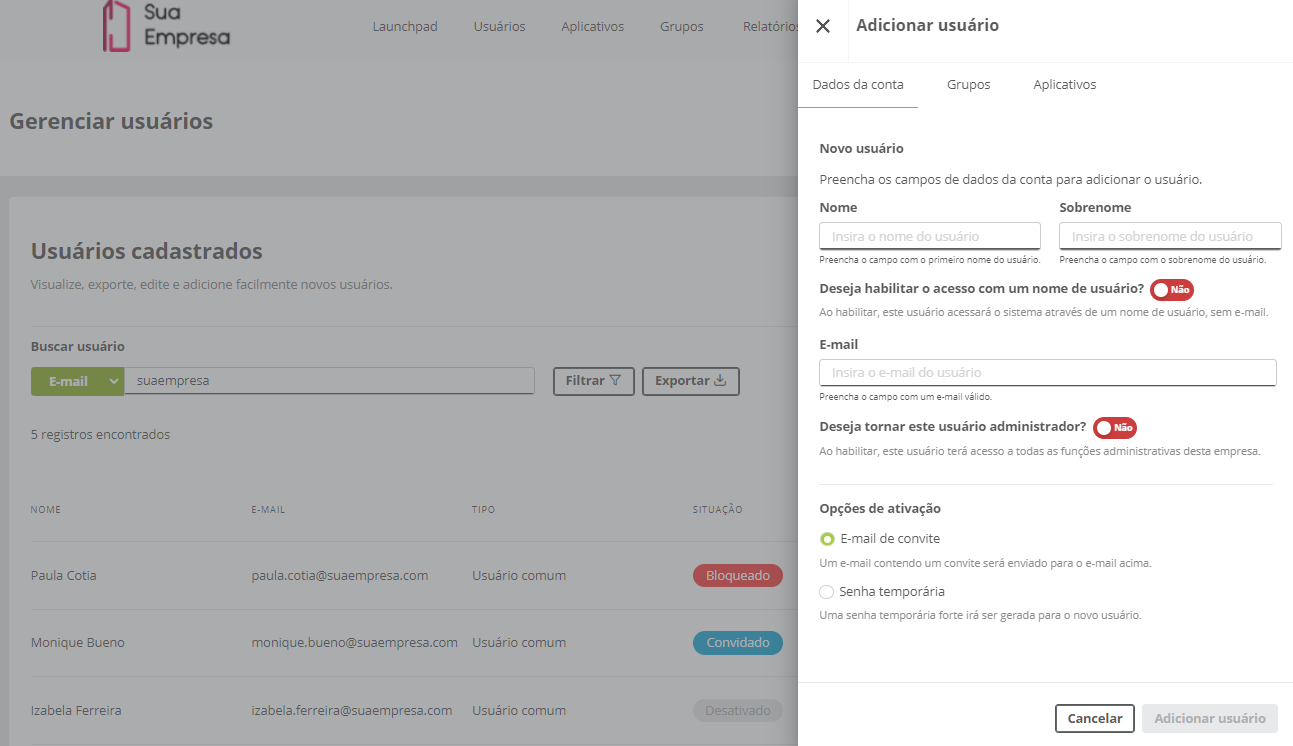
01. Acione o menu Usuários.
02. Acione o botão Adicionar usuário.
Add user
...
These steps refer to the manual inclusion of users in a company using TOTVS Identity. To learn about importing users from Active Directory, please refer to the Active Directory documentation.
01. Access the Users menu.
02. Click the Add User button.
03. Enter the requested information in the Account Data tab03. Insira as informações solicitadas na aba Dados da conta.
| Painel | ||||||||||||||||||||||||||||||||
|---|---|---|---|---|---|---|---|---|---|---|---|---|---|---|---|---|---|---|---|---|---|---|---|---|---|---|---|---|---|---|---|---|
| ||||||||||||||||||||||||||||||||
As informações solicitadas sãoThe requested information is:
Nome Sobrenome Deseja habilitar o acesso com um nome de usuário? Usuário E-mail Deseja tornar este usuário administrador?
First Name
In the Activation Options section, the method of account activation is selected. The available options are:
The Custom Fields section is displayed only if there are fields created in the Identity Customization feature. |
04. Click the Groups tab and check the groups that should be associated with the user04. Acione a aba Grupos e marque os grupos que devem ser associados ao usuário.
| Painel | ||||
|---|---|---|---|---|
| ||||
Por padrão, o usuário é automaticamente associado no grupo Everyone, que concentra todos os usuários da empresa. É possível utilizar a busca para filtrar, caso existam muitos grupos cadastrados. Associando o usuário aos grupos, todos os aplicativos vinculados serão associados automaticamente ao usuário. | ||||
By default, the user is automatically associated with the Everyone group, which includes all users in the company. It is possible to use the search to filter if there are many registered groups. By associating the user with the groups, all linked applications will be automatically associated with the user. |
05. Click the Applications tab and check the applications that should be associated with the user05. Acione a aba Aplicativos e marque os aplicativos que devem ser associados ao usuário.
| Painel | ||||
|---|---|---|---|---|
| ||||
O usuário é automaticamente associado aos aplicativos vinculados ao grupo Everyone e aos demais grupos em que ele for adicionado. É possível utilizar a busca para filtrar os aplicativos desejados. | ||||
The user is automatically associated with the applications linked to the Everyone group and any other groups they are added to. It is possible to use the search to filter the desired applications. |
06. Click Add User to complete the user inclusion06. Acione Adicionar usuário para concluir a inclusão do usuário.
Visualizar usuário
...
A página de dados de usuário reúne informações de cadastro e permite ao administrador tomar uma série de ações relativas à conta do usuário como, por exemplo, reenviar o convite por e-mail, redefinir a configuração MFA, alterar o tipo do usuário, associar grupos, atribuir aplicativos, provisionar no Active Directory, desativar a conta, entre outros.
...
Visão Geral
Import HTML Content
Conteúdo das Ferramentas
Tarefas