...
01. OVERVIEW
The Calculation by View (CTBA212) aims to calculate the balances of items updated previously, indicating whether DEFICIT or SURPLUS occurred in the period based on managerial view settings.
Initial Considerations
Prerequisites to perform the Calculation process by view:
1- To have the basic registers of the Managerial Accounting module.
2- To have the Managerial Views ( DREs ) related to registered calculations; namely, the View of general DRE and the DREs of Funds to be calculated separately. The accounts of main DRE must necessarily be contained in a Funds DRE.
| Aviso |
|---|
|
| The tables Calculation by View (QN8) / Calculation by View Items (QN9) must necessarily have the same sharing of Balance (CQs) tables. |
02. EXAMPLE
| Painel |
|---|
| Deck of Cards |
|---|
| | Card |
|---|
| default | true |
|---|
| id | 1 |
|---|
| label | Registers |
|---|
| | Informações |
|---|
| - Accounting Entries:
Updates → Transactions → Auto Acctg Entry:
 Image Added Image Added
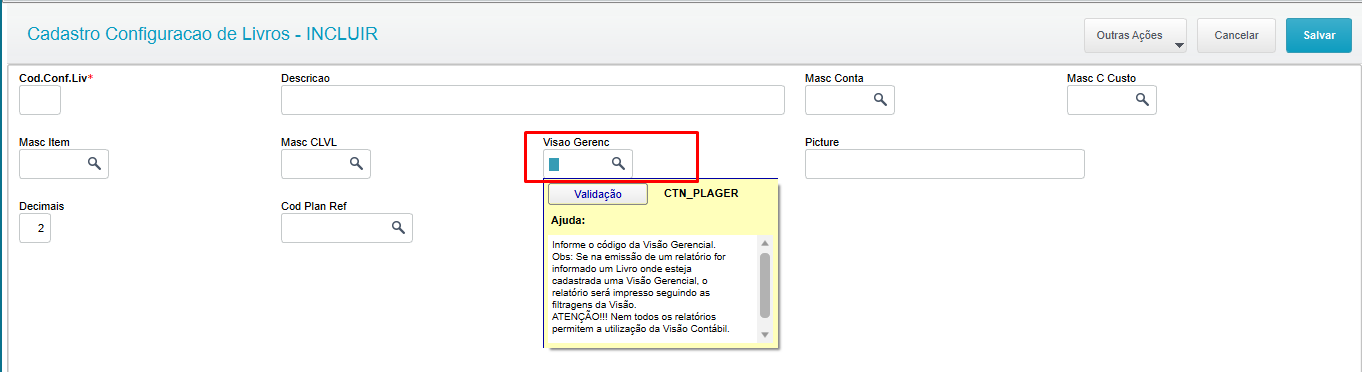
- Managerial View - CTBA161
Updates → Entities→ Managerial View: General DRE - Example with all accounts used in the funds:
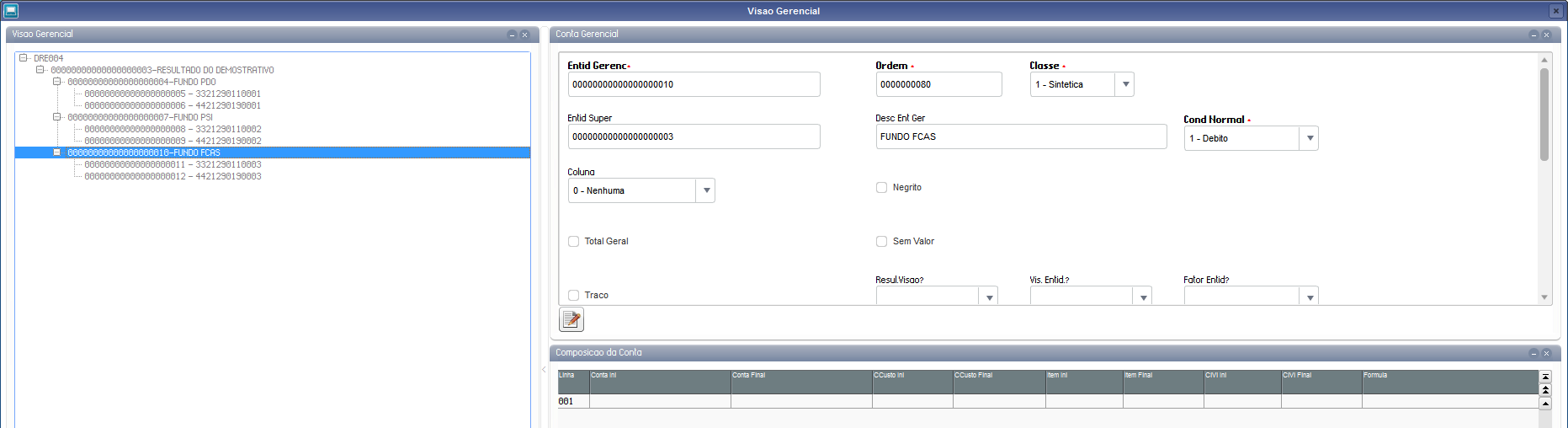 Image Added Image Added
PDO Fund: 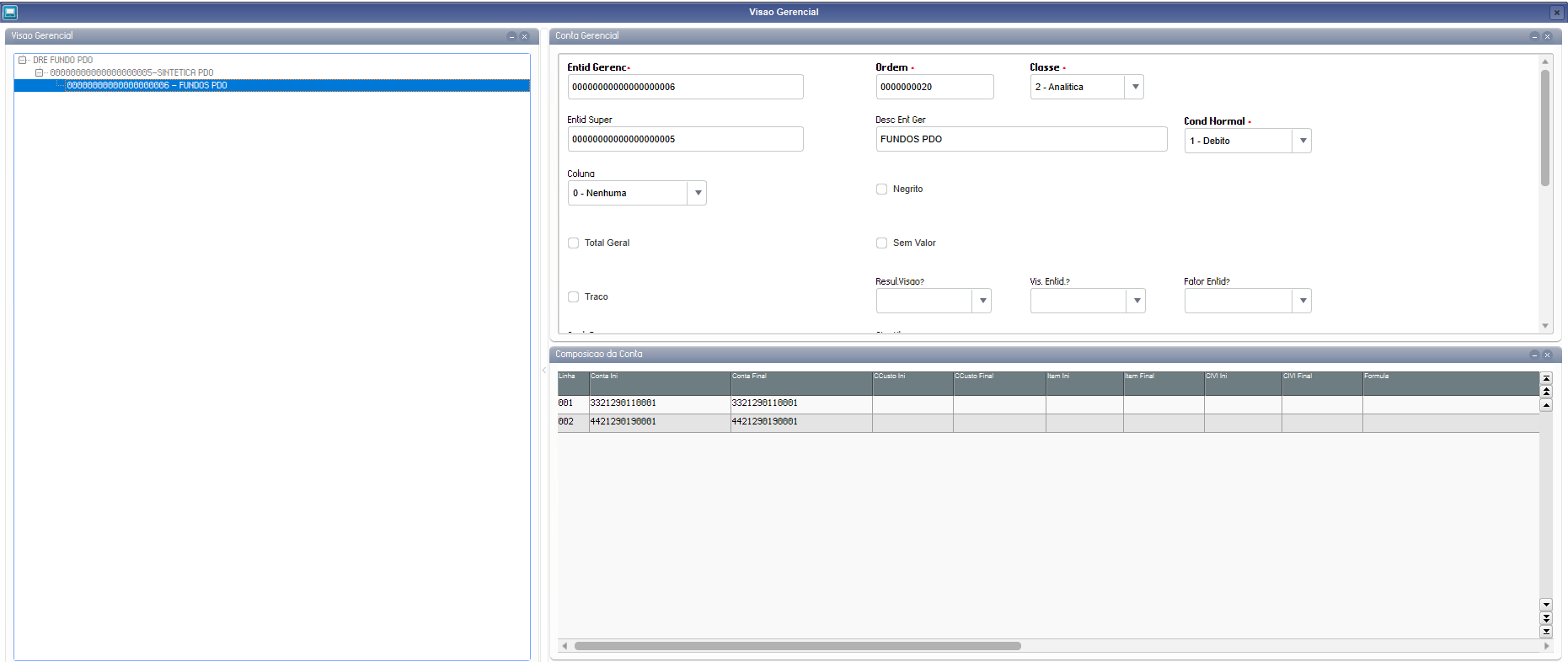 Image Added Image Added
PSI Fund: 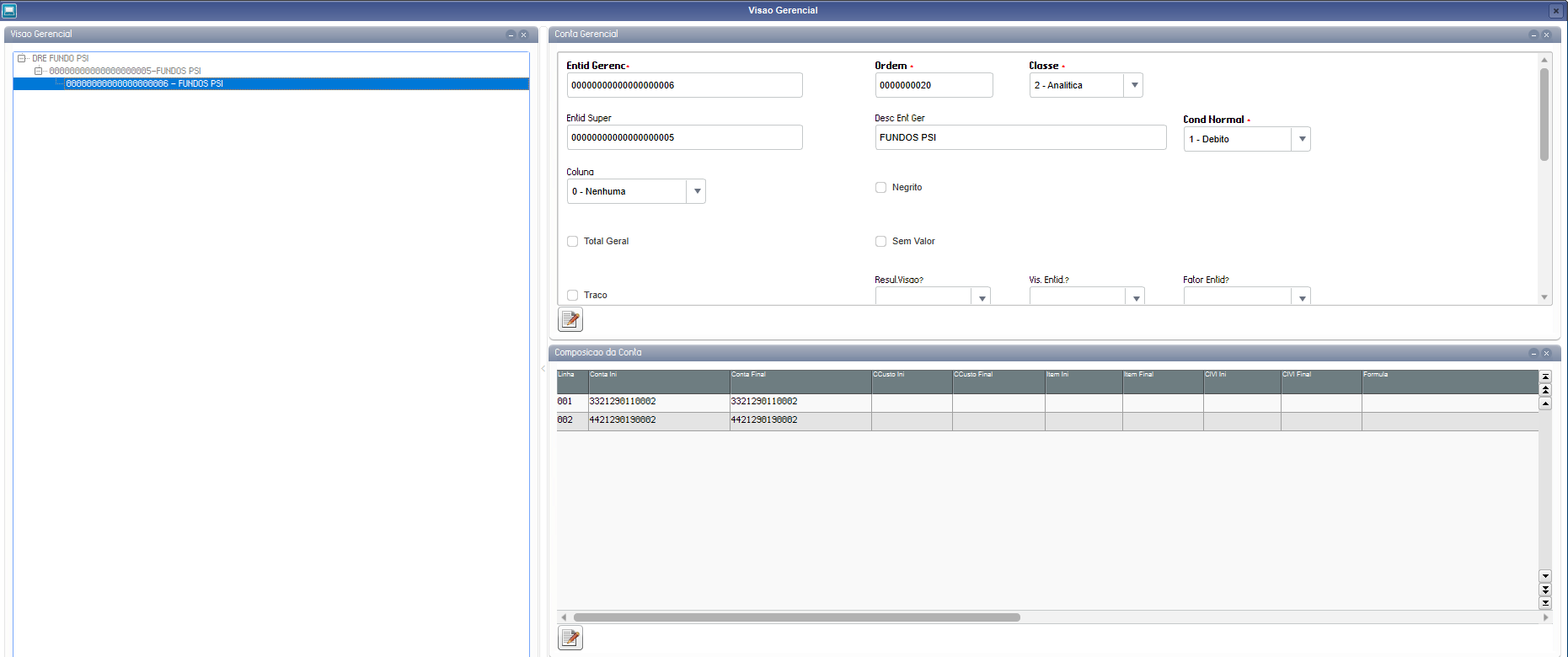 Image Added Image Added
FCA Fund: 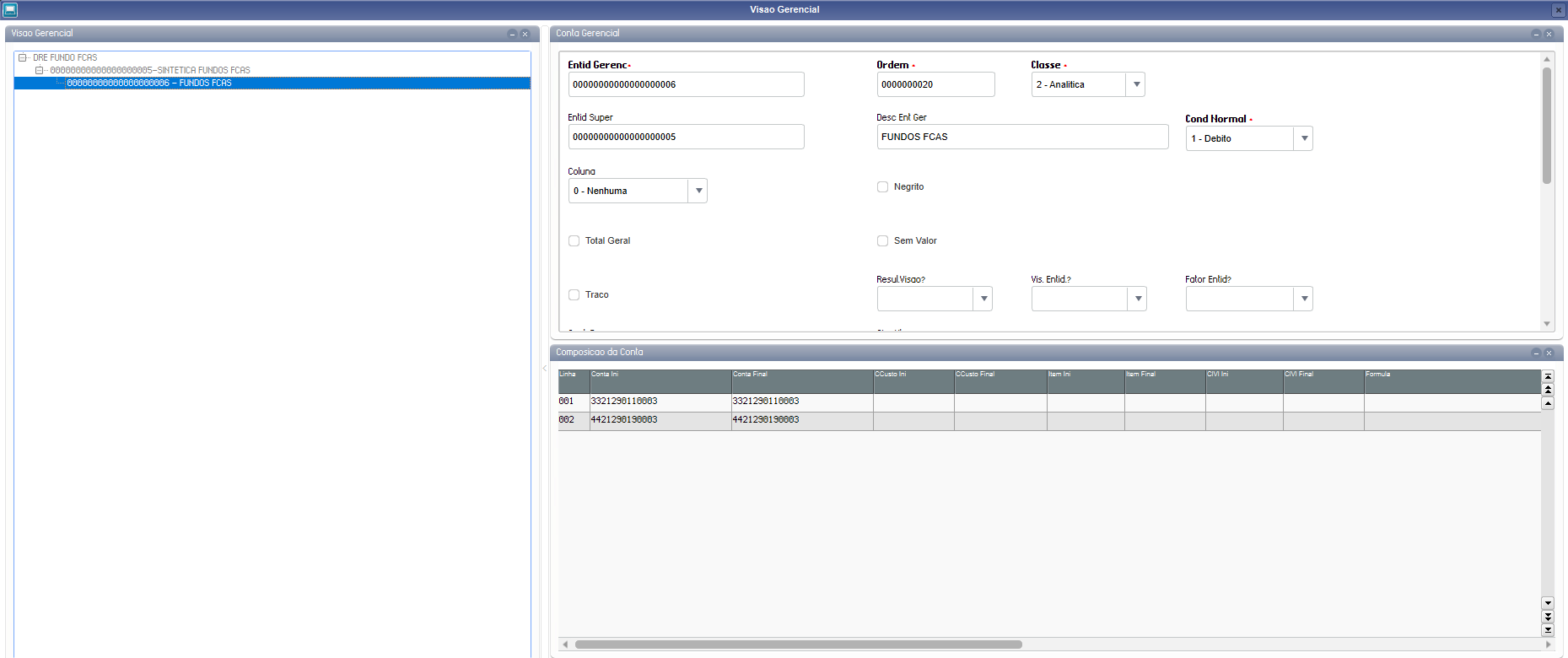 Image Added Image Added
| Aviso |
|---|
| The presented managerial views are only examples. It is up to the customer to adapt the view to the scenario. All views must have a summarized totalizer that states the result of the fiscal period. This information is used for updating balances. |
|
|
|
|
...
| | Informações |
|---|
| In the menu "Miscellaneous → Closings → Calculation by View": Header Addition Step (Main - QN8) - Click Add.
- Fill in the following fields:
- DRE Code → Enter the Managerial View code related to the DRE;
- Description → Description of view (Automatic when filling in DRE Code);
- Accounting Batch → Fill in Batch of entry;
- Accounting Sub-batch → Fill in Sub-batch of entry;
- Calendar Code → Enter the calendar code;
- Calculation Year → Enter the year;
- Calculation Period → Enter the month of the year in which the entries will be later analyzed and generated as per view settings;
- Balance Type → Type of balance;
- Currency → Currency.
Completion of specific Funds on Grid (Specific - QN9): - Place cursor on grid;
- Fill in the following fields:
- View Code → enter the code of the fund;
- Description → Description of view (Automatic when filling in DRE Code);
- Surplus Acct→ Fill in the Surplus account;
- Deficit Acct → Fill in the Deficit account;
- ANS Calc Acct→ Fill in the Calculation account;
- Hist Code → Enter an intelligent history code for completion of accounting entry.
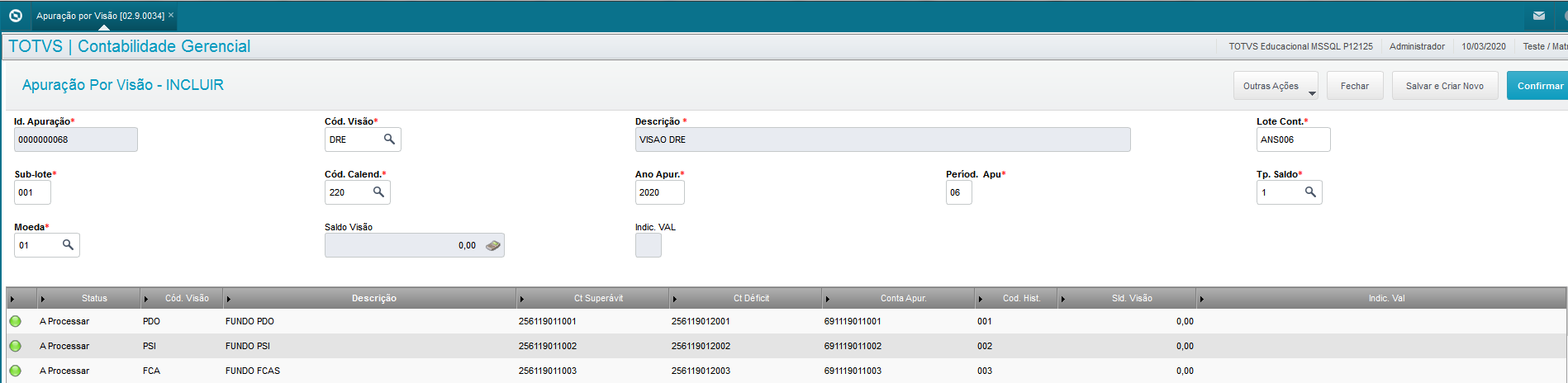 Image Added Image Added
| Aviso |
|---|
| - You can add only one calculation by view per period.
|
|
|
| Card |
|---|
| | Informações |
|---|
| In the menu "Miscellaneous → Closings → Calculation by View": - Place the cursor on desired view;
- Click Edit;
- Fill in desired fields:
- If you want to edit the grid.
- Place the cursor on the grid and edit desired fields.
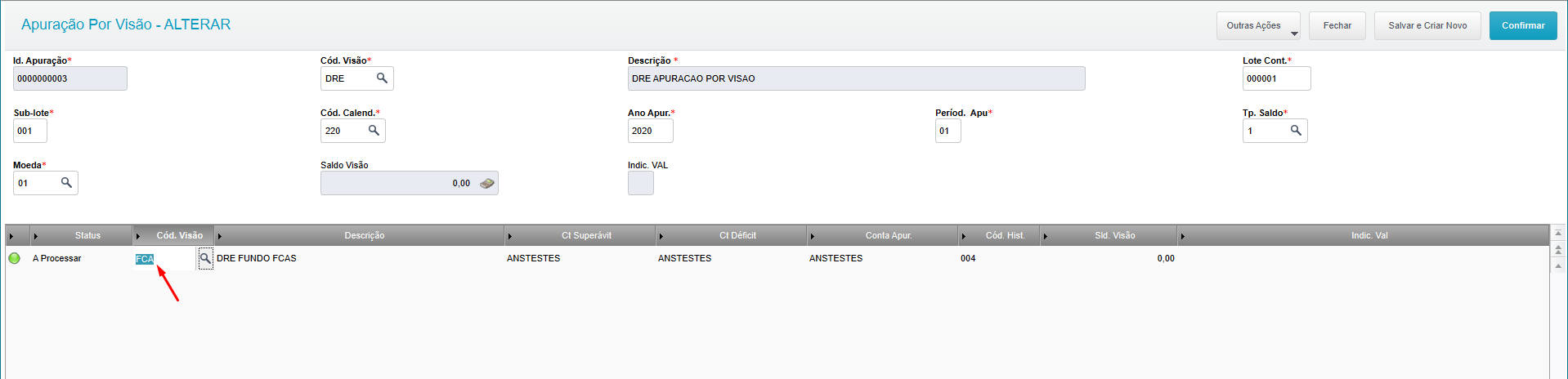 Image Added Image Added
| Aviso |
|---|
| - You can only edit the view when the status is 'To Process'.
|
|
|
|
|
...
...
| In the menu "Miscellaneous → Closings → Calculation by View": - Place the cursor on desired view;
- Click View;
- Visualize the view as per the fields desired;
- If you want to view the grid.
- Place the cursor on the grid line
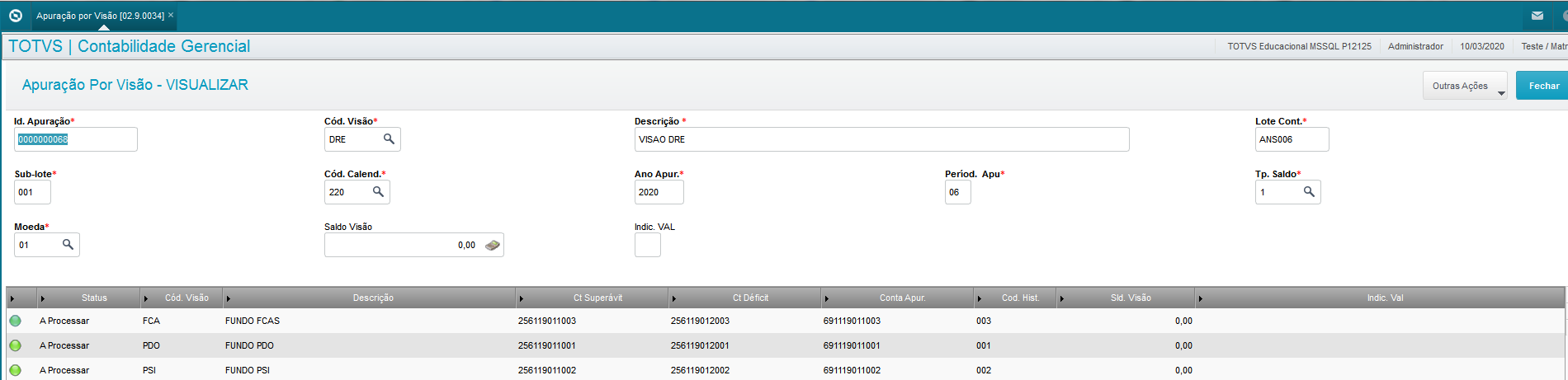 Image Added Image Added
| Aviso |
|---|
| - The option "Update View Balances" only enables the action in Editing upon confirmation.
|
|
|
| Card |
|---|
| | Informações |
|---|
| In the menu "Miscellaneous → Closings → Calculation by View": - Place the cursor on desired view;
- Click Other Actions -> Delete;
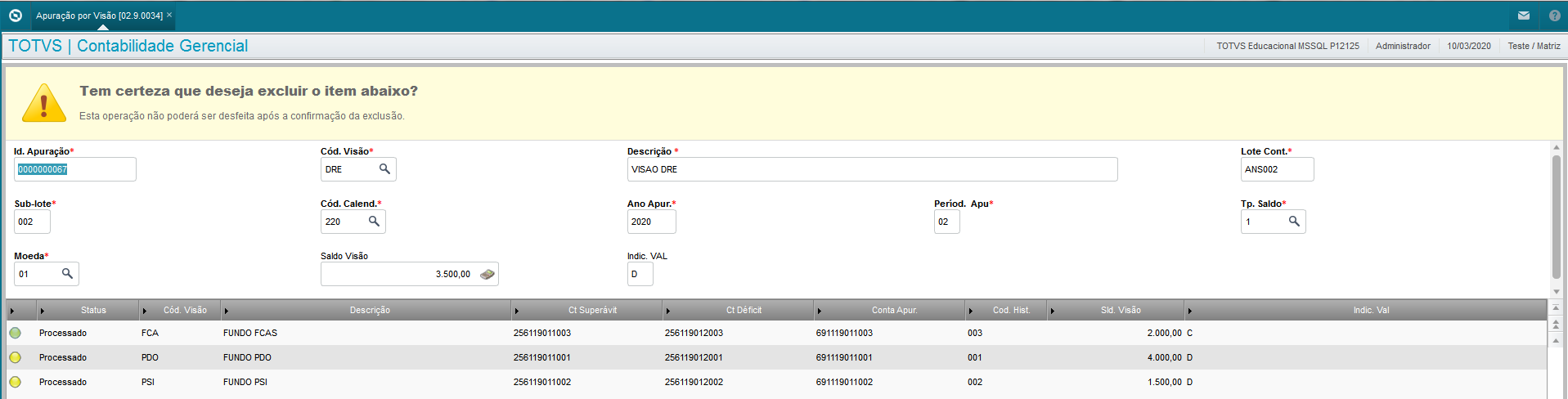 Image Added Image Added
| Aviso |
|---|
| - You cannot delete processed views.
|
|
|
| Card |
|---|
| | Informações |
|---|
| In the menu "Miscellaneous → Closings → Calculation by View": - Place the cursor on desired view;
- Click Other Actions -> Copy;
- Fill in the period for the same data in another month, or edit the other fields if desired.
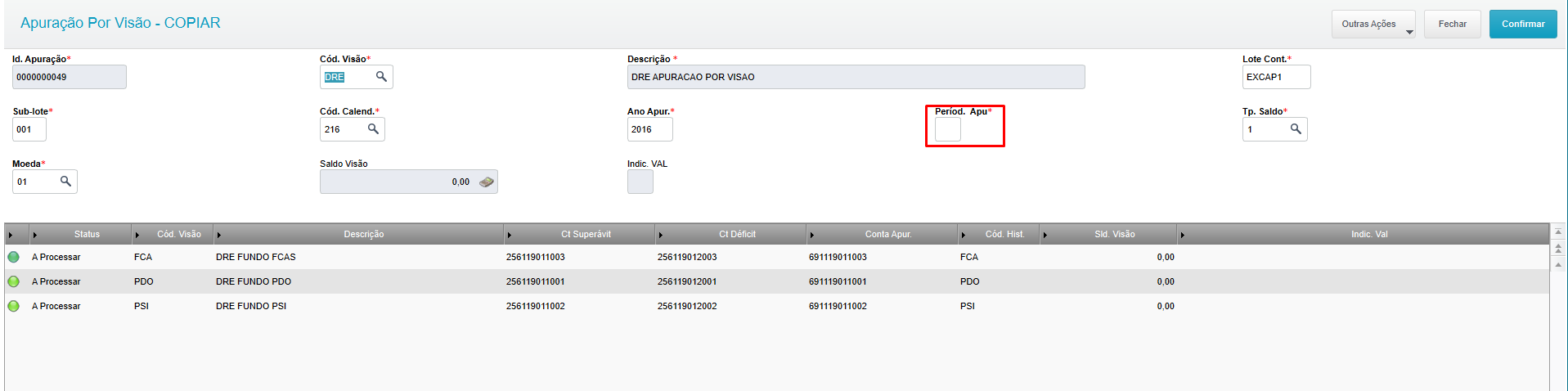 Image Added Image Added
| Aviso |
|---|
| - When making a copy, all calculation by view data are copied, except 'Calc Period' and 'Status'
|
|
|
|
|
...
...
| | Informações |
|---|
| 1- In the menu "Miscellaneous → Closings → Calculation by View";
2- Place the cursor on desired view;
3- Click Edit;
4- Other Actions → Update View Balances
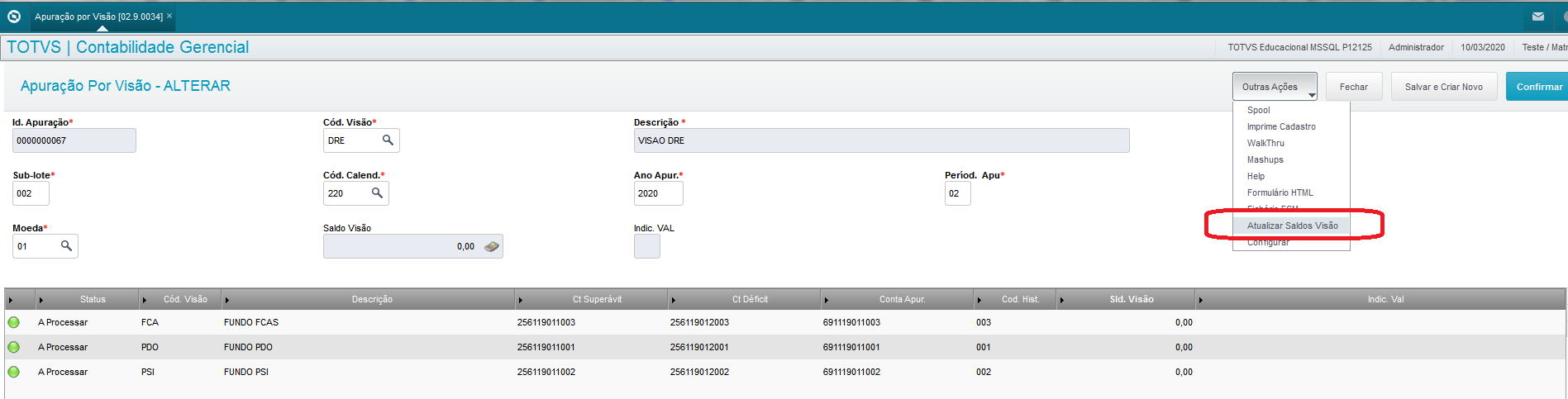 Image Added Image Added
The option to "Update View Balances" updates the fields 'View Balance' of the header, 'View Balance' on the grid, and fields 'Val Ind' found on the header and grid.
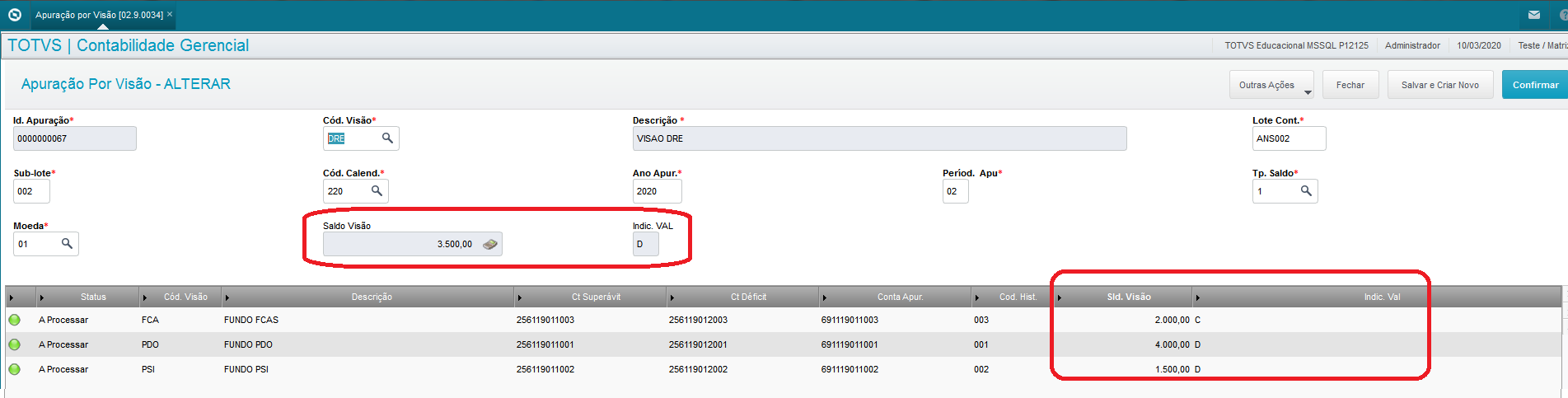 Image Added Image Added
The header's Balance View corresponds to a full view, and the grid views are fractions of this full view. To calculate the sum of grid view balances, they must correspond to the balance of the full view.
| Aviso |
|---|
| - To update the view balances, you need to run the balance update (CTBA190).
- The balances are updated considering the branch of the register.
- If the main view's balance is 0 (zero), the value indicator is 'C'.
|
|
|
| Card |
|---|
| | Informações |
|---|
| In the menu "Miscellaneous → Closings → Calculation by View": - Place the cursor on desired view;
- Click Other Actions -> Calculate;
Rules for generating the calculation:
The header's Val Indic field defines which column to use for the calculation entries. - Val Indic equal to 'D':
We use the accounts of column Deficit Acct - Val Indic equal to 'D':
We use the accounts of column Surplus Acct
Field Val Indic of the Items defines whether the value of column Surplus Acct (C) or Deficit Acct (D) will be a Debit or a Credit.
- Val Indic equal to 'D':
We use the account of column Surplus Acct (C) or Deficit Acct (D) to Debit the Calc Account. - Val Indic equal to 'C':
We use the column account Surplus Acct (C) or Deficit Acct (D) to Credit the Calc Account.
See the example below:
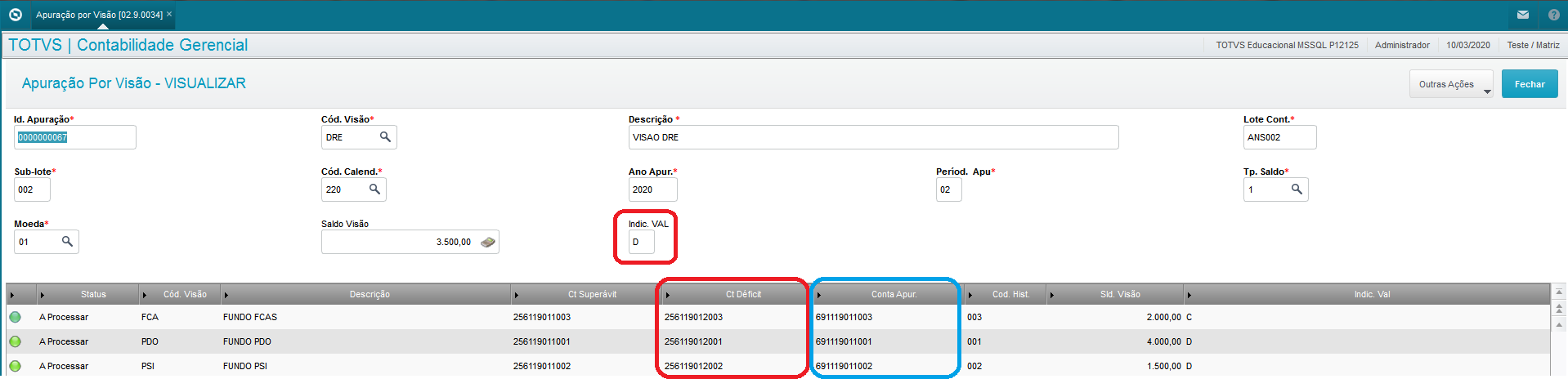 Image Added Image Added
 Image Added Image Added
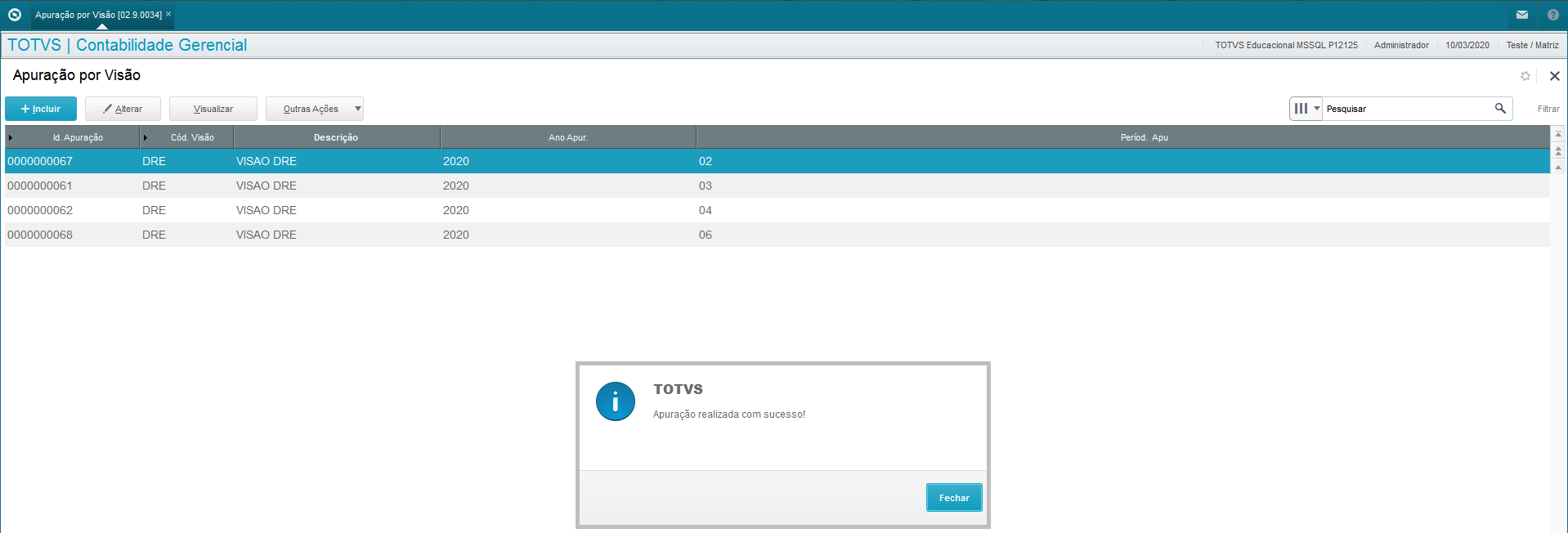 Image Added Image Added
After calculating the status, it is updated to "processed".
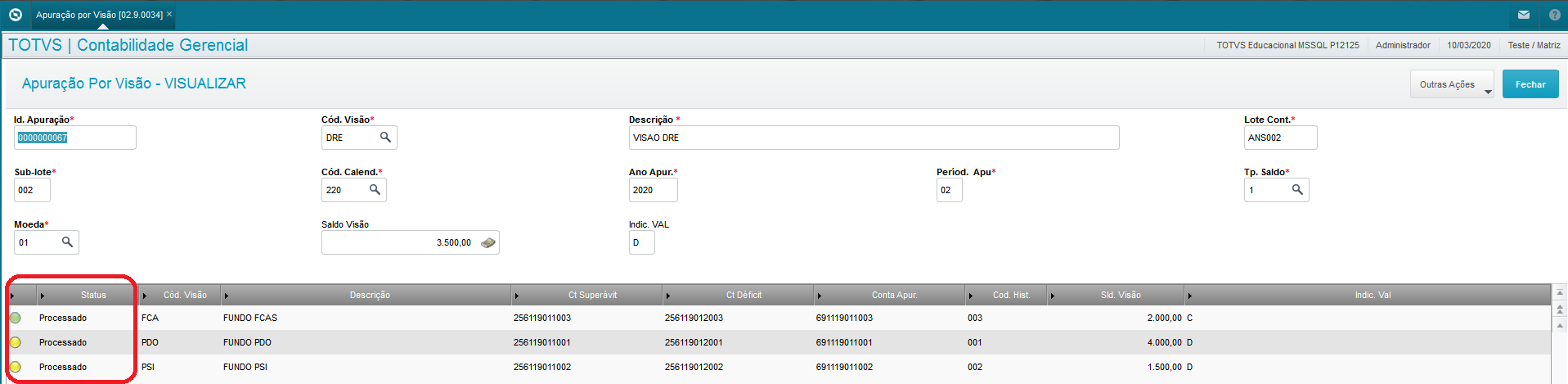 Image Added Image Added
- Accounting entries generated after calculation:
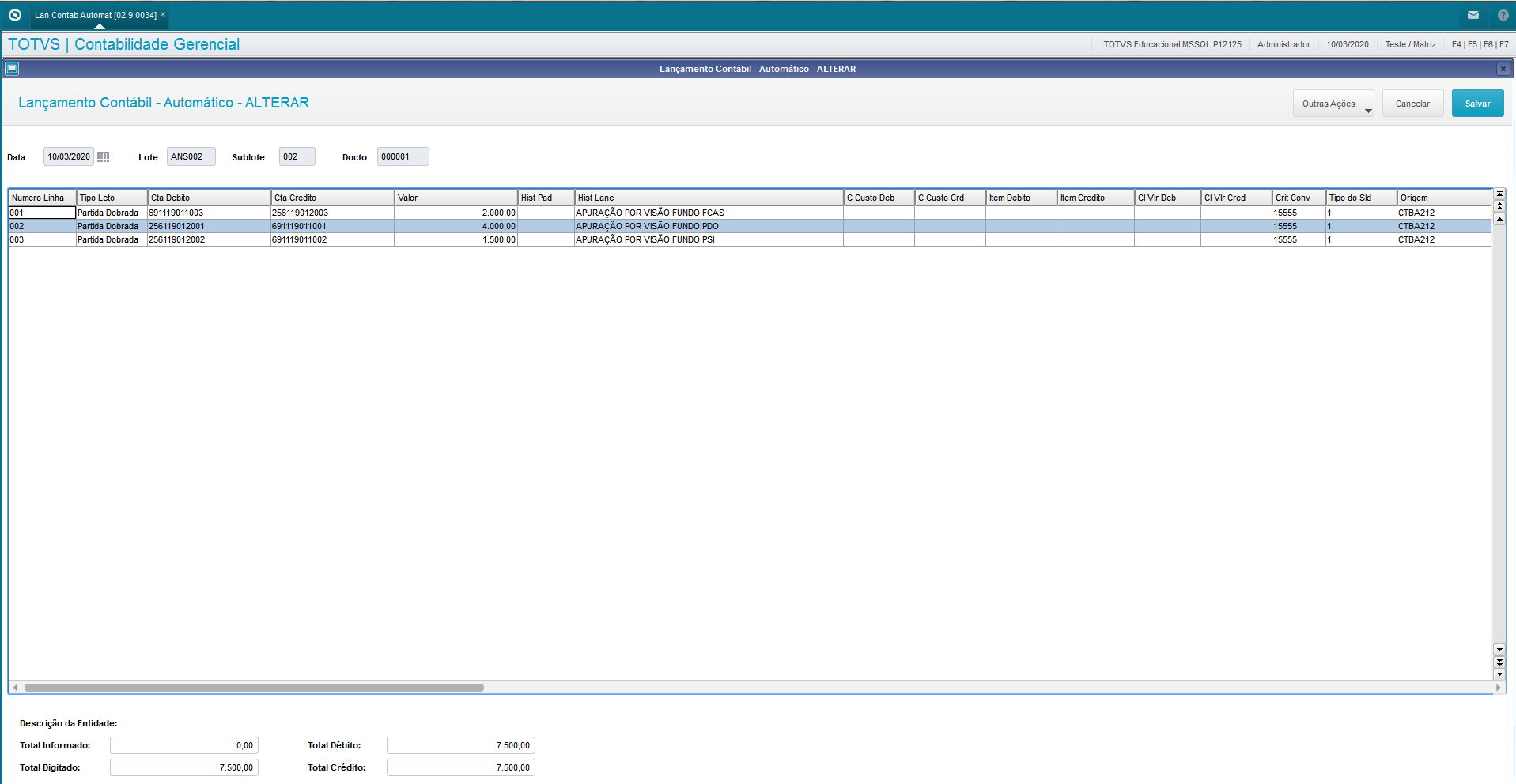 Image Added Image Added
- Understanding entries after calculation:
Account 256119012001 of column Deficit Acct is used in Debit entry against account 691119011001 of column Calc Acct |
|
|
|
...
.
Account 256119012002 of column Deficit Acct is used in Debit entry against account 691119011002 of column Calc Acct |
|
|
|
...
.
Account 56119012003 of column Deficit Acct is used in Credit entry against account 691119011003 of column Calc Acct.
| Aviso |
|---|
| - Internal control fields Date (QN9_DATA0 and Doc (QN9_DOC) are updated when calculating.
|
|
|
| Card |
|---|
| id | 9 |
|---|
| label | Reverse Calculation |
|---|
| | Informações |
|---|
| In the menu "Miscellaneous → Closings → Calculation by View": - Place the cursor on desired view;
- Click Other Actions → Reverse Calculation;
- Check whether entries were recorded with entries reversed in the accounting entries table.
 Image Added Image Added
The calculation reversal generates entries with accounts in reversed entry to set accounts to zero 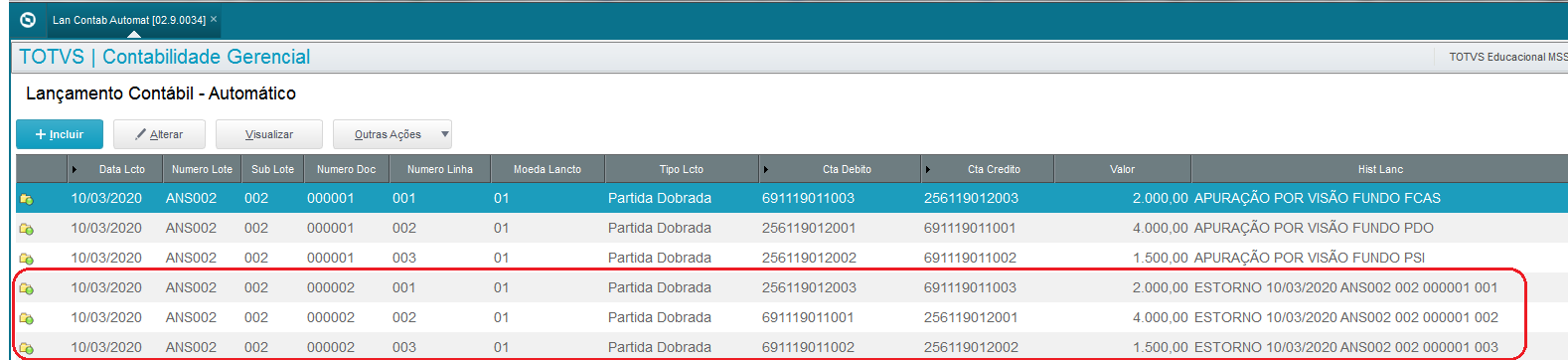 Image Added Image Added
After reversal, the calculation record is updated to status "Reversed": 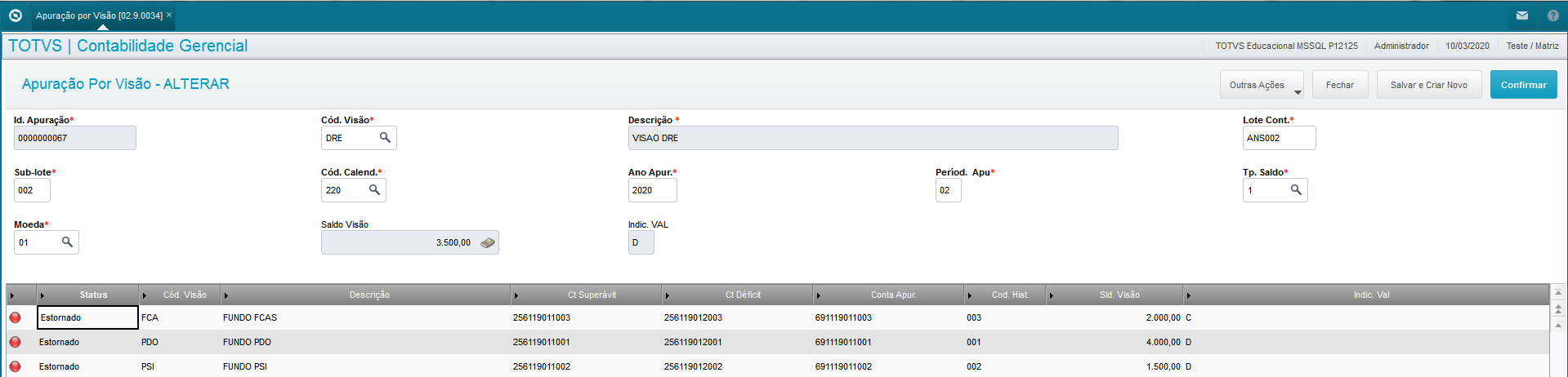 Image Added Image Added
| Aviso |
|---|
| - To return to status 'To Process', use option 'Update View Balances' in option Edit and confirm it.
|
Example: 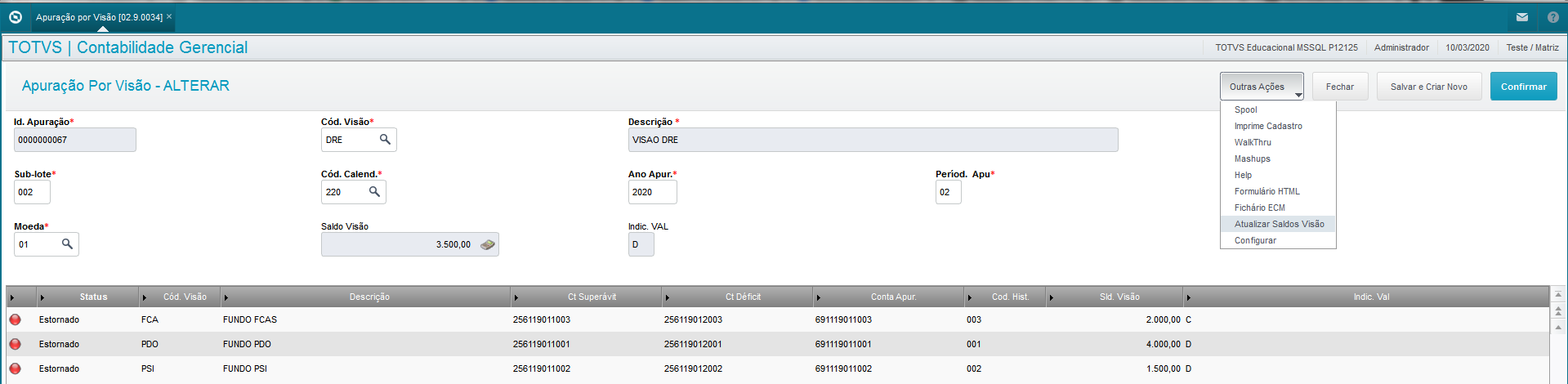 Image Added Image Added
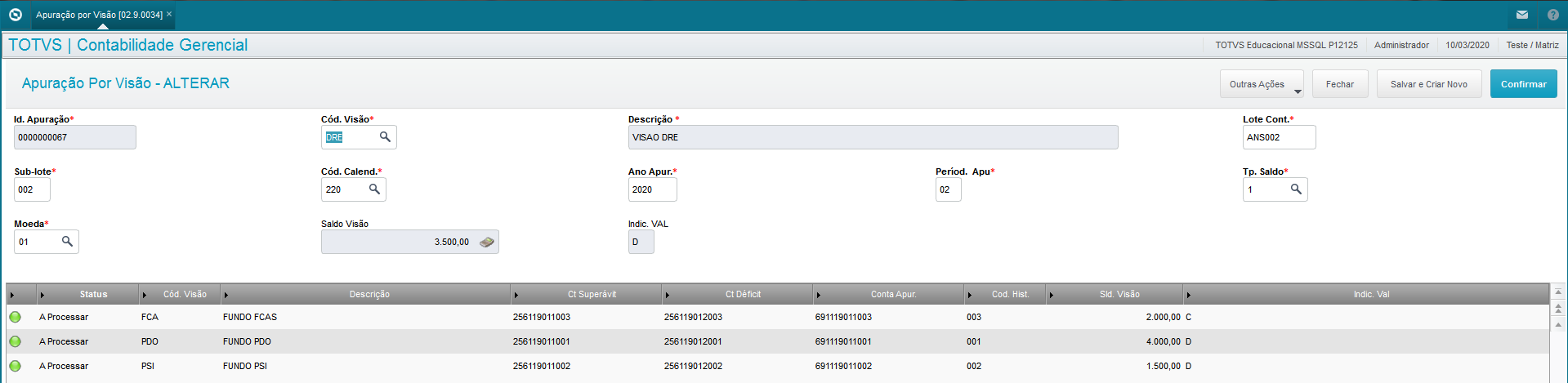 Image Added Image Added
|
|
| Card |
|---|
| id | 10 |
|---|
| label | Delete Calculation |
|---|
| | Informações |
|---|
| In the menu "Miscellaneous → Closings → Calculation by View": - Place the cursor on desired view;
- Click Other Actions → Delete Calculation;
- Check whether the entries were deleted.
Calculation deletion aims to delete the entries recorded in the accounting entries (CT2) table.  Image Added Image Added
After deletion, the calculation record is updated to status "Reversed":
Image Added |
|
|
|
03.
...
FURTHER INFORMATION
| Informações |
|---|
| title | Dispatch and Release |
|---|
|
| Routine available from release 12.1.30 onwards and offered only in versions 12.1.23, 12.1.25, 12.1.27. |
04. TABLES
- QN9 - Calculation Items by View
- QN8 - Calculation by View
- CT2 - Accounting Entries
05. Mental Map
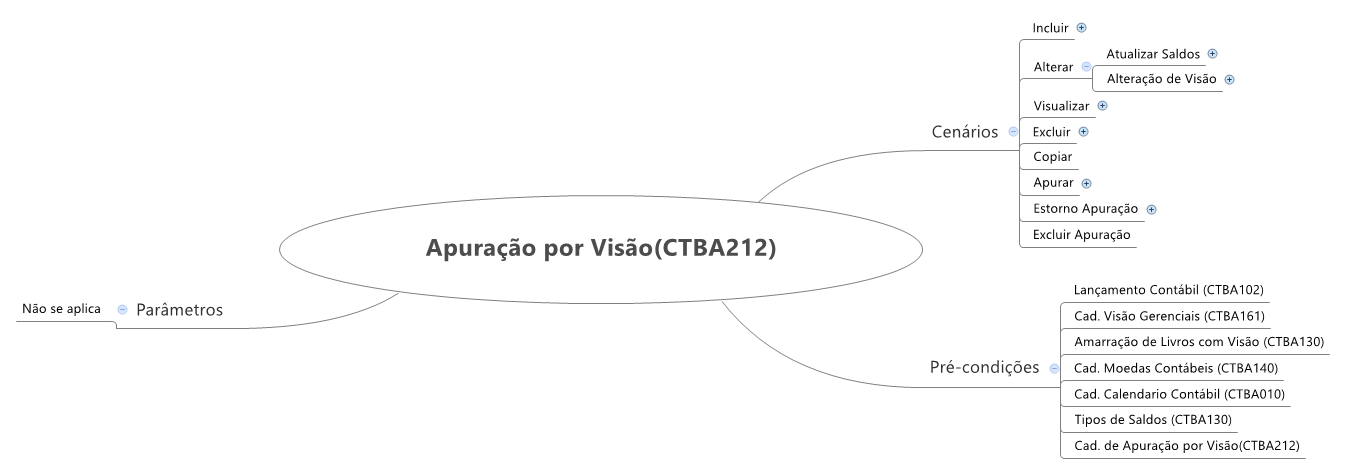 Image Added