| Informações |
|---|
| title | Consult the correct documentation: |
|---|
|
This documentation refers to the new process editor of the platform. If you are using the current process editor, access Process Configuration. |
...
Speaking of process editor...
...
The system displays the process editor is displayed when creating you create and editing edit a process. In it, you can You can use the editor to define all the available settings for a process, such as its general characteristics, model its diagram by configuring all its components – activities and flows, relate associate an existing form to the process, save the changes made, and publish the process, making it available in the Start requests feature so that requests can be opened.for opening requests.
On the left side of the top bar, you can find the The version in which the process is located and its status – are found - whether it is published or not – are displayed on the left side of the top bar, - next to its name name  . The possible statuses for a process are:
- Draft: the displayed version is being edited, which can be the first version – the process has never been published – or the last version being edited – when there some previous versions are already published previous versions;
- Published: the displayed version is published, which can be the first version – the process has been published only once – or the last version that was published – when there some previous versions are already published previous versions. When the process has been published at least once, it can be:
- Published - Active: the displayed version is published and there some requests are open requests;
- Published - Inactive: the displayed version is published and there no requests are no open requests.
In the general settings, it is possible to you can define a category and a subcategory for each process. Thus, the system displays the processes that belong to the same category and/or subcategory are displayed grouped in the Start requests feature, improving the visibility of the processes available for use and facilitating the opening of requests.
It is You can also possible to configure the process to allow adding supplements – comments and attachments. This means that a person can add comments or attachments to an open request even if they are not responsible for the stage in which the request is located. This way, communication remains centralized and recorded in the request's history, thus preventing any information from being lost or not being recorded.
| Informações |
|---|
|
For To use a process to be used in the mobile application, it is necessary you need to activate the Available for mobile option in the Security tab of your general settings. By default, this option is disabled. |
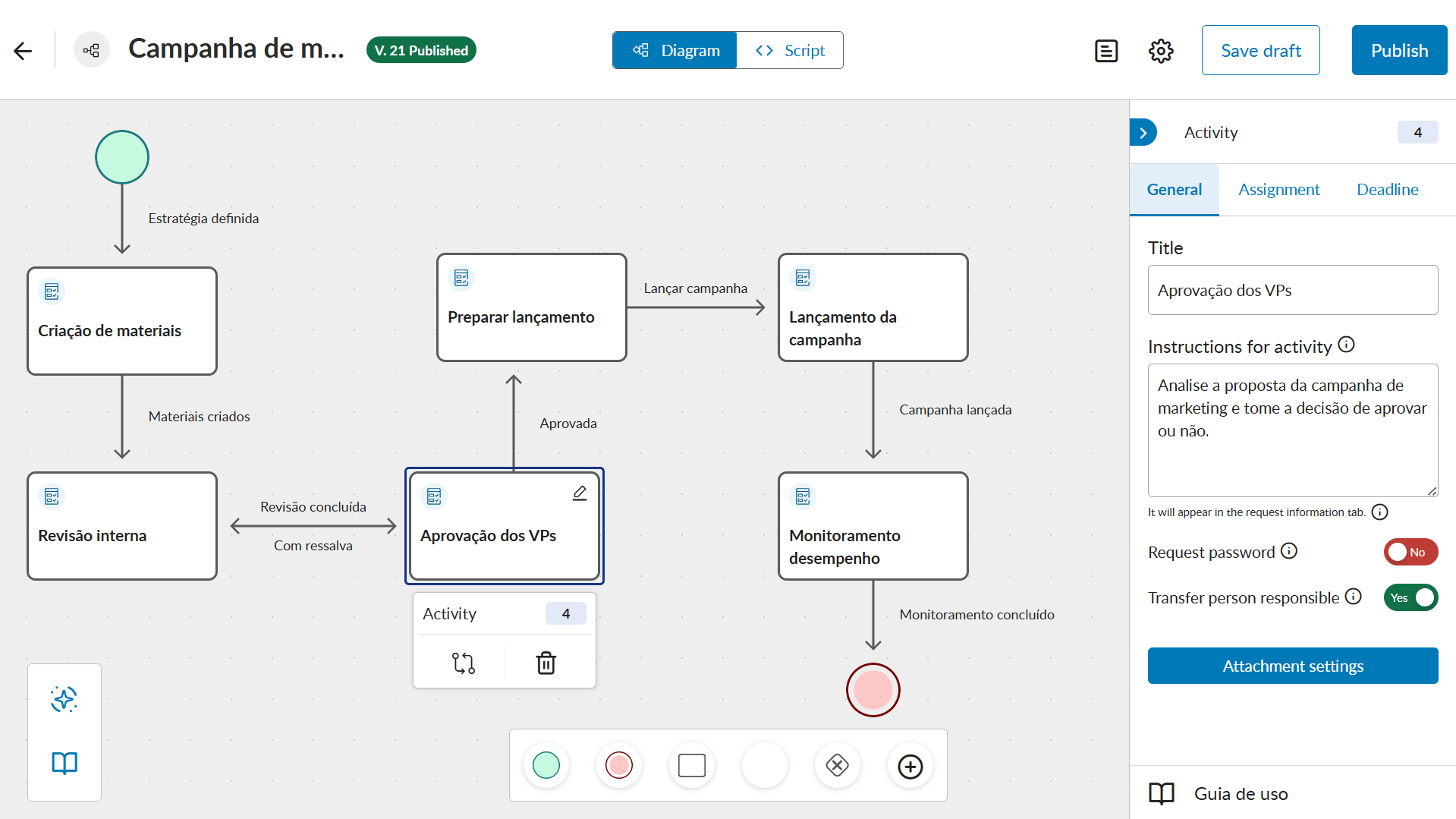 Image Removed
 Image Added
View process diagram
...
| Multimedia |
|---|
| name | ver-diagrama-do-processo.mp4 |
|---|
| width | 100% |
|---|
| page | Plataforma ❙ Editor de processo |
|---|
| autostart | true |
|---|
| space | fluig |
|---|
| height | 5% |
|---|
|
01. In the main menu, click on  Processes.
02. Click on Configure processes.
03. Locate the process for which you want to view the diagram.
| Painel |
|---|
| borderColor | #f2f2f2 |
|---|
| bgColor | #f2f2f2 |
|---|
|
You can locate the process using the Use the Search field – located – located at the top, to find the process. – located – located at the top, to find the process. |
04. Click on More actions – located on the right side of the process line.
05. Click on Edit process.
06. In the message displayed, click on Open in new editor.
07. In the  Diagram tab, view the complete process diagram.
| Painel |
|---|
| borderColor | #f2f2f2 |
|---|
| bgColor | #f2f2f2 |
|---|
|
In the process diagram, you can see the complete flow that the request can follow, as well as the settings for each component. More You can find more details about the options available for the diagram can be found inProcess diagram. |
View process scripts
...
| Multimedia |
|---|
| name | ver-scripts-do-processo.mp4 |
|---|
| width | 100% |
|---|
| page | Plataforma ❙ Editor de processo |
|---|
| autostart | true |
|---|
| space | fluig |
|---|
| height | 5% |
|---|
|
01. In the main menu, click on Processes.
02. Click on Configure processes.
03. Locate the process for which you want to view the existing scripts.
| Painel |
|---|
| borderColor | #f2f2f2 |
|---|
| bgColor | #f2f2f2 |
|---|
|
You can locate the process using Use the Search field – located – located at the top, to find the process. |
04. Click on More actions– located on the right side of the process line.
05. Click onEdit process.
06. In the message displayed, click on Open in new editor.
07. Click on the  Script tab.
08. On the left side, see all the scripts that have been added to the process.
| Painel |
|---|
| borderColor | #f2f2f2 |
|---|
| bgColor | #f2f2f2 |
|---|
|
More You can find more details about the available options for scripts can be found in Process scripts. |
Create form for the process
| Âncora |
|---|
| criar-formulário |
|---|
| criar-formulário |
|---|
|
...
| Multimedia |
|---|
| name | criar-formulário-do-processo.mp4 |
|---|
| width | 100% |
|---|
| page | Plataforma ❙ Editor de processo |
|---|
| autostart | true |
|---|
| space | fluig |
|---|
| height | 5% |
|---|
|
01. In the main menu, click on Processes.
02. Click on Configure processes.
03. Locate the process for which you want to create a form.
| Painel |
|---|
| borderColor | #f2f2f2 |
|---|
| bgColor | #f2f2f2 |
|---|
|
You can locate the process using Use the Search field – located – located at the top, to find the process. |
04. Click on More actions– located on the right side of the process line.
05. Click onEdit process.
06. In the message displayed, click on Open in new editor.
07. Click on Create process form  – located on the right side of the top bar.
| Painel |
|---|
| borderColor | #f2f2f2 |
|---|
| bgColor | #f2f2f2 |
|---|
|
When you click Click this option , to display the Form Editor is displayed, where in which you can create the form, configure all its fields, and the rules for each field. When the process already has a linked form that was created by the Form Editor has created, the system displays this option is displayed as Edit process form . | Nota |
|---|
| When the process already has a linked form that was created from the Documents feature, the system displays this option is displayed as Edit process form  and will be lockedlocks it, making it impossible to open it, as these forms are not compatible with the Form Editor. In this case, to create a new form, it is necessary you need to first unlink the current one in the Form tab of the process settings. and will be lockedlocks it, making it impossible to open it, as these forms are not compatible with the Form Editor. In this case, to create a new form, it is necessary you need to first unlink the current one in the Form tab of the process settings. | Dica |
|---|
| Click here to learn how to unlink the form. |
After unlinking the form, the Edit process formImage Added option Image Removed changes to Create process form . By clicking on it, you can create a new form from the Form Editor and, later, you will also be able to edit it. Additionally, after unlinking the form in the Form tab of the process settings, you can also select another existing form or click on Create new – which was previously the Unlink option – to create the form in the Form Editor. |
|
...
| Multimedia |
|---|
| name | editar-formulário-do-processo.mp4 |
|---|
| width | 100% |
|---|
| page | Plataforma ❙ Editor de processo |
|---|
| autostart | true |
|---|
| space | fluig |
|---|
| height | 5% |
|---|
|
01. In the main menu, click on Processes.
02. Click on Configure processes.
03. Locate the process for which you want to edit the form.
| Painel |
|---|
| borderColor | #f2f2f2 |
|---|
| bgColor | #f2f2f2 |
|---|
|
You can locate the process using Use the Search field – located – located at the top, to find the process. |
04. Click on More actions– located on the right side of the process line.
05. Click onEdit process.
06. In the message displayed, click on Open in new editor.
07. Click on Edit process form – located on the right side of the top bar.
| Painel |
|---|
| borderColor | #f2f2f2 |
|---|
| bgColor | #f2f2f2 |
|---|
|
This option is only displayed when there is already a form created by the Form Editor The system only displays this option when the Form Editor has already created a form that is linked to the process. When clicked, Click to display the Form Editor is displayed, where in which you can edit the form, its fields, and the rules for each field. When the process does not yet have a linked form, the system displays this option is displayed as Create process form . | Nota |
|---|
| When the process has a linked form that was created from the Documents feature, the system displays this option is displayed as Edit process form and will be lockedlocks it, making it impossible to open it, as these forms are not compatible with the Form Editor. In this case, to edit the form from this option, it is necessary you need to first unlink the current one in the Form tab of the process Settings and create a new one. After unlinking the form, the Edit process form option changes to Create process form . By clicking on it, you can create a new form from the Form Editor and, later, you will be able to edit it from this option at any time. Additionally, after unlinking the form in the Form tab of the process Settings, you can also select another form that already exists or click on Create new – which was previously the Unlink option – to create the form in the Form Editor. |
|
...
| Multimedia |
|---|
| name | copiar-código-do-processo.mp4 |
|---|
| width | 100% |
|---|
| page | Plataforma ❙ Editor de processo |
|---|
| autostart | true |
|---|
| space | fluig |
|---|
| height | 5% |
|---|
|
01. In the main menu, click on Processes.
02. Click on Configure processes.
03. Locate the process from which you want to copy the code.
| Painel |
|---|
| borderColor | #f2f2f2 |
|---|
| bgColor | #f2f2f2 |
|---|
|
You can locate the process using the Use the Search field – located – located at the top, to find the process. |
04. Click on More actions– located on the right side of the process line.
05. Click onEdit process.
06. In the message displayed, click on Open in new editor.
07. Click on Process settings  – located on the right side of the top bar.
08. In the General tab, click on Copy code  – located at the top.
| Painel |
|---|
| borderColor | #f2f2f2 |
|---|
| bgColor | #f2f2f2 |
|---|
|
The process code will be is copied to the clipboard. |
Define general information of the process
...
| Multimedia |
|---|
| name | definir-informações-processo.mp4 |
|---|
| width | 100% |
|---|
| page | Plataforma ❙ Editor de processo |
|---|
| autostart | true |
|---|
| space | fluig |
|---|
| height | 5% |
|---|
|
01. In the main menu, click on Processes.
02. Click on Configure processes.
03. Locate the process for which you want to define the general information.
| Painel |
|---|
| borderColor | #f2f2f2 |
|---|
| bgColor | #f2f2f2 |
|---|
|
You can locate the process using Use the Search field – located – located at the top, to find the process. |
04. Click on More actions– located on the right side of the process line.
05. Click onEdit process.
06. In the message displayed, click on Open in new editor.
07. Click on Process settings – located on the right side of the top bar.
...
| Painel |
|---|
| borderColor | #f2f2f2 |
|---|
| bgColor | #f2f2f2 |
|---|
|
Title
Name for identifying the process. This is the name that will be displayed when opening When you open requests for the process in the Start request feature, this is the name that is displayed. You can edit the process name at any time. | Painel |
|---|
| | Estado |
|---|
| subtle | true |
|---|
| title | EXAMPLE OF USE |
|---|
|
In a resource request process for a trip – such as transportation, accommodation, meals – the title could be Travel Approval.
|
Icon
Graphic element to facilitate the visual identification of the process. To change the icon, simply click on the arrow  next to the current icon and click on the desired icon. You can locate a specific icon using the Search icon field – located at the top. If no other icon is selected, you do not select another icon, the system assigns the default icon next to the current icon and click on the desired icon. You can locate a specific icon using the Search icon field – located at the top. If no other icon is selected, you do not select another icon, the system assigns the default icon  will be assigned to to the process. will be assigned to to the process. | Painel |
|---|
| | Estado |
|---|
| subtle | true |
|---|
| title | EXAMPLE OF USE |
|---|
|
In a Travel Approval process, for example, the icon could be the airplane  . .
|
Instructions
Instructions aimed at facilitating the understanding of those who will use the processto help the users of the process to understand it better, such as the purpose of this process, what they can be requested request from this process, who can use this process, among others. The instructions are displayed in the Request information tab Information tab of the request displays these instructions. | Dica |
|---|
| When preparing the instructions for a process, it is common to need to search for information from other documents or websites. The platform has the concept of hyperlink, which allows you to include an instruction document and also Internet addresses through external documents, both stored in the Documents feature, avoiding information replication and facilitating navigation. To do this, simply use the format [WD:documentcodecodigodoc], replacing documentcode with codigodoc with the numeric code of the document. |
Tags
Rótulos atribuídos ao processo para facilitar a busca posteriormente. As tags funcionam como palavras-chave e permitem etiquetar o processo de maneira mais informal e pessoal. É possível encontrar um processo a partir da navegação ou pela busca, que considera as tags para encontrá-lo.Labels assigned to the process to facilitate future searches. Tags function as keywords and allow for a more informal and personal way to label the process. You can find a process through browsing or by search, which considers the tags to locate it. Category
The category to which the process belongs and in which it is displayed in the Start requests feature. Categories and subcategories are useful to organize processes and facilitate their location, by grouping them. To include a subcategory, simply enter the category, a period (.), and the subcategoryCategoria
Categoria à qual o processo pertence e na qual ele será exibido no recurso Iniciar solicitação. As categorias e subcategorias servem para organizar os processos e facilitar sua localização, visto que eles são agrupados por elas. Para incluir uma subcategoria, basta inserir a categoria, um ponto (.) e a subcategoria. | Painel |
|---|
| | Estado |
|---|
| subtle | true |
|---|
| title | Exemplo de usoEXAMPLE |
|---|
|
RHHR.Benefícios: significa categoria RH e subcategoria Benefícios.
|
Complementar solicitações
Quem pode adicionar comentários e anexos nas solicitações em andamento mesmo quando elas não estão sob sua responsabilidade, garantindo assim, que toda comunicação seja registrada no histórico na solicitação ao invés de ser feita por outros meios. As opções disponíveis são: - Responsável e solicitante: quando selecionada, determina que apenas o solicitante – no momento da abertura da solicitação – e o responsável pela etapa na qual a solicitação se encontra podem adicionar comentários e anexos.
- Responsável, solicitante e gestores: quando selecionada, determina que apenas o solicitante e os gestores do processo – a qualquer momento – e o responsável pela etapa na qual a solicitação se encontra podem adicionar comentários e anexos.
Benefits: means HR category and Benefits subcategory. |
Complement requests
Who can add comments and attachments to ongoing requests even when they are not under their responsibility, thus ensuring that all communication is recorded in the request history instead of being done through other means. The available options are: - Responsible and requester: when selected, it determines that only the requester – at the time of opening the request – and the person responsible for the stage in which the request is located, can add comments and attachments.
- Responsible, requester, and managers: when selected, it determines that only the requester and the process managers – at any time – and the person responsible for the stage in which the request is located, can add comments and attachments.
Participants and managers: when selected, it determines that all those involved in the request at some point and the process managers, can add comments and attachments at any timeParticipantes e gestores: quando selecionada, determina que todos os envolvidos na solicitação em algum momento e os gestores do processo podem adicionar comentários e anexos a qualquer momento.
| Painel |
|---|
| | Estado |
|---|
| |
|---|
| subtle | true |
|---|
| title | ExemploEXAMPLE |
|---|
|
→ A pessoa A, que era responsável por uma determinada etapa da solicitação, transferiu ela para a pessoa B.
→ Mesmo não sendo mais responsável por nenhuma etapa da solicitação, a pessoa A ainda pode incluir comentários e anexos a qualquer momento, pois em um determinado momento ela foi uma participante do processo.
Person A, who was responsible for a certain stage of the request, transferred it to person B.
→ Even though person A is no longer responsible for any stage of the request, they can still include comments and attachments at any time, as they were a participant in the process at a certain point.
|
Any user: when selected, it determines that anyone with an active registration can add comments and attachments to the request at any timeQualquer usuário: quando selecionada, determina que qualquer pessoa com cadastro ativo pode adicionar comentários e anexos na solicitação a qualquer momento.
| Informações |
|---|
| Essa opção é válida somente para processos públicos. Para definir um processo como público, é necessário ativar a opção Tornar público na aba Segurança. |
Acompanhar complementos
Quem deve receber notificações quando um comentário ou um anexo for adicionado na solicitação. Esse campo não é habilitado quando a opção selecionada em Complementar solicitações for Responsável e solicitante. As opções disponíveis são: - Notificar responsável: quando assinalada, determina que os responsáveis pelas etapas do processo serão notificados quando um comentário ou um anexo for adicionado na solicitação.
- Notificar solicitante: quando assinalada, determina que o solicitante – quem abriu a solicitação – será notificado quando um comentário ou um anexo for adicionado na solicitação.
- Notificar gestor: quando assinalada, determina que os gestores do processo serão notificados quando um comentário ou um anexo for adicionado na solicitação.
| This option is only valid for public processes. To define a process as public, activate the Make public option in the Security tab. |
Track additions
Who should receive notifications when you add a comment or an attachment to the request. This field is not enabled when the option selected in Complement requests is Responsible and requester. The available options are: - Notify responsible: when checked, it determines that the responsible parties for the stages of the process be notified when someone adds a comment or an attachment to the request.
- Notify requester: when checked, it determines that the requester – the one who opened the request – be notified when someone adds a comment or an attachment to the request.
- Notify manager: when checked, it determines that the process managers be notified when someone adds a comment or an attachment to the request.
| Nota |
|---|
| Regardless of the checked options, the person who performed the action does not receive the notification | | Nota |
|---|
| Independentemente das opções assinaladas, a notificação não é enviada para quem realizou a ação. | Painel |
|---|
| Um dos gestores do processo adicionou um comentário na solicitação. Mesmo que a opção Notificar gestor esteja assinalada, ele não receberá a notificação, visto que a ação foi feita por ele mesmo
One of the process managers added a comment to the request. Even if the Notify manager option is checked, he will not receive the notification, since the action was performed by himself.
|
|
| Informações |
|---|
| As notificações podem ser enviadas na Central de notificações ou por e-mail, dependendo de como foi feita a configuração das opções de envio no perfil pessoal, bem como quais opções estão disponíveis para uso na empresa, que podem ter sido configuradas de forma global – para todas as empresas – ou por empresa. |
Volume de anexo
Local onde serão armazenados os anexos adicionados nas solicitações do processo. São exibidos apenas volumes do tipo Dafault e Anexo workflow. A gestão de volumes é feita no recurso Volumes do Painel de controle do usuário WCMADMIN. | You can send notifications in the Notification center or via email, depending on how you have configured the sending options in your personal profile, as well as which options are available for use in the company, which may have been configured globally – for all companies – or by company. |
Attachment volume
Location where you can store the attachments added to the process requests. It displays only volumes of type Default and Workflow Attachment. You can manage the volume in the Volumes feature of the WCMADMIN user control panel. Working hours
Working hours you can associate to the process and use in the execution of its steps. The calculations of final deadlines and delays use the working hours selected for the process for steps that do not have their own configured working hours. The Working hours feature displays the existing working hours for selectionExpediente
Expediente que será relacionado ao processo e considerado na execução das suas etapas. O expediente selecionado para o processo é utilizado nos cálculos de prazo final e atraso das etapas que não possuem expediente próprio configurado. São exibidos para seleção os expedientes que existem no recurso Expediente. | Painel |
|---|
| | Estado |
|---|
| subtle | true |
|---|
| title | Exemplo de cálculo do prazo e atraso das etapas |
|---|
|
→ O expediente selecionado para o processo está configurado como: de Segunda à Sexta das 8:00 às 18:00.
→ O tempo para conclusão de uma etapa que não possui expediente próprio é 1 hora.
→ A solicitação chegou nessa etapa às 17:30 de uma Terça-feira.
→ Sendo assim, o prazo final de conclusão da etapa será Quarta-feira às 8:30. Depois das 08:30, a etapa será considerada atrasada.
|
Prazo de expiração
Tempo máximo, em horas, dentro do qual a solicitação precisa ser finalizada para não ser considerada expirada. O preenchimento dever ser no formato 000:00. Ao atingir o tempo máximo, uma notificação é emitida a todos os envolvidos informando que a solicitação expirou. Ao ser configurado, o tempo é calculado levando em conta o expediente padrão cadastrado na plataforma. Esse prazo não pode ser menor que o prazo de aviso. | EXAMPLE OF DEADLINE AND DELAY CALCULATION FOR STEPS |
|
→ The working hours selected for the process are configured as: Monday to Friday from 8:00 AM to 6:00 PM.
→ The time to complete a step that does not have its own working hours is 1 hour.
→ The request reached this step at 5:30 PM on a Tuesday.
→ Therefore, the final deadline for completing the step will be Wednesday at 8:30 AM. After 8:30 AM, the step will be considered delayed.
|
Expiration deadline
Maximum time, in hours, within which you must complete the request to not consider it expired. The entry must be in the format 000:00. Upon reaching the maximum time, the system issues a notification to all involved informing that the request has expired. When configured, the system calculates the time by taking into account the standard working hours registered on the platform. This deadline cannot be less than the notice period. Notice period
Time, in hours, before the request's expiration deadline, when the system sends a notification informing that the request is about to expire. The input must be in the format 000:00. When configured, the system calculates the time using the standard working hours registered on the platform. This period cannot exceed the expiration deadlinePrazo de aviso
Tempo, em horas, antes do prazo de expiração da solicitação no qual será enviada uma notificação informando que a solicitação está para expirar. O preenchimento dever ser no formato 000:00. Ao ser configurado, o tempo é calculado levando em conta o expediente padrão cadastrado na plataforma. Esse prazo não pode ser maior que o prazo de expiração. | Painel |
|---|
| | Estado |
|---|
| |
|---|
| subtle | true |
|---|
| title | Exemplo de uso dos prazos de expiração e aviso |
|---|
|
→ O prazo de expiração de um processo está configurado como: 5 horas.
→ O prazo de aviso está configurado como: 10 minutos.
→ Uma solicitação do processo foi aberta às 13:00. Ou seja, ela deve ser encerrada até às 18:00. Se não for encerrada, depois das 18:00 ela é considerada expirada.
→ Porém, às 17:50, uma notificação sobre a expiração da solicitação será emitida aos envolvidos, informando que ela está para expirar. A frequência dessa notificação durante esses 10 minutos – das 17:50 às 18:00 – é a que foi configurada no Agendador de tarefas, podendo ser a cada minuto, por exemplo.
→ Ao atingir 5 horas aberta, ou seja às 18:00, uma única notificação será emitida informando que a solicitação expirou e sua situação passa a ser Expirada.| EXAMPLE OF USING EXPIRATION AND NOTICE PERIODS |
|
→ The expiration period of a process is configured as: 5 hours.
→ The notice period is configured as: 10 minutes.
→ Someone opens a request for the process at 1:00 PM. That is, they must close it by 6:00 PM. If they do not close it, after 6:00 PM it is considered expired.
→ However, at 5:50 PM, the system sends a notification about the expiration of the request to those involved, informing that it is about to expire. The frequency of this notification during these 10 minutes – from 5:50 PM to 6:00 PM – is configured in the Task scheduler, which can be every minute, for example.
→ Upon reaching 5 hours open, that is, at 6:00 PM, the system sends a single notification informing that the request has expired and its status changes to Expired. |
|
09. Click Save – located at the bottom – to save the general characteristics defined for the process09. Clique em Salvar – localizado na parte inferior – para salvar as características gerais definidas para o processo.
| Painel |
|---|
| borderColor | #f2f2f2 |
|---|
| bgColor | #f2f2f2 |
|---|
|
As ações e opções disponíveis nas demais abas das configurações do processo são detalhados abaixo, no passo a passo correspondente a cada ação. |
...
The actions and options available in the other tabs of the process settings are detailed below, in the step-by-step corresponding to each action. |
Define manager for the process
...
| Multimedia |
|---|
| name | definir-gestor-do-processo.mp4 |
|---|
| width | 100% |
|---|
| page | Plataforma ❙ Editor de processo |
|---|
| autostart | true |
|---|
| space | fluig |
|---|
| height | 5% |
|---|
|
01. In the main menu, click on Processes.
02. Click on Configure processes.
03. Localize o processo para o qual deseja definir os gestores Locate the process for which you want to define the managers.
| Painel |
|---|
| borderColor | #f2f2f2 |
|---|
| bgColor | #f2f2f2 |
|---|
|
You can locate the process using the Use the Search field – located – located at the top, to find the process. |
04. Click on More actions– located on the right side of the process line.
05. Click onEdit process.
06. In the message displayed, click on Open in new editor.
07. Click on Process settings – located on the right side of the top bar.
08. Clique na aba Gestor e selecione como será a definição de quem gerenciará o processo Click the Manager tab and select how to define who will manage the process.
| Painel |
|---|
| borderColor | #f2f2f2 |
|---|
| bgColor | #f2f2f2 |
|---|
|
Type of assignment
How to define the process managers; that is, which persons will have the power to represent any other person involved in the process, as well as receive follow-up notifications of requests. The available options are: Tipo de atribuição
Como deve ser feita a definição das pessoas gestoras do processo, ou seja, quais pessoas terão o poder de representar qualquer outra pessoa envolvida no processo, bem como receber notificações de acompanhamento das solicitações. As opções disponíveis são: Nenhuma pessoa: quando selecionada, determina que nenhuma pessoa será gestora do processo, ou seja, o processo não terá gestores.
| Nota |
|---|
| title | ImportanteImportant! |
|---|
| Quando não é definido nenhum gestor, na ausência de qualquer pessoa envolvida no processo, ninguém poderá substituí-la. |
Grupo específico: quando selecionada, determina que apenas as pessoas de um grupo específico serão as gestoras do processo.
- Papel específico: quando selecionada, determina que apenas as pessoas que exercem um papel específico serão as gestoras do processo.
- Pessoa específica: quando selecionada, determina que apenas uma pessoa específica será a gestora do processo.
Grupo específico
Grupo específico de pessoas que serão as gestoras do processo. Esse campo somente é exibido ao selecionar a opção Grupo específico em Tipo de atribuição. Para ver as pessoas que fazem parte do grupo selecionado, basta clicar em Visualizar  Image Removed e, para remover o grupo selecionado, basta clicar em Remover Image Removed e, para remover o grupo selecionado, basta clicar em Remover  Image Removed – ambos localizados no lado direito do nome do grupo. Image Removed – ambos localizados no lado direito do nome do grupo. Papel específico
Papel específico exercido pelas pessoas que serão as gestoras do processo. Esse campo somente é exibido ao selecionar a opção Papel específico em Tipo de atribuição. Para ver as pessoas que exercem o papel selecionado, basta clicar em Visualizar Image Removed e, para remover o papel selecionado, basta clicar em Remover Image Removed – ambos localizados no lado direito do nome do papel. Pessoa específica
Pessoa específica que será a gestora do processo. Esse campo somente é exibido ao selecionar a opção Pessoa específica em Tipo de atribuição. Para remover a pessoa selecionada, basta clicar em Remover Image Removed – localizados no lado direito do nome da pessoa. - Specific role: when selected, it determines that only the persons who hold a specific role are the managers of the proces.
- Specific person: when selected, it determines that only a specific person is the manager of the process.
Specific group
Specific group of persons who are the managers of the process. Select the Specific group option in Assignment type to display this field. To see the persons who are part of the selected group, just click View Image Added. To remove the selected group, just click Remove Image Added – both located on the right side of the group name. Specific role
Specific role held by the persons who are the managers of the process. Select the Specific role option in Assignment type to display this field. To see the persons who hold the selected role, just click View Image Added. To remove the selected role, just click Remove Image Added – both located on the right side of the role name. Specific person
Specific person who is the manager of the process. Select Specific the person option in Assignment type to display this field. To remove the selected person, simply click Remove Image Added – located to the right of the person's name. |
09. Enter who should be the manager of the process in accordance with the selected assignment type09. Informe quem deve ser o gestor do processo de acordo com o tipo de atribuição selecionado.
10. Clique em Salvar – localizado na parte inferior – para salvar a definição de gestor do processo.
...
10. Click Save – located at the bottom – to save the definition of the process manager.
Link an existing form to the process
| Âncora |
|---|
| vincular-formulário |
|---|
| vincular-formulário |
|---|
|
...
| Multimedia |
|---|
| name | vincular-formulário-ao-processo.mp4 |
|---|
| width | 100% |
|---|
| page | Plataforma ❙ Editor de processo |
|---|
| autostart | true |
|---|
| space | fluig |
|---|
| height | 5% |
|---|
|
01. In the main menu, click on Processes.
02. Click on Configure processes.
03. Localize o processo para o qual deseja vincular um formulário existente Locate the process to which you want to link an existing form.
| Painel |
|---|
| borderColor | #f2f2f2 |
|---|
| bgColor | #f2f2f2 |
|---|
|
You can locate the process using the Use the Search field – located – located at the top, to find the process. |
04. Click on More actions– located on the right side of the process line.
05. Click onEdit process.
06. In the message displayed, click on Open in new editor.
07. Click on Process settings – located on the right side of the top bar.
08. Clique na aba Formulário Click the Form tab.
09. Em Formulário, selecione um formulário já existente para ser vinculado ao processo e ser utilizado nas solicitações In Form, select an already existing form to link to the process and use in the requests.
| Painel |
|---|
| borderColor | #f2f2f2 |
|---|
| bgColor | #f2f2f2 |
|---|
|
Those involved in the process can use forms to, during the progress of the requests, provide or query data in a simple and structured way. The Documents resource and the Form Editor display the existing forms, which are identified as: - ECM Form: These forms already exist and were created from the Documents resource. You can link and use them in the process as usual; however, you cannot open and edit them in the Form Editor, as they are not compatible.
- New editor form: these forms already exist and were created from the Form Editor, in which you can open and edit them
Os formulários são utilizados para que os envolvidos no processo possam, durante o andamento das solicitações, informar ou consultar dados de uma maneira simples e estruturada. São exibidos formulários já existentes no recurso Documentos ou no Editor de formulário. Eles são identificados como: - Formulário do ECM: são formulários que já existem e foram criados a partir do recurso Documentos. Eles podem ser vinculados e utilizados no processo normalmente, porém, não podem ser abertos e editados no Editor de formulário, pois não são compatíveis.
- Formulário do novo editor: são formulários que já existem e foram criados a partir do Editor de formulário, podendo ser abertos e editados a partir dele.
| Informações |
|---|
| Para criar um formulário específico para esse processo, basta não selecionar nenhum formulário existente e clicar em Criar novo – localizado ao lado do campo – para construir o formulário no Editor de formulário. Ao salvar o formulário criado, ele é automaticamente vinculado ao processo. Também é possível criar um formulário a partir da opção Criar formulário do processo Image Removed – localizado no lado direito da barra superior. Neste caso, também não deve ser selecionado nenhum formulário existente nesse campo para que um novo possa ser criado a partir dessa opção futuramente. | | To create a specific form for this process, simply do not select any existing form and click Create new – located next to the field – to build the form in the Form Editor. When saving the created form, the system automatically links it to the process. You can also create a form from the Create process form option Image Added – located on the right side of the top bar. In this case, you should not select any existing form in this field, so you may create a new one from this option in the future. |
|
10. If the selected form is from the Documents feature, define the other desired characteristics for it10. Se o formulário selecionado for do recurso Documentos, defina as demais características desejadas para ele.
| Painel |
|---|
| borderColor | #f2f2f2 |
|---|
| bgColor | #f2f2f2 |
|---|
|
Essas opções são habilitadas apenas para formulários vindos do recurso Documentos, pois não são compatíveis com formulários do novo editor. Registro único de formulário
Quando ativada, determina que os dados do registro do formulário serão sobrescritos a cada alteração na solicitação, mantendo um único registro de formulário para cada solicitação.
Se não for ativado, a cada alteração nos dados da solicitação, uma nova versão do registro do formulário é criada, permitindo assim, manter um histórico com todas as alterações feitas no formulário da solicitação ao longo do processo. Registros de formulário herdam segurança
Quando ativada, determina que os registros do formulário criados a partir do processo podem ser vistos por todos que tenham permissão no formulário, mesmo não tendo participado do processo. |
11. Em Seleção de campos, assinale os campos do formulário que serão utilizados como filtros na Central de tarefas e nas buscas por solicitações.
These options are active only for forms coming from the Documents feature, as they are not compatible with forms from the new editor. Unique form record
When activated, it determines that each change in the request overwrites the data of the form record, maintaining a single form record for each request.
If not activated, each change in the request data creates a new version of the form record, thus allowing for a history of all changes made to the request form throughout the process. Form records inherit security
When activated, it determines that anyone with permission for the form can view the form records that the process creates, even if they do not participate in the process. |
11. In Field Selection, check the form fields that you want to use as filters in the Task Center and in request searches.
| Painel |
|---|
| borderColor | #f2f2f2 |
|---|
| bgColor | #f2f2f2 |
|---|
|
You can select up to 15 fields. You can also edit the description of each field by clicking on it and changing it as desired É possível assinalar até 15 campos. Também é possível editar a descrição de cada campo, clicando sobre ele e alterando para a descrição desejada. | Nota |
|---|
| A alteração da descrição não reflete no formulário original, ou seja, o campo continua com a descrição original no formulário. A descrição alterada será visível apenas nesse local com o objetivo de facilitar a identificação do campo. |
|
12. Clique em Salvar – localizado na parte inferior – para salvar o vínculo do formulário com o processo.
...
| Changing the description does not affect the original form, meaning the field retains its original description on the form. You can only view the edited description in this location, so you can more easily identify the field. |
|
12. Click Save – located at the bottom – to save the link of the form with the process.
Unlink Form from Process
| Âncora |
|---|
| desvincular-formulário |
|---|
| desvincular-formulário |
|---|
|
...
| Multimedia |
|---|
| name | desvincular-formulário-ao-processo.mp4 |
|---|
| width | 100% |
|---|
| page | Plataforma ❙ Editor de processo |
|---|
| autostart | true |
|---|
| space | fluig |
|---|
| height | 5% |
|---|
|
01. In the main menu, click on Processes.
02. Click on Configure processes.
03. Localize o processo para o qual deseja desvincular o formulário que está vinculado Locate the process from which you want to unlink the form.
| Painel |
|---|
| borderColor | #f2f2f2 |
|---|
| bgColor | #f2f2f2 |
|---|
|
You can locate the process using Use the Search field – located – located at the top., to find the process. |
04. Click on More actions– located on the right side of the process line.
05. Click onEdit process.
06. In the message displayed, click on Open in new editor.
07. Click on Process settings – located on the right side of the top bar.
08. Clique na aba Formulário Click the Form tab.
09. Em Formulário, clique em Desvincular In Form, click Unlink.
| Painel |
|---|
| borderColor | #f2f2f2 |
|---|
| bgColor | #f2f2f2 |
|---|
|
Ao desvincular um formulário do processo, todas as configurações atreladas aos campos do formulário, tais como mecanismo de atribuição, segurança de anexos e filtros para a Central de tarefas são perdidas. Depois de desvincular o formulário, é possível: - selecionar outro formulário que já existe para que seja vinculado ao processo, podendo ser um formulário criado a partir do recurso Documentos – e que não é compatível com o Editor de formulário – ou um formulário que foi criado no Editor de formulário e também pode ser editado por ele posteriormente;
- criar um novo formulário pelo Editor de formulário clicando em Criar novo – exibido no lugar de Desvincular. Ao salvar o formulário criado, ele é automaticamente vinculado ao processo, podendo ser editado posteriormente pelo Editor de formulário. Depois que o formulário é criado, a opção Criar novo volta a ser exibida como Desvincular.
Também é possível deixar para criar um novo formulário futuramente a partir da opção Criar formulário do processo Image Removed– localizada no lado direito da barra superior. Neste caso, não deve ser selecionado nenhum formulário já existente. |
10. Clique em Salvar – localizado na parte inferior – para salvar as alterações feitas no vínculo do formulário com o processo.
...
When you unlink a form from the process, you lose all form field settings, such as assignment mechanism, attachment security, and Task Center filters. After unlinking the form, you can: - select another existing form to link to the process, which can be a form created from the Documents feature – thus not compatible with the Form Editor – or a form created in the Form Editor, in which you may also edit the form later;
- click Create new – displayed in place of Unlink, to use the Form Editor to create a new form. When you save the created form, the system automatically links it to the process, and you can use the Form Editor to edit the form later. After creating the form, the Create new option reverts back to Unlink.
You can also choose to create a new form in the future from the Create process form Image Added option – located on the right side of the top bar. In this case, you should not select any existing form. |
10. Click Save – located at the bottom – to save the changes made to the form's link with the process.
View process history
...
| Multimedia |
|---|
| name | ver-histórico-do-processo.mp4 |
|---|
| width | 100% |
|---|
| page | Plataforma ❙ Editor de processo |
|---|
| autostart | true |
|---|
| space | fluig |
|---|
| height | 5% |
|---|
|
01. In the main menu, click on Processes.
02. Click on Configure processes.
03. Localize o processo do qual deseja ver o seu histórico Locate the process for which you want to view the history.
| Painel |
|---|
| borderColor | #f2f2f2 |
|---|
| bgColor | #f2f2f2 |
|---|
|
You can locate the process using the Search field – located at the top. |
04. Click on More actions– located on the right side of the process line.
05. Click onEdit process.
06. In the message displayed, click on Open in new editor.
07. Click on Process settings – located on the right side of the top bar.
08. Clique na aba Histórico e veja os detalhes de cada versão publicada do processo Click the History tab and view the details of each published version of the process.
| Painel |
|---|
| borderColor | #f2f2f2 |
|---|
| bgColor | #f2f2f2 |
|---|
|
As versões são exibidas da mais recente para a mais antiga. Em cada uma são exibidos detalhes como o número da versão, quem publicou a versão, o comentário inserido no momento da publicação e a data e a hora de publicação. |
09. Depois de ver as informações desejadas, clique em Fechar Image Removed– localizado no canto superior esquerdo – para sair das configurações do processo.
...
The versions are displayed from the most recent to the oldest. Each version shows details such as the version number, who published the version, the comment entered at the time of publication, and the date and time of publication. |
09. After viewing the desired information, click CloseImage Added– located in the upper left corner – to exit the process settings.
Define security options for the process
| Âncora |
|---|
| segurança-processo |
|---|
| segurança-processo |
|---|
|
...
| Multimedia |
|---|
| name | definir-segurança-do-processo.mp4 |
|---|
| width | 100% |
|---|
| page | Plataforma ❙ Editor de processo |
|---|
| autostart | true |
|---|
| space | fluig |
|---|
| height | 5% |
|---|
|
01. In the main menu, click on Processes.
02. Click on Configure processes.
03. Localize o processo para o qual deseja definir opções de segurança Locate the process for which you want to define security options.
| Painel |
|---|
| borderColor | #f2f2f2 |
|---|
| bgColor | #f2f2f2 |
|---|
|
You can locate the process using the Use the Search field – located – located at the top, to find the process. |
04. Click on More actions– located on the right side of the process line.
05. Click onEdit process.
06. In the message displayed, click on Open in new editor.
07. Click on Process settings – located on the right side of the top bar.
08. Clique na aba Segurança e defina algumas características de segurança e permissão para o processo Click the Security tab and define some security and permission characteristics for the process.
| Painel |
|---|
| borderColor | #f2f2f2 |
|---|
| bgColor | #f2f2f2 |
|---|
|
Controlar segurança de anexo
Quando configurada, determina que haverá controle na visualização e manipulação dos documentos anexados nas solicitações do processo, ou seja, é possível definir quais grupos, papéis e pessoas terão determinadas permissões nos anexos. Para configurar, basta clicar em Configurar segurança de anexos. Veja o passo a passo clicando aqui. Atualizar anexo
Quando ativada, determina que os anexos da solicitação que estão publicados no recurso Documentos serão atualizados na solicitação sempre que forem atualizados em Documentos.
Se não for ativada, mesmo que o anexo seja atualizado em Documentos, na solicitação ele permanecerá na versão que estava quando foi adicionado. Isso é válido para anexos adicionados na solicitação a partir do recurso Documentos e para anexos adicionados na solicitação e publicados em Documentos por meio de desenvolvimento sobre a plataforma. Ativar processo
Quando ativada, determina que o processo está disponível para uso no recurso Iniciar solicitação, ou seja, já é possível abrir solicitações desse processo. A versão disponibilizada para uso é a última que foi publicada. Por padrão, essa opção está ativada. Mas, se for desativada, enquanto não for ativada novamente, o processo não fica disponível para uso. Tornar público
Quando ativada, determina que qualquer pessoa pode consultar as solicitações desse processo. Se não for ativado, as solicitações podem ser consultadas apenas pelo solicitante, pelas pessoas que participaram do processo ou pelos gestores do processo. Disponível para mobile
Quando ativada, determina que o processo está disponível para uso no aplicativo móvel da plataforma, ou seja, é possível abrir e movimentar solicitações desse processo pelo aplicativo. Confirmar senha
Quando ativada, determina que todas as etapas do processo solicitarão a senha da pessoa que está executando, visando reafirmar a presença de cada pessoa na execução da etapa. |
09. Clique em Salvar – localizado na parte inferior – para salvar as definições de segurança para o processo.
...
Control attachment security
When configured, it determines that you can control the viewing and handling of documents attached to the process requests; that is, you can define which groups, roles, and individuals have specific permissions on the attachments. To configure, simply click Configure attachment security. Click here to view step-by-step instructions. Update attachment
When activated, it determines that the attachments of the request that are published in the Documents resource are updated in the request whenever they are updated in Documents. If not activated, even if you update the attachment in Documents, in the request it remains in the version it originally had when added. This applies to attachments added to the request from the Documents resource and to attachments added to the request and published in Documents through development on the platform. Activate process
When activated, it determines that the process is available for use in the Start request resource, meaning you can already open requests for this process. The version available for use is the last one published. By default, this option is activated. However, if deactivated, as long as you do not activate it again, the process is not available for use. Make public
When activated, it determines that anyone can consult the requests for this process. If not activated, only those who participated in the process, the process managers, or the requester can consult the requests. Available for mobile
When activated, it determines that the process is available for use in the mobile application of the platform, meaning you can open and manage requests for this process through the application. Confirm password
When activated, it determines that all steps of the process require the password of the person executing it, aiming to reaffirm the presence of each person in the execution of the step. |
09. Click Save – located at the bottom – to save the security settings for the process.
Configuring attachment security for the process
| Âncora |
|---|
| segurança-anexos |
|---|
| segurança-anexos |
|---|
|
...
| Multimedia |
|---|
| name | definir-segurança-anexos-do-processo.mp4 |
|---|
| width | 100% |
|---|
| page | Plataforma ❙ Editor de processo |
|---|
| autostart | true |
|---|
| space | fluig |
|---|
| height | 5% |
|---|
|
01. In the main menu, click on Processes.
02. Click on Configure processes.
03. Localize o processo para o qual deseja configurar opções de segurança para os anexos das solicitações Locate the process for which you want to configure security options for the attachments of the requests.
| Painel |
|---|
| borderColor | #f2f2f2 |
|---|
| bgColor | #f2f2f2 |
|---|
|
You can locate the process using Use the Search field – located – located at the top, to find the process. |
04. Click on More actions– located on the right side of the process line.
05. Click onEdit process.
06. In the message displayed, click on Open in new editor.
07. Click on Process settings – located on the right side of the top bar.
08. Clique na aba Segurança Click the Security tab.
09. Clique em Configurar segurança de anexos.10. Selecione o mecanismo desejado para definir como serão aplicadas as permissões de visualização e manipulação dos documentos anexados nas solicitações do processo Click Configure attachment security.
10. Select the desired mechanism to define how to apply the permissions to view and handle the documents attached to the process requests.
| Painel |
|---|
| borderColor | #f2f2f2 |
|---|
| bgColor | #f2f2f2 |
|---|
|
As opções disponíveis são: - Por papel: quando selecionada, determina que apenas as pessoas que exercem um papel específico receberão as permissões assinadas nos documentos anexados nas solicitações do processo.
- Por pessoa: quando selecionada, determina que apenas uma pessoa específica receberá as permissões assinaladas nos documentos anexados nas solicitações do processo.
- Por qualquer pessoa: quando selecionada, determina que qualquer pessoa receberá as permissões assinaladas nos documentos anexados nas solicitações do processo.
|
11. Na busca, localize o item desejado de acordo com o mecanismo selecionado – campo de formulário, grupo, papel ou pessoa – e clique sobre ele.
The available options are: - By role: when selected, it determines that only the people who hold a specific role receive the permissions assigned to the documents attached to the process requests.
- By person: when selected, it determines that only a specific person receives the permissions assigned to the documents attached to the process requests.
- By anyone: when selected, it determines that anyone receives the permissions assigned to the documents attached to the process requests.
|
11. In the search, locate the desired item in accordance with the selected mechanism – form field, group, role, or person – and click on it.
12. In the line of the added item, check the options that determine what permissions the corresponding people may have over the documents attached to the process requests12. Na linha do item adicionado, assinale as opções que determinam quais permissões as pessoas correspondentes podem ter sobre os documentos anexados nas solicitações do processo.
| Painel |
|---|
| borderColor | #f2f2f2 |
|---|
| bgColor | #f2f2f2 |
|---|
|
As opções disponíveis sãoThe available options are: - Publicar anexos: quando assinalada, determina que as pessoas definidas pelo mecanismo de atribuição configurado podem anexar documentos nas solicitações do processo.
- Editar próprios: quando assinalada, determina que as pessoas definidas pelo mecanismo de atribuição configurado podem editar os documentos que elas mesmas anexaram nas solicitações do processo.
- Remover próprios: quando assinalada, determina que as pessoas definidas pelo mecanismo de atribuição configurado podem remover os documentos que elas mesmas anexaram nas solicitações do processo.
- Ver de outros: quando assinalada, determina que as pessoas definidas pelo mecanismo de atribuição configurado podem ver os documentos que outras pessoas anexaram nas solicitações do processo.
- Editar de outros: quando assinalada, determina que as pessoas definidas pelo mecanismo de atribuição configurado podem editar os documentos que outras pessoas anexaram nas solicitações do processo.
- Remover de outros: quando assinalada, determina que as pessoas definidas pelo mecanismo de atribuição configurado podem remover os documentos que outras pessoas anexaram nas solicitações do processo.
Para ver os integrantes de um grupo ou de um papel adicionado, basta clicar em Visualizar participantes Image Removed – localizado no seu lado direito. E, para remover um item adicionado – campo de formulário, grupo, papel ou pessoa – basta clicar em Excluir Image Removed– localizado no seu lado direito – e clicar em Excluir novamente na mensagem de confirmação. Image Removed– localizado no seu lado direito – e clicar em Excluir novamente na mensagem de confirmação. |
13. Depois de finalizar todas as configurações desejadas, clique em Fechar.
14. Clique em Salvar – localizado na parte inferior – para salvar a configuração de segurança de anexos feita para o processo.
...
- Publish attachments: when checked, the configured assignment mechanism defines the people who can attach documents to the process requests.
- Edit own: when checked, the configured attachment mechanism defines the people who can edit the documents they have themselves attached to the process requests.
- Remove own: when checked, the configured assignment mechanism defines the people who can remove the documents they have themselves attached to the process requests.
- View others: when checked, the configured assignment mechanism defies the people who can view the documents that other people have attached to the process requests.
- Edit others: when checked, the configured attachment mechanism defines the people who can edit the documents that other people have attached to the process requests.
- Remove others: when checked, the configured attachment mechanism defines the people who can remove the documents that other people have attached to the process requests.
To view the members of an added group or role, simply click View participants Image Added – located on your right side. And, to remove an added item – form field, group, role, or person – just click DeleteImage Added– located on your right side – and click Delete again in the confirmation message. |
13. After finalizing all desired settings, click Close.
14. Click Save – located at the bottom – to save the attachment security configuration made for the process.
Delete attachment security from the process
...
| Multimedia |
|---|
| name | excluir-segurança-anexos-do-processo.mp4 |
|---|
| width | 100% |
|---|
| page | Plataforma ❙ Editor de processo |
|---|
| autostart | true |
|---|
| space | fluig |
|---|
| height | 5% |
|---|
|
01. In the main menu, click on Processes.
02. Click on Configure processes.
03. Localize o processo do qual deseja excluir as opções de segurança de anexos existentes Locate the process from which you want to delete the existing attachment security options.
| Painel |
|---|
| borderColor | #f2f2f2 |
|---|
| bgColor | #f2f2f2 |
|---|
|
You can locate the process using Use the Search field – located – located at the top, to find the process. |
04. Click on More actions– located on the right side of the process line.
05. Click onEdit process.
06. In the message displayed, click on Open in new editor.
07. Click on Process settings – located on the right side of the top bar.
08. Clique na aba Segurança Click on the Security tab.
09. Clique em Configurar segurança de anexos Click Configure attachment security.
10. Localize a pessoa, grupo, papel ou campo de formulário que deseja excluir das permissões Locate the person, group, role, or form field that you want to remove from the permissions.
11. Clique em ExcluirImage Removed– localizado no lado direito Click DeleteImage Added– located on the right side.
12. Na mensagem de confirmação, clique em Excluir novamente para confirmar a remoção das permissões In the confirmation message, click Delete again to confirm the removal of the permissions.
13. Clique em Fechar Click Close.
14. Clique em Salvar – localizado na parte inferior – para salvar a alteração feita para o processo.
...
Click Save – located at the bottom – to save the changes made to the process.
Add advanced property to the process
...
| Multimedia |
|---|
| name | adicionar-propriedade-avançada-no-processo.mp4 |
|---|
| width | 100% |
|---|
| page | Plataforma ❙ Editor de processo |
|---|
| autostart | true |
|---|
| space | fluig |
|---|
| height | 5% |
|---|
|
01. In the main menu, click on Processes.
02. Click on Configure processes.
03. Localize o processo para o qual deseja adicionar propriedades avançadas Locate the process for which you want to add advanced properties.
| Painel |
|---|
| borderColor | #f2f2f2 |
|---|
| bgColor | #f2f2f2 |
|---|
|
You can locate the process using Use the Search field – located – located at the top, to find the process. |
04. Click on More actions– located on the right side of the process line.
05. Click onEdit process.
06. In the message displayed, click on Open in new editor.
07. Click on Process settings – located on the right side of the top bar.
08. Clique na aba Avançado Click on the Advanced tab.
| Painel |
|---|
| borderColor | #f2f2f2 |
|---|
| bgColor | #f2f2f2 |
|---|
|
Nesta aba, é possível criar propriedades específicas para esse processo. Essas propriedades avançadas são utilizadas para prover dados que podem ser requisitados durante os eventos do processo, por meio do dataset advancedProcessProperties ou por meio de codificação. |
09. Clique em Adicionar propriedade.
In this tab, you can create specific properties for this process, which uses these advanced properties to provide data requested during the process events, through the dataset advancedProcessProperties or through coding. |
09. Click Add property.
10. Enter the requested information for the property10. Insira as informações solicitadas para a propriedade.
| Painel |
|---|
| borderColor | #f2f2f2 |
|---|
| bgColor | #f2f2f2 |
|---|
|
Atributo
Nome para identificação da propriedadeAttribute
Name for identifying the property. | Painel |
|---|
| Uma propriedade que será utilizada em algum evento de integração poderia se chamar id-integracao.
You can name a property to be used in some integration event as id-integration. |
Value
Value to be defined for the propertyValor
Valor que será definido para a propriedade. | Painel |
|---|
| Uma propriedade que será utilizada em algum evento de integração poderia ter um código 58796 como valor
A property to be used in some integration event could have a code 58796 as its value. |
|
11.Clique em Salvar Image Removedpara salvar a propriedade adicionada Click SaveImage Addedto save the added property.
| Painel |
|---|
| borderColor | #f2f2f2 |
|---|
| bgColor | #f2f2f2 |
|---|
|
To cancel the addition of the property, just click CancelImage Added. You can edit the added property by clicking Edit Image Added, changing the information, and clicking SaveImage Addedagain. To remove an added property, just click Remove Para cancelar a inclusão da propriedade, basta clicar em CancelarImage Removed. É possível editar a propriedade adicionada clicando em Editar Image Removed, alterando as informações e clicando novamente em SalvarImage Removed. Para remover uma propriedade adicionada, basta clicar em Remover. |
12. Clique em Salvar – localizado na parte inferior – para salvar as propriedades avançadas adicionadas para o processo.
...
Click Save – located at the bottom – to save the added advanced properties for the process.
Edit advanced property of the process
...
| Multimedia |
|---|
| name | editar-propriedade-avançada-no-processo.mp4 |
|---|
| width | 100% |
|---|
| page | Plataforma ❙ Editor de processo |
|---|
| autostart | true |
|---|
| space | fluig |
|---|
| height | 5% |
|---|
|
01. In the main menu, click on Processes.
02. Click on Configure processes.
03. Localize o processo do qual deseja editar as propriedades avançadas existentes Locate the process for which you want to edit the existing advanced properties.
| Painel |
|---|
| borderColor | #f2f2f2 |
|---|
| bgColor | #f2f2f2 |
|---|
|
You can locate the process using Use the Search field – located – located at the top, to find the process. |
04. Click on More actions– located on the right side of the process line.
05. Click onEdit process.
06. In the message displayed, click on Open in new editor.
07. Click on Process settings – located on the right side of the top bar.
08. Clique na aba Avançado Click on the Advanced tab.
09. Localize a propriedade que deseja editar Locate the property you want to edit.
10. Clique em EditarImage Removed– localizado no lado direito da propriedade Click EditImage Added– located on the right side of the property.
11. Altere as informações desejadas Change the desired information.
12. Clique em SalvarImage Removedpara salvar as alterações feitas na propriedade Click SaveImage Addedto save the changes made to the property.
| Painel |
|---|
| borderColor | #f2f2f2 |
|---|
| bgColor | #f2f2f2 |
|---|
|
Para cancelar as alterações feitas, basta clicar em CancelarImage Removed ao invés de salvarTo cancel the changes made, simply click CancelImage Added instead of saving. |
13. Clique em Salvar – localizado na parte inferior – para salvar a alteração feita para o processo.
...
Click Save – located at the bottom – to save the change made to the process.
Remove advanced property from the process
...
| Multimedia |
|---|
| name | excluir-propriedade-avançada-do-processo.mp4 |
|---|
| width | 100% |
|---|
| page | Plataforma ❙ Editor de processo |
|---|
| autostart | true |
|---|
| space | fluig |
|---|
| height | 5% |
|---|
|
01. In the main menu, click on Processes.
02. Click on Configure processes.
03. Localize o processo do qual deseja remover propriedades avançadas existentes Locate the process from which you want to remove existing advanced properties.
| Painel |
|---|
| borderColor | #f2f2f2 |
|---|
| bgColor | #f2f2f2 |
|---|
|
You can locate the process using Use the Search field – located at the top – located at the top, to find the process. |
04. Click on More actions– located on the right side of the process line.
05. Click onEdit process.
06. In the message displayed, click on Open in new editor.
07. Click on Process settings – located on the right side of the top bar.
08. Clique na aba Avançado Click on the Advanced tab.
09. Localize a propriedade que deseja remover Locate the property you want to remove.
10. Clique em RemoverImage Removed– localizado no lado direito da propriedade Click RemoveImage Added– located on the right side of the property.
11. Clique em Salvar – localizado na parte inferior – para salvar a alteração feita para o processo.
...
Click Save – located at the bottom – to save the change made to the process.
Save process draft
...
| Multimedia |
|---|
| name | salvar-rascunho-do-processo.mp4 |
|---|
| width | 100% |
|---|
| page | Plataforma ❙ Editor de processo |
|---|
| autostart | true |
|---|
| space | fluig |
|---|
| height | 5% |
|---|
|
01. Com o processo em modo de edição, confira as alterações feitas e que serão salvas.
02. Clique em Salvar rascunho – localizado no lado direito da barra superior.
With the process in edit mode, review the changes you have made that you will save.
02. Click Save draft – located on the right side of the top bar.
03. In the displayed message, click Ok, I understand03. Na mensagem exibida, clique em Ok, entendi.
| Painel |
|---|
| borderColor | #f2f2f2 |
|---|
| bgColor | #f2f2f2 |
|---|
|
Ao salvar o rascunho, as últimas alterações feitas no processo e que ainda não foram publicadas são salvas na versão que está em edição, mas ela ainda não fica disponível para uso ao abrir solicitações. É necessário publicar o processo com as alterações feitas para que elas sejam consideradas nas próximas solicitações que forem abertas. |
...
When saving the draft, you save the latest changes you made to the process that you did not yet publish in the version that you are editing, but they are still not available for use when opening requests. You need to publish the process with the changes you have made to be able to use them in the next requests that you open. |
Publish process
...
| Multimedia |
|---|
| name | publicar-processo.mp4 |
|---|
| width | 100% |
|---|
| | width | 100% |
|---|
| page | Plataforma ❙ Editor de processo |
|---|
| autostart | true |
|---|
| space | fluig |
|---|
| height | 5% |
|---|
|
01. In the main menu, click on Processes.
02. Click on Configure processes.
03. Localize o processo que deseja publicar Locate the process you want to publish.
| Painel |
|---|
| borderColor | #f2f2f2 |
|---|
| bgColor | #f2f2f2 |
|---|
|
You can locate the process using Use the Search field – located – located at the top, to find the process. |
04. Click on More actions– located on the right side of the process line.
05. Click onEdit process.
06. In the message displayed, click on Open in new editor.
07. No diagrama do processo, confira as alterações feitas e que serão publicadas.
08. Clique em Publicar – localizado no lado direito da barra superior.
In the process diagram, review the changes made that you will publish.
08. Click Publish – located on the right side of the top bar.
09. Enter a brief description for the version of the process09. Insira uma breve descrição para a versão do processo.
| Painel |
|---|
| borderColor | #f2f2f2 |
|---|
| bgColor | #f2f2f2 |
|---|
|
São permitidos até duzentos The system allows up to two hundred (200) caracteres na descrição. Se for a primeira versão, é interessante inserir uma visão geral sobre o processo, com informações tais como qual o seu objetivo, o que ele permite solicitar, qual seu público alvo, dentre outras. Se for uma nova versão, é interessante detalhar quais foram as alterações feitas, pois elas serão listadas no histórico do processo posteriormente. characters in the description. To the first version, you should add an overview of the process, with information such as its objective, what it allows to request, its target audience, among others. To a new version, you should detail the changes you've made, as the process history will list them later. |
10. Click Publish10. Clique em Publicar.
| Painel |
|---|
| borderColor | #f2f2f2 |
|---|
| bgColor | #f2f2f2 |
|---|
|
Ao clicar nessa opção, é efetuada automaticamente uma análise de consistência das configurações do processo. Se todas as informações e configurações necessárias estiverem corretas, o processo é publicado. Caso contrário, é exibida uma mensagem informando as inconsistências existentes e que precisam ser ajustadas para que o processo seja publicado. Para voltar ao processo e corrigir as inconsistências, basta clicar em Voltar ao processo e corrigir. Ao ser publicado, a nova versão do processo contendo as últimas alterações feitas é liberada para uso. As solicitações que estão em andamento continuam com as configurações da versão antiga. Apenas as novas solicitações abertas terão as configurações da nova versão do processo. Depois que o processo é publicado, na mensagem de confirmação exibida, é possível clicar em Voltar à edição – para voltar para o processo e continuar editando-o – ou Iniciar solicitação – para abrir uma solicitação em uma nova aba. |
...
Click this option to automatically perform a consistency analysis of the process configurations. If all the required information and configurations are correct, the process is published. Otherwise, the system displays a message notifying about the existing inconsistencies that you need to adjust in order to publish the process. To return to the process and correct the inconsistencies, just click Return to process and correct. Once published, the new version of the process containing the latest changes is released for use. Ongoing requests continue with the configurations of the old version. Only newly opened requests have the configurations of the new version of the process. After publishing the process, in the displayed confirmation message, you can click Return to editing – to go back to the process and continue editing it – or Start request – to open a request in a new tab. |
Back to Configure processes
...
| Multimedia |
|---|
| name | voltar-para-configurar-processo.mp4 |
|---|
| width | 100% |
|---|
| page | Plataforma ❙ Editor de processo |
|---|
| autostart | true |
|---|
| space | fluig |
|---|
| height | 5% |
|---|
|
01. Com o processo em modo de edição, clique na seta Image Removedlocalizada no canto esquerdo da barra superior, antes do nome do processo.
02. Na mensagem de confirmação, clique em Salvar rascunho e voltar.
With the process in edit mode, click on the arrow located in the upper left corner of the top bar, before the name of the process.
02. In the confirmation message, click Save draft and go back.
03. Click Ok, go back to configure processes03. Clique em Ok, voltar para configurar processos.
| Painel |
|---|
| borderColor | #f2f2f2 |
|---|
| bgColor | #f2f2f2 |
|---|
|
By clicking on the Save draft and go back option, you save all changes made to the process and the system displays the Configure processes feature. To go back without saving the changes, simply click Go back without saving draft. In this case, you discard all changes that you had not yet saved Ao clicar na opção Salvar rascunho e voltar, todas as alterações feitas no processo são salvas e o recurso Configurar processos é exibido. Para voltar sem salvar as alterações, basta clicar em Voltar sem salvar rascunho. Nesse caso, todas as alterações que ainda não tinham sido salvas são descartadas. |
| Informações |
|---|
| title | Fique atento! | Attention! |
|---|
|
This documentation is valid from the Esta documentação é válida a partir da atualizaçãoVoyager (2.0). Se você utiliza uma atualização anterior, ela pode conter informações diferentes das quais você vê na sua plataforma update onwards. If you are using a previous update, it may contain information different from what you see on your platform. |
| HTML |
|---|
<!-- Hotjar Tracking Code for http://tdn.totvs.com/display/fb -->
<script>
    (function(h,o,t,j,a,r){
        h.hj=h.hj||function(){(h.hj.q=h.hj.q||[]).push(arguments)};
        h._hjSettings={hjid:1280165,hjsv:6};
        a=o.getElementsByTagName('head')[0];
        r=o.createElement('script');r.async=1;
        r.src=t+h._hjSettings.hjid+j+h._hjSettings.hjsv;
        a.appendChild(r);
    })(window,document,'https://static.hotjar.com/c/hotjar-','.js?sv=');
</script> |
...


