
Histórico da Página
...
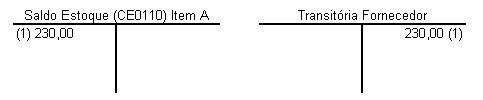
1.Entry of item A, at the cost of USD 100.00, with quote of BRL 2.30 for each dollar. The supplier suspense account receives a credit of BRL 230.00.
When reconciling the document, the currency quote changes to BRL 2.50 for each dollar. In the invoice, USD 100.00 are charged (without foreign currency variation). However, in the local currency, where the bookkeeping occurs, the supplier suspense account receives a debit of BRL 250.00.
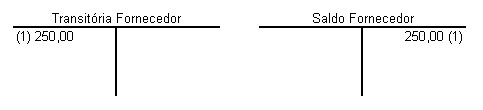
Thus, the supplier suspense account is left with a debit balance of BRL 20.00.
...
Directly against the item that has the difference: when the user parameters are set to perform stock adjustments in the invoice reconciliation;
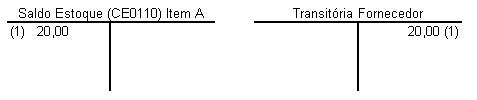
Against the stock adjustment account, using the direct debit item (white): when the user parameters are not set to perform stock adjustments in the invoice reconciliation.
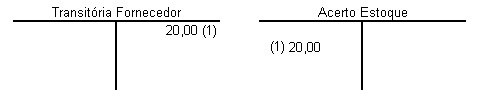
2. Entry of item A, at the cost of USD 100.00, with quote of BRL 2.30 for each dollar. The supplier suspense account receives a credit of BRL 230.00.
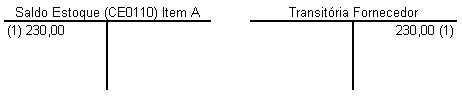
When reconciling the document, the currency quote changes to BRL 2.15 for each dollar. In the invoice, USD 100.00 are charged (without foreign currency variation). However, in the local currency, where the bookkeeping occurs, the supplier suspense account receives a debit of BRL 215.00.
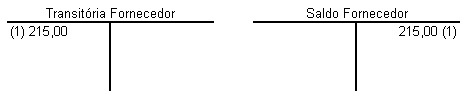
Thus, the supplier suspense account is left with a credit balance of BRL 15.00.
...
Directly against the item that has the difference: when the user parameters are set to perform stock adjustments in the invoice reconciliation.
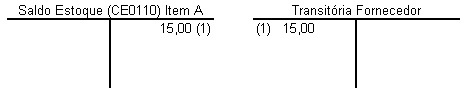
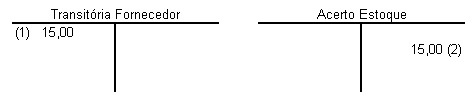
Against the stock adjustment account, using the direct debit item (white): when the user parameters are not set to perform stock adjustments in the invoice reconciliation.
Online Invoice Reconciliation Screen – Items
...
Action: | Description: |
Add | When enabled, the process of data reconciliation of packing slip with invoice begins, adding the invoice header. |
Copy | Generates a copy of the header of the selected invoice, adding the screen RE0994A to perform the needed changes. |
Edit | Enables the invoice header maintenance program (RE0994A) to make changes in the document. |
Delete | Deletes the current record. |
Automatic Generation Through Order | Activates the Automatic Generation of Reconciliation, which allows generating the reconciliation of items and expenses from the entered purchase order. |
Trade Bill | Allows handling the data of invoice trade bills before calculation, if needed. |
Invoice Calculation | When enabled, the Invoice Calculation Confirmation (RE0994C) screen is displayed, which allows checking document values for their confirmation. |
Localization Data |
This button is only enabled when the country at issue is Argentina, providing access to specific localization data, for the document, through screen ARG0033. |
Taxes Total |
Press this button to display screen RE3001L, through which you can view the total by tax before confirming the document. |
Mark | When enabled, the item of the selected packing list is marked for reconciliation. |
All | When enabled, all items of the selected packing list are marked for reconciliation. |
Generate | When enabled, you can select certain packing slip ranges for reconciliation purposes. Refer to screen RE0994G for additional information. Note: In the case of "Expense" reconciliation, only packing slips that have the same expense code entered on the screen Invoice Maintenance — Expense Folder, and that meet the ranges entered through screen RE0994G, are displayed. |
Select Remittance Items
| When enabled, the items marked in the Invoice being reconciled are added. |
Delete Invoice Item
| Enable it to delete the selected item of the Invoice. |
Delete All Invoice Items
| Enable it to delete all items of the invoice. |
Add | Allows adding the reconciliation invoice items, when "Items" is selected for reconciliation. When selecting "Expenses", you can add the item expenses for reconciliation. |
Edit | Allows editing the reconciliation invoice item, when "Items" is selected for reconciliation. When selecting "Expenses", you can edit the item expense for reconciliation. |
Delete | Allows deleting the reconciliation invoice item. |
Ex Appor | Performs the apportionment of document expenses for invoice items. Displayed only when the reconciliation is for "Items". |


...
Action: | Description: |
Expenses |
When activated, it enables the Expenses folder, which allows entering the expenses of the invoice to be reconciled. This button is enabled only when you specify in Purchase Parameters that the system handles Expenses. |
Action: | Description: |
TIN 1099 | Press this button to access/fill in the TIN 1099 data for the United States, through screen USA0001. |
...
Field: | Description | |||||||
Issuer | Enter the goods supplier code. | |||||||
Series |
Enter the series of the invoice to be reconciled. This information is valid for all countries that use series, except for Argentina. | |||||||
Issue Point |
Enter the Issue Point of the invoice. This information is displayed instead of the Series field, when the country is Argentina. | |||||||
Invoice Branch |
Enter the number of the branch of the invoice entered. | |||||||
Point of Sale |
Enter the number of the sales outlet of the invoice entered. | |||||||
Stamp |
Enter the Stamp number of Paraguayan law for the document. | |||||||
Due Date |
Enter the date when the aforementioned Stamp is due. | |||||||
Document | Enter the number of the invoice to be reconciled. | |||||||
Certificate Type |
| |||||||
Operation Type |
| |||||||
Site | Enter the code of the site in which the invoice is being reconciled. | |||||||
State | Select the state of the site. | |||||||
Transaction Date | Enter the transaction date. The current date is displayed by default, though you may change it. | |||||||
UUID |
Enter the UUID (Universal Single Identifier) number found in the supplier invoice.
| |||||||
Issue Date | Enter the invoice issue date. This must be the date shown in the invoice. | |||||||
Suspense Account | Select the suspense account of suppliers, for which the transaction is booked. This field's default setting is the account registered in function Receipt Parameters Maintenance (RE0103). | |||||||
Suspense Subaccount | Enter the cost center of suspense account, when the account so requires. | |||||||
Currency | Select the code of the currency with which the Invoice was generated. | |||||||
Day Quotation | Display the currency quote for conversion of invoice values. | |||||||
Future Delivery | When selected, this determines that the purchase has a future delivery. | |||||||
Linked Nature | Enter the operation nature to be used for generating balance held by third parties, when dealing with a future delivery invoice. The operation nature must be of type Outflow and its parameters must be set to "Invoicing with Future Delivery" in function Operation Nature Register (CD0609). | |||||||
Tax base |
Enter the tax base value of the document, in case of foreign supplier. | |||||||
Discount/Surcharge |
Indicate whether the value entered is a discount or surcharge. This information is used only to calculate the invoice total and also to generate trade bills. | |||||||
Discount/Surcharge Value |
Enter the discount or surcharge value to be applied to the total document value and also to trade bills. | |||||||
Bearer/modality | Enter the bearer and modality for the document. |


...
Field: | Description | |||||||
Seq | Enter the sequence number of the invoice item. | |||||||
Item | Enter the code of the item to be reconciled in the invoice. | |||||||
Supplier Item | Display the item code for the Supplier. | |||||||
Reference | Enter the item reference code, when controlled by reference. | |||||||
Order | Enter the purchase order number to be used for adding the item. | |||||||
Purchase Order | Enter the purchase order number to be used for adding the item. | |||||||
Installment | Enter the purchase order installment to be used for adding the item. | |||||||
Service item |
When selected, it indicates the item is of service. | |||||||
Series | Enter the packing slip serial number to be used for adding the item. Enabled only when the system uses series. | |||||||
Numbr | Enter the packing slip number to be used for adding the item. | |||||||
Nature | Enter the packing slip operation nature to be used for adding the item. | |||||||
Sequence | Enter the packing slip item sequence to be used for adding the item. | |||||||
Day Quotation | Enter the currency quote for conversion of invoice item values. | |||||||
Issuing Qty | Display the item quantity found in the Invoice. | |||||||
Our Qty | Enter the item quantity to be used in the measurement unit of stock control. Example: Issuing Qty: The supplier provides 10 Barrels of 200 Liters each. Our Qty: Stock control is by liter, hence the quantity to be used for the stock is of 2000 Liters (10 x 200). | |||||||
Supporting Tax DocumentationSupport |
Enter the Tax Support number . | |||||||
Withh Code | Enter withholding code.
| |||||||
IVA Included |
Enter whether the price of the item includes IVA or not. This information is updated automatically in accordance with the entered packing slip, allowing changes. | |||||||
Unit Price with IVA |
Enter the unit price of goods with IVA included. This field is only enabled when field "IVA Included" is selected. The "Unit Price" is calculated by deducting the tax value in accordance with the tax entered for the item in function Materials Item. | |||||||
ME Unit Price | Enter the unit price of the item, in the currency of the invoice. You are not required to enter the unit price for the item when you enter its total price. When you enter a purchase order, the value entered for the item in the purchase order is displayed. If you change the unit price, this value will be validated against the variation percentage allowed for the item. The variation percentage parameters allowed for the item is set through function Item x Receipt Site Maintenance (RE0115) and function Receipt Items Maintenance (RE0106). | |||||||
ME total price | Enter the total price of the item, in the currency of the invoice. You are not required to enter the total price for the item when you enter its unit price. When you enter a purchase order, the value entered for the item in the purchase order is displayed. If you change the total price, this value will be validated against the variation limit allowed for the item. The variation limit parameters allowed for the item is set through function Item x Receipt Site Maintenance (RE0115) and function Receipt Items Maintenance (RE0106). | |||||||
ME Discount | Enter the discount to be used for the item, in the currency of the invoice. | |||||||
Expenses | Enter the item expense value. | |||||||
Freight | Enter the item freight value. |

...
Field: | Description | |||||||
Tax Code | Enter the tax code of item. | |||||||
Rate Perc | Enter the tax percentage. | |||||||
Base value |
Enter the base value of tax. | |||||||
Tax Value | Enter the total value of tax.
| |||||||
MN Tax Value |
Enter the total value of tax in local currency. This is automatically calculated in accordance with the percentage entered, though you can change it. |

Important
| Informações | ||
|---|---|---|
| ||
|
Items Maintenance Screen - Narrative Folder - RE0994B
...
Argentina Localization Data Maintenance Screen - ARG0033

Purpose of the Screen: | To add data specific to location Argentina, linked to the document. |
...
TRANSLATED DOCUMENT |
Spanish· |
Visão Geral
Import HTML Content
Conteúdo das Ferramentas
Tarefas