Histórico da Página
...
The user management page allows the company administrator to view the names, emails, status, quantity, and registration page of each user, as well as assign applications and associate users with groups. All The audit report records all changes to users are recorded in the audit report (documentation in Portuguese language).
It is also from the Manage Users page that the procedure to manually include add new users in manually to the context is initiatedbegins.
The possible status for accounts in TOTVS Identity account statuses are:
- Activated: the created/imported user is active and can access the context.
- Invited: the created user has not yet accessed the context for the first time, and therefore the account has is not been activatedactive.
- Deactivated: the corporate administrator has deactivated the created/imported user has been deactivated from the context by the corporate administrator and therefore ; therefore, the user can no longer access it.
- Blocked: the created/imported user is prevented from accessing unable to access the company as they have exceeded the limit of unsuccessful attempts established set by the company policy.
The available roles for accounts in TOTVS Identity are:
- Administrator: this type of account ensures access to user management, groups, applications, and other settings of the company context in Identity.
- Regular user: this type of account allows access to the navigable applications or those assigned to the user by the administrator and to the user's personal profile.
...
Query users
...
01. Access the Users menu.
| Painel | ||||
|---|---|---|---|---|
| ||||
A list will be is displayed with all users registered in the company context in TOTVS Identity, both those imported from an Active Directory and those created manually. Next to each user's name, you can check the account type (Regular user or Administrator) and the status in the company (Activated, Invited, Deactivated, or Blocked). |
...
Filter users
...
01. Access the Users menu.
02. Click the Filter  button.
...
| Painel | ||||
|---|---|---|---|---|
| ||||
The records displayed on the page at when clicking the moment the Export button was clicked will be are exported to a CSV file. A link valid for 48 hours is sent to the The email address of the administrator who requested the report receives a link valid for 48 hours, for downloading the exported file. |
...
| Painel | ||||
|---|---|---|---|---|
| ||||
The browser should automatically present the option to save a file in CSV format. If this does not occur, in the open tab, click the Download option. The CSV file contains the email, identifier, full name, role (regular user or administrator), and the current status at the time of generating the report. |
...
These steps refer to the manual inclusion addition of users in at a company using TOTVS Identity. To learn about importing users from Active Directory, please refer to the Active Directory documentation.
...
| Painel | ||||||||||||||||||||
|---|---|---|---|---|---|---|---|---|---|---|---|---|---|---|---|---|---|---|---|---|
| ||||||||||||||||||||
The requested information is:
First Name
In the Activation Options section, you can select the method of account activation is selected. The available options are:
The Custom Fields section is displayed only if there are fields created You can only view the Custom Fields section by creating fields in the Identity Customization feature. |
04. Click the Groups tab and check the groups that should be associated you can associate with the user.
| Painel | ||||
|---|---|---|---|---|
| ||||
By default, the user is automatically associated with the Everyone group, which includes all users in the company. It is possible to You can use the search to filter if there are many registered groups. By associating the user with the groups, all linked applications will be are automatically associated with the user. |
05. Click the Applications tab and check the applications that should be associated you can associate with the user.
| Painel | ||||
|---|---|---|---|---|
| ||||
The user is automatically associated with the applications linked to the Everyone group and any other groups they are added to. It is possible to You can use the search to filter the desired applications. |
06. Click Add User to complete finish adding the user inclusion.
View user
...
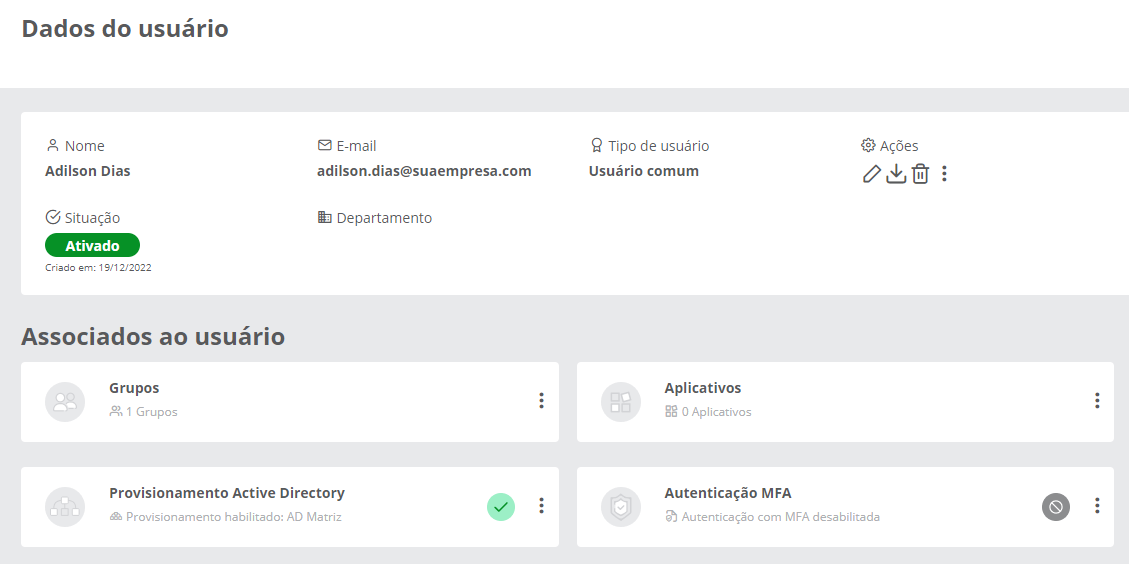
The user data page gathers registration information and allows the administrator to take a series of actions related to the user's account, such as resending the invitation via email, resetting the MFA configuration, changing the user type, associating groups, assigning applications, provisioning in Active Directory, deactivating the account, among others.
...
02. Locate the desired user in on the list.
03. Click on the user's name or the View  icon to open the respective page with the data.
| Painel | ||||||||||||||
|---|---|---|---|---|---|---|---|---|---|---|---|---|---|---|
| ||||||||||||||
Name
Email or Username
Status Department Temporary Password
Groups Applications Active Directory Provisioning MFA Authentication |
Edit user
...
01. Access the Users menu.
02. Locate the desired user in the list.
...
| Painel | ||||
|---|---|---|---|---|
| ||||
The information that you can be changed edit includes: Username, User Type, Department, and custom fields (if any). The administrator cannot edit the email or username cannot be changed by the administrator. |
04. Click Save to confirm the changes.
...
Export personal data
...
01. Acione o menu UsuáriosAccess the Users menu.
02. Localize o usuário desejado na listaFind the desired user in the list.
03. Acione o ícone Exportar  Click the Export
  icon.
icon.
04. Informe o e-mail do usuário como confirmaçãoEnter the user's email as confirmation.
05. Acione Exportar para confirmarClick Export to confirm it.
| Painel | ||||
|---|---|---|---|---|
| ||||
| Será feito o download dos dados do respectivo usuário relacionados à empresa atual em um arquivo JSON. Neste arquivo é possível consultar todo o histórico de visualizações e alterações que houve nos dados pessoais relacionados a esse usuário. |
Grupos do usuário
Associar usuário a grupos
01. Acione o menu Usuários.
02. Localize o usuário desejado na lista apresentada.
The data for the respective user related to the current company is downloaded in a JSON file. In this file, you can review the entire history of views and changes to the user's personal data. |
User Groups
...
Associate User with Groups
...
01. Access the Users menu.
02. Find the desired user in the presented list.
03. Click More options  located in the user's row and select the Associate groups option03. Acione Mais opções
  localizado na linha do usuário e clique na opção Associar grupos.
| Painel | ||||
|---|---|---|---|---|
| ||||
É apresentada uma lista com todos os grupos cadastrados no contexto da empresa no TOTVS Identity, tanto os importados do Active Directory quanto criados manualmente. |
04. Marque na área correspondente ao grupo que deve ser incluído e acione Associar grupos para confirmar.
Gerenciar grupos
01. Acione o menu Usuários.
02. Localize o usuário desejado na lista apresentada.
The interface presents a list with all the groups registered in the context of the company in TOTVS Identity, both those imported from Active Directory and those created manually. |
04. Select the area corresponding to the group that you must add and click Associate groups to confirm it.
Manage Groups
...
01. Access the Users menu.
02. Locate the desired user in the presented list.
03. Click More options located in the user's row and select the Manage groups option03. Acione Mais opções localizado na linha do usuário e clique na opção Gerenciar grupos.
| Painel | ||||
|---|---|---|---|---|
| ||||
É apresentada uma lista com todos os grupos aos quais o usuário foi associado. |
04. Localize os grupos dos quais deseja remover o usuário e acione Remover grupo  .
.
Aplicativos do usuário
Adicionar aplicativos
01. Acione o menu Usuários.
02. Localize o usuário desejado na lista apresentada.
The interface presents a list with all the groups to which the user is associated. |
04. Locate the groups from which you want to remove the user and click Remove group  .
.
User Applications
...
Add Applications
...
01. Access the Users menu.
02. Locate the desired user on the presented list.
03. Click More options located in the user's row and select the Associate applications option03. Acione Mais opções localizado na linha do usuário e clique na opção Associar aplicativos.
| Painel | ||||
|---|---|---|---|---|
| ||||
É apresentada uma lista com todos os aplicativos cadastrados no contexto da empresa no The interface presents a list with all the applications registered in the context of the company in TOTVS Identity. |
04. Localize na lista os aplicativos desejados ou utilize o campo Buscar aplicativos para encontrá-los.
05. Marque na área correspondente ao aplicativo que deseja atribuir e então acione Associar aplicativos.
Gerenciar aplicativos
01. Acione o menu Usuários.
02. Localize o usuário desejado na lista apresentada.
Locate the desired applications on the list or use the Search applications field to find them.
05. Select the area corresponding to the application you want to assign and click Associate applications.
Manage Applications
...
01. Access the Users menu.
02. Locate the desired user in the presented list.
03. Click More options located in the user's row and select the Manage applications option03. Acione Mais opções localizado na linha do usuário e clique na opção Gerenciar aplicativos.
| Painel | ||||
|---|---|---|---|---|
| ||||
Serão listados os aplicativos atribuídos diretamente à conta do usuário ou associados aos grupos do usuário. Somente os aplicativos associados ao usuário podem ser removidos por meio dessa tela. |
04. Localize os aplicativos que deseja remover, acione Mais opções e então Remover aplicativo.
Provisionamento do Active Directory
01. Acione o menu Usuários.
02. Localize o usuário desejado na lista.
The interface lists the applications assigned directly to the user's account or associated with the user's groups. Through this screen, the user can only remove the applications they are associated with. |
04. Locate the applications you want to remove, click More options , and then click Remove application.
Active Directory Provisioning
...
01. Access the Users menu.
02. Locate the desired user on the list.
03. Click the user's name or on the View icon to open the respective page with the user's data.03. Clique sobre o nome do usuário ou sobre o ícone Visualizar  para abrir a respectiva página com os dados do usuário.
| Painel | ||||
|---|---|---|---|---|
| ||||
O quadro Provisionamento Active Directory apresenta a situação de provisionamento do usuário no The Active Directory Provisioning panel displays the provisioning status of the user in Active Directory.
|


Consultar detalhes
01. Acione o menu Usuários.
02. Localize o usuário desejado na lista.
03. Clique sobre o nome do usuário ou sobre o ícone Visualizar para abrir a respectiva página com os dados do usuário.
|


Consult Details
...
01. Access the Users menu.
02. Locate the desired user on the list.
03. Click the user's name or the View icon to open the respective page with the user's data.
04. In the Active Directory Provisioning panel, click the button and then More details04. No quadro Provisionamento Active Directory, acione o botão e entãoMais detalhes.
| Painel | ||||
|---|---|---|---|---|
| ||||
Serão listados para consulta o Domínio da conta, DN Raíz, ObjectGUID e ImmutableID do usuário sincronizado com o Active Directory. |
Provisionar usuário
01. Acione o menu Usuários.
02. Localize o usuário desejado na lista.
03. Clique sobre o nome do usuário ou sobre o ícone Visualizar para abrir a respectiva página com os dados do usuário.
04. No quadro Provisionamento Active Directory, acione o botão e então Provisionar Active Directory.
The Account domain, Root DN, ObjectGUID, and ImmutableID of the user synchronized with Active Directory are listed for queries. |
Provision User
...
01. Access the Users menu.
02. Locate the desired user on the list.
03. Click the user's name or the View icon to open the respective page with the user's data.
04. In the Active Directory Provisioning panel, click the button and then Provision Active Directory.
05. Fill in the account data fields to provision the user for 05. Preencha os campos de dados da conta para provisionar o usuário para o Active Directory.
| Painel | ||||
|---|---|---|---|---|
| ||||
Os dados necessários para o provisionamento sãoThe data required for provisioning are: Active Directory DN Raiz e Domínio da Conta
|
06. Acione SalvarClick Save.
| Painel | ||||
|---|---|---|---|---|
| ||||
Será enviada uma requisição para o A request is sent to Active Directory através do SmartSync, para que o usuário seja criado no domínio escolhido. Após o provisionamento, o usuário poderá autenticar-se com a senha do Active Directory neste contexto do Identity, caso a administração da empresa tenha habilitado este recurso. |
Autenticação MFA
01. Acione o menu Usuários.
02. Localize o usuário desejado na lista.
via SmartSync to create the user in the chosen domain. After provisioning, the user will be able to authenticate with the Active Directory password in this Identity context, provided that the company's administration has enabled this feature. |
MFA Authentication
...
01. Access the Users menu.
02. Locate the desired user in the list.
03. Click on the user's name or on the View icon to open the respective page with the user's data.03. Clique sobre o nome do usuário ou sobre o ícone Visualizar para abrir a respectiva página com os dados do usuário.
| Painel | ||||
|---|---|---|---|---|
| ||||
O quadro Autenticação MFA apresenta a situação desse recurso de segurança para o usuário em questão.
|
Desativar acesso com MFA do usuário
Esta opção permite que a configuração da autenticação multifator seja feita novamente em caso de troca de aparelho ou remoção da conta previamente cadastrada no aplicativo My Safe id, por exemplo.
01. Acione o menu Usuários.
02. Localize o usuário desejado na lista.
03. Clique sobre o nome do usuário ou sobre o ícone Visualizar para abrir a respectiva página com os dados do usuário.
The MFA Authentication panel presents the status of this security feature for the user at issue.
|
Disable User MFA Access
...
This option allows you to configure the multifactor authentication again, in case of device change or removal of the account previously registered in the My Safe ID application, for example.
01. Access the Users menu.
02. Locate the desired user on the list.
03. Click the user's name or the View icon to open the respective page with the user's data.
04. In the MFA Authentication panel, click the button and then Disable.
05. Enter a justification and the password to confirm the action04. No quadro Autenticação MFA, acione o botão e entãoDesabilitar.05. Insira uma justificativa e a senha para confirmar a ação.
| Painel | ||||
|---|---|---|---|---|
| ||||
A justificativa é obrigatória e fica registrada em histórico, posteriormente pode ser consultada no relatório de auditoria. | ||||
The justification is required and will be recorded in history. You may later consult it can in the audit report. |
06. Click the Disable button05. Acione o botão Desabilitar.
| Painel | ||||
|---|---|---|---|---|
| ||||
Caso o usuário faça parte de um grupo com MFA obrigatório, é necessário configurar novamente a autenticação multifator para que o acesso ao Identity seja liberado. |
Reenviar convite
Essa opção só é apresentada caso o usuário esteja com a situação Convidado.
01. Acione o menu Usuários.
02. Localize o usuário desejado na lista.
03. Clique sobre o nome do usuário ou sobre o ícone Visualizar para abrir a respectiva página com os dados do usuário.
If the user is part of a group with required MFA, they need to multifactor authentication again to be granted access to Identity. |
Resend Invitation
...
This option is only displayed if the user status is Invited.
01. Access the Users menu.
02. Locate the desired user on the list.
03. Click the user's name or on the View icon to open the respective page with the user's data.
04. In Actions, click More options and then Resend invitation04. Em Ações, acione Mais opções e entãoReenviar convite.
| Painel | ||||
|---|---|---|---|---|
| ||||
Uma nova mensagem de convite é enviada ao e-mail do usuário com um link para ativação da conta nesse contexto do A new invitation message is sent to the user's email with a link to activate the account in this context of TOTVS Identity. |
Senha temporária
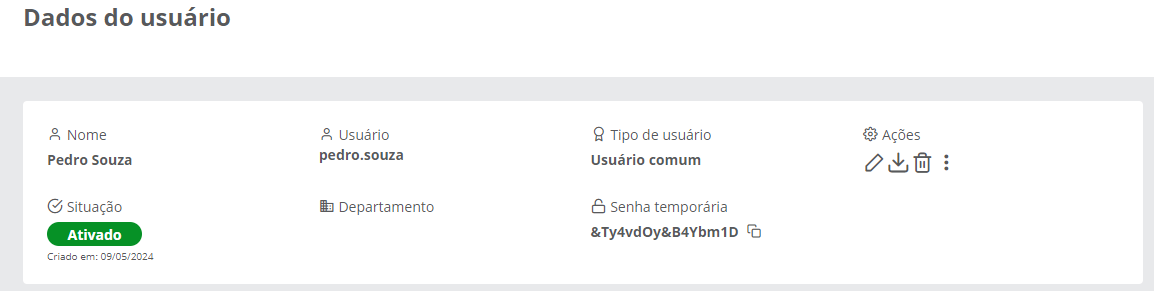
Essa senha é gerada para usuários criados a partir da opção de ativação por senha temporária, ou para reset de senha nos casos em que o usuário não tem e-mail cadastrado e, consequentemente, não consegue efetuar o reset de senha pela tela de login.
Copiar senha temporária
01. Acione o menu Usuários.
02. Localize o usuário desejado na lista.
03. Clique sobre o nome do usuário ou sobre o ícone Visualizar para abrir a respectiva página com os dados do usuário.
Temporary Password
...
This password is generated for users created from the temporary password activation option, or for password reset in cases where the user does not have an email registered and, consequently, cannot reset the password via the login screen.
Copy Temporary Password
...
01. Access the Users menu.
02. Locate the desired user on the list.
03. Click the user's name or on the View icon to open the respective page with the user's data.
04. Locate the Temporary Password field and click Copy temporary password  04. Localize o campo Senha temporária e acione Copiar senha temporária
  .
.
| Painel | ||||
|---|---|---|---|---|
| ||||
Após acionar essa opção, a senha temporária é copiada para a área de transferência do usuário autenticado, e deve ser repassada ao usuário que necessita do acesso ao Identity. No primeiro login, o usuário é obrigado a alterar essa senha. |
Resetar senha
Essa função só é permitida para usuário sem e-mail. Quando é gerada uma senha temporária para o usuário, ele automaticamente não consegue mais acessar com a senha anterior.
01. Acione o menu Usuários.
02. Localize o usuário desejado na lista.
03. Clique sobre o nome do usuário ou sobre o ícone Visualizar para abrir a respectiva página com os dados do usuário.
After selecting this option, the authenticated user copies the temporary password to their clipboard, which must pass it on to the user who needs access to Identity. Upon first login, the user is required to change this password. |
Reset Password
...
This function is only allowed for users without an email. When a temporary password is generated for the user, they automatically can no longer access with the previous password.
01. Access the Users menu.
02. Locate the desired user in the list.
03. Click on the user's name or on the View icon to open the respective page with the user's data.
04. In Actions, click More options and then Reset password04. Em Ações, acione Mais opções e então Resetar senha.
| Painel | ||||
|---|---|---|---|---|
| ||||
Após acionar essa opção, será apresentada ao administrador uma senha temporária. Essa senha deve ser informada ao usuário, para que ele possa efetuar o login normalmente. No primeiro login, o usuário é obrigado a alterar essa senha. |
Desativação temporária
Esse recurso possibilita que o usuário seja desativado por um período predefinido e após esse período, seja automaticamente reativado no TOTVS Identity.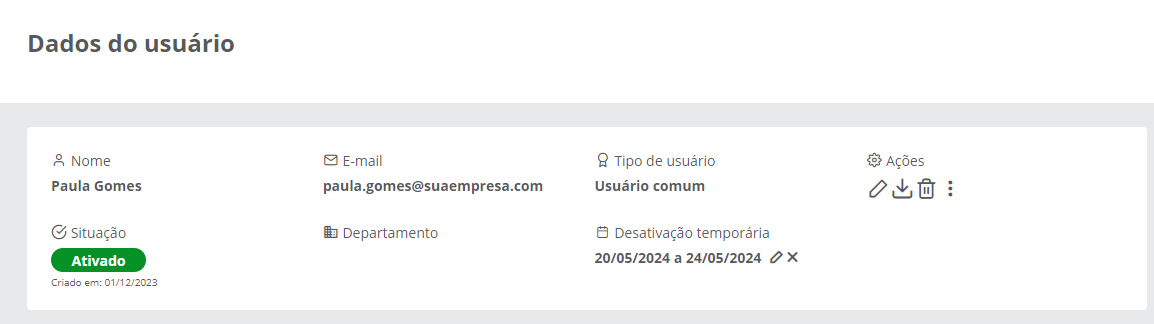
Planejar desativação temporária
01. Acione o menu Usuários.
02. Localize o usuário desejado na lista.
03. Clique sobre o nome do usuário ou sobre o ícone Visualizar para abrir a respectiva página com os dados do usuário.
04. Em Ações, acione Mais opções e então Desativação temporária.
After selecting this option, a temporary password will be presented to the administrator. This password must be provided to the user so they can log in normally. Upon first login, the user is required to change this password. |
Temporary Deactivation
...
This feature allows deactivating the user for a predefined period and after this period, to be automatically reactivated in TOTVS Identity.
Plan Temporary Deactivation
...
01. Access the Users menu.
02. Locate the desired user on the list.
03. Click the user's name or on the View icon to open the respective page with the user's data.
04. In Actions, click More options and then Temporary Deactivation.
05. Fill in the information required.05. Preencha as informações necessárias.
| Painel | ||||
|---|---|---|---|---|
| ||||
Data Inicial Data Final Descrição | ||||
Start Date |
06. Click Deactivate06. Acione Desativar.
| Painel | ||||
|---|---|---|---|---|
| ||||
Após salvar, o período de desativação temporária será apresentado na tela de dados do usuário. A desativação temporária não sincroniza a situação do usuário desativado no TOTVS Identity com o Active Directory. |
Alterar período de desativação temporária
01. Acione o menu Usuários.
02. Localize o usuário desejado na lista.
03. Clique sobre o nome do usuário ou sobre o ícone Visualizar para abrir a respectiva página com os dados do usuário.
04. Localize o campo Desativação temporária e acione Editar desativação .
.
05. Ajuste as informações necessárias.
After saving, the user's data screen displays the temporary deactivation period. Temporary deactivation does not synchronize the status of the deactivated user in TOTVS Identity with Active Directory. |
Change Temporary Deactivation Period
...
01. Access the Users menu.
02. Locate the desired user on the list.
03. Click on the user's name or on the View icon to open the respective page with the user's data.
04. Locate the Temporary Deactivation field and click Edit deactivation  .
.
05. Adjust the needed information.
06. Click Deactivate06. Acione Desativar.
| Painel | ||||
|---|---|---|---|---|
| ||||
O período de desativação temporária será apresentado na tela de dados do usuário. |
Remover período de desativação temporária
01. Acione o menu Usuários.
02. Localize o usuário desejado na lista.
03. Clique sobre o nome do usuário ou sobre o ícone Visualizar para abrir a respectiva página com os dados do usuário.
The user's data screen displays the temporary deactivation period. |
Remove Temporary Deactivation Period
...
01. Access the Users menu.
02. Locate the desired user on the list.
03. Click the user's name or the View icon to open the respective page with the user's data.
04. Locate the Temporary Deactivation field and click Remove deactivation  04. Localize o campo Desativação temporária e acione Remover desativação
  .
.
| Painel | ||||
|---|---|---|---|---|
| ||||
O usuário não será desativado no período definido previamente. |
Desativar usuário
01. Acione o menu Usuários.
02. Localize o usuário desejado na lista.
03. Clique sobre o nome do usuário ou sobre o ícone Visualizar para abrir a respectiva página com os dados do usuário.
04. Em Ações, acione Mais opções e então Desativar usuário.
The user is not deactivated during the previously defined period. |
Deactivate User
...
01. Access the Users menu.
02. Locate the desired user on the list.
03. Click the user's name or the View icon to open the respective page with the user's data.
04. In Actions, click More options and then Deactivate user.
05. Click Deactivate to confirm the deactivation04. Confirme a desativação acionando Desativar.
| Painel | ||||
|---|---|---|---|---|
| ||||
Após confirmar, o usuário não terá mais acesso ao contexto em que foi desativado, a menos que seja reativado por um administrador. Nos contextos em que a opção Sincronizar mudanças no estado do usuário do Identity para o Active Directory esteja ativada, o usuário também será desativado no Active Directory. |
Reativar usuário
Essa opção só é apresentada caso o usuário esteja com a situação Desativado.
01. Acione o menu Usuários.
02. Localize o usuário desejado na lista.
03. Clique sobre o nome do usuário ou sobre o ícone Visualizar para abrir a respectiva página com os dados do usuário.
04. Em Ações, acione Mais opções e então Ativar usuário.
After confirming, the user can no longer access the context in which they were deactivated, unless an administrator reactivates them. |
Reactivate User
...
This option is only available if the user status is Deactivated.
01. Access the Users menu.
02. Locate the desired user on the list.
03. Click the user's name or the View icon to open the respective page with the user's data.
04. In Actions, click More options and then Activate user.
05. Click Activate to confirm the activation04. Confirme a ativação acionando Ativar.
| Painel | ||||
|---|---|---|---|---|
| ||||
O usuário volta a ter acesso completo à conta no contexto. |
Excluir usuário
01. Acione o menu Usuários.
02. Localize o usuário desejado na lista.
03. Clique sobre o nome do usuário ou sobre o ícone Visualizar para abrir a respectiva página com os dados do usuário.
04. Em Ações, acione Excluir usuário  .
.
The user regains full access to the account in the context. |
Delete User
...
01. Access the Users menu.
02. Locate the desired user on the list.
03. Click the user's name or the View icon to open the respective page with the user's data.
04. In Actions, click Delete user  .
.
05. To confirm the deletion, click Delete04. Para confirmar a exclusão, acione Excluir.
| Painel | |||||
|---|---|---|---|---|---|
| |||||
After confirming, the user's account is completely removed from the company and cannot be restored. The user no longer has access to the context of the TOTVS Identity from which you have removed them. If the deleted user was imported from Active Directory, their account is automatically included in the Rejected list Após confirmar, a conta do usuário será totalmente removida da empresa e não poderá ser restaurada. O usuário não terá mais acesso ao contexto do TOTVS Identity do qual foi removido. Caso o usuário excluído tenha sido importado a partir do Active Directory, sua conta será automaticamente incluída na lista de Rejeitados.
|
Desbloquear usuário
Essa opção só é apresentada caso o usuário esteja com a situação Bloqueado, ou seja, tenha sido bloqueado por excesso de tentativas de login.
01. Acione o menu Usuários.
02. Localize o usuário desejado na lista.
03. Clique sobre o nome do usuário ou sobre o ícone Visualizar para abrir a respectiva página com os dados do usuário.
04. Em Ações, acione Mais opções e então Desbloquear.
|
Unlock User
...
This option is only available if the user status is Locked, meaning they have been locked due to excessive login attempts.
01. Access the Users menu.
02. Locate the desired user on the list.
03. Click the user's name or the View icon to open the respective page with the user's data.
04. In Actions, click More options and then Unlock.
05. In the confirmation window, click Unlock05. Na janela de confirmação, acione Desbloquear.
| Painel | ||||
|---|---|---|---|---|
| ||||
Com isso, o usuário estará poderá voltar a tela de login para autenticar-se ou acionar a opção Esqueceu sua senha?This way, the user is able to return to the login screen to authenticate or use the Forgot your password? option. |
| Dica | |||
|---|---|---|---|
| |||
If the user has a password reset email configured, they can unlock themselves through the personal password recovery optionCaso o usuário tenha um e-mail de reset de senha configurado, ele próprio consegue realizar o desbloqueio pela opção de recuperação de senha pessoal. |
| HTML |
|---|
<!-- Hotjar Tracking Code for http://tdn.totvs.com/display/fb -->
<script>
    (function(h,o,t,j,a,r){
        h.hj=h.hj||function(){(h.hj.q=h.hj.q||[]).push(arguments)};
        h._hjSettings={hjid:1280165,hjsv:6};
        a=o.getElementsByTagName('head')[0];
        r=o.createElement('script');r.async=1;
        r.src=t+h._hjSettings.hjid+j+h._hjSettings.hjsv;
        a.appendChild(r);
    })(window,document,'https://static.hotjar.com/c/hotjar-','.js?sv=');
</script> |
Visão Geral
Import HTML Content
Conteúdo das Ferramentas
Tarefas