CONTENT

01. OVERVIEW
This routine allows adding accounting data for the asset and also a standard set of calculation systems, such as the asset type associated with a depreciation method, the annual rate, the depreciation start criteria, and depreciation control periods (calendars).
In addition to grouping assets, this routine simplifies filling in the asset record displayed at the time of add.
If the assets are cost/provision type, it is necessary to set the field FixAs. Cost/Pr. to Yes. |
02. EXAMPLE OF USE
To Add an Asset Group:
- In Asset Group, clickTo Add.
- The system displays the Asset Group Registration screen. Note that the screen is divided into two sections:
- Header (fields): with fields related to Group Code, Description, and Accounting Data.
- Items (Grid): . with fields related to the calculation systems (asset type associated with depreciation method, annual rate, depreciation start criteria, and depreciation control periods – calendars).
- For the items, you can register a single item of type 01 – Acquisition and one or more items of type 10 – Fiscal/Managerial Depreciation, each with a different Balance Type.
- Enter the data according to the field help guidance, paying special attention to the following fields:
- Depreciation Criteria: this field is only editable when the parameter MV_TIPDEPRis set to 9 – Asset Form. The criterion informed in this field is subject to validation by the criterion vs. depreciation type rule, in which criteria 03 – Full Fiscal Year and 04 – Next Quarter are currently the only options that can be used with managerial asset types.
- Criterion Calendar: this field is only editable if the Depreciation Criteria field requires calendar information. In this case, only criteria 03 – Full Fiscal Year and 04 – Next Quarter enable this field for editing.
- Check out the data and Confirm.
03. EXPORT AND IMPORT
When accessing routine ATFA271, under the Other Actions button, you will find the options for Import and Export of Chart of Accounts.
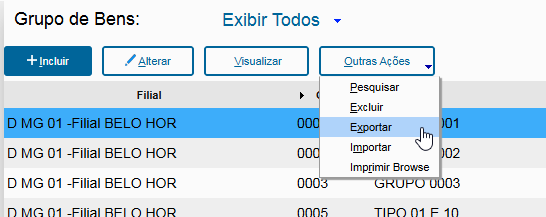
03.1 Export:
To perform the export, use this option by specifying the server path or local folder where the file will be generated, and configure which groups will be exported.
The system will generate a .CSV file in the correct layout for importation into another company/branch, making it possible to use the file as a base for a new import. Note that the generated file will contain the data of the asset groups informed in the parameters, respecting all fields, including the branch field, which will be filled with the exported branch. In some scenarios, this may need to be manually adjusted in the file.
03.2 Import:
To import the Chart of Accounts, use this option and select the file to be read for import. Pay attention to the following key points:
- The most suitable import layout is the one generated by the ATFA271 routine itself through the “Export” option. This ensures the file structure and fields match the environment, providing greater compatibility. It is recommended to add at least one group with the necessary data and perform an export first. This way, you will obtain the correct layout for the import process.
- Exercise caution when editing the file using Microsoft Excel, as this tool may automatically change data (for example, removing leading zeros), which can cause import errors.
- Below is an example of a valid layout generated in a local test environment. It can be used as a reference, but certain information, such as the Branch field, must be filled in manually.

04. OTHER INFORMATION