CONTENTS

01. OVERVIEW
This document aims to support the configuration of requests for posting and transfer (ATFA125) via workflow in Protheus.
02. PRE-CONDITIONS
To use the approval of posting and transfer via workflow, you must first configure the server, the e-mail tool and a web service of the environment for the workflow.
You do not need to access Protheus for approvals, because after the required settings, an e-mail is sent to the approver, who then responds by notifying whether the request has been approved or not.
If you need help with the local server and the e-mail tool, the document below shows how to set up the account for sending the workflow account by Gmail.
Or you can also follow the settings in the SIGAPCO workflow documentation
Configuration of contingency approval via workflow - SIGAPCO - P12
https://centraldeatendimento.totvs.com/hc/pt-br/articles/360039344333-MP-SIGAATF-SOLICITA%C3%87%C3%83O-DE-BAIXA-OU-TRANSFERENCIA-ATFA125-ATFA126
Web service configurations in appserver.ini used in the example in the image below:
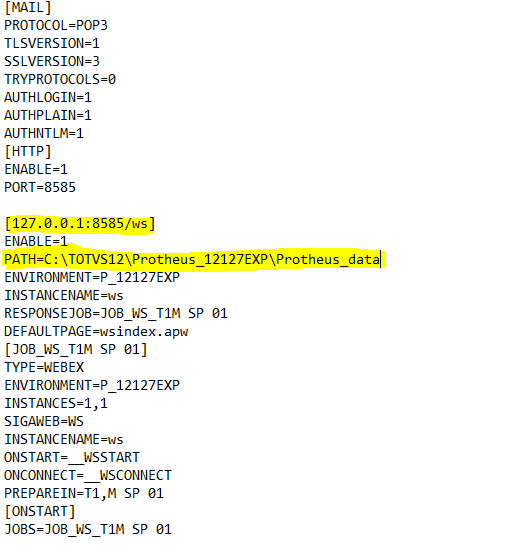
Ideally, the PATH must point to the folder Protheus_data, so you can find the workflow files without problems |
03. WORKFLOW SETTINGS
To make the following configurations, access the configurator menu.
Through the configurator (SIGACFG), access: Environment > Workflow > E-mail Accounts
Mailbox Enter the mailbox data. Remember to enter the e-mail address the sender will use for contingency approvals in the address. We use the following e-mail address in our example: [email protected] 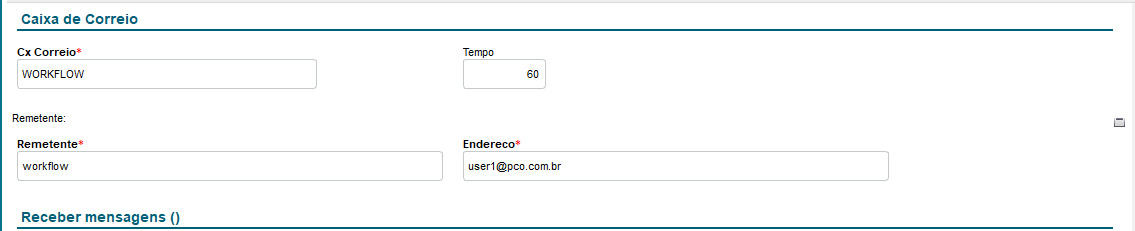
Receive Messages Enter the POP3 server and the port, as well as the e-mail accounts and their respective passwords, to be used for receiving messages 
Send Messages Enter the SMTP port and server, as well as the account to be used for sending the contingency approvals.
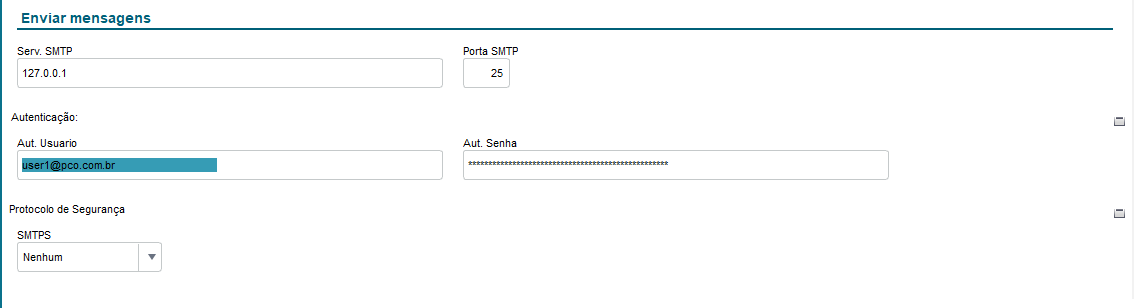
|
In the configurator menu, access: Environment > Workflow > Workflow Processes
Add a workflow process.
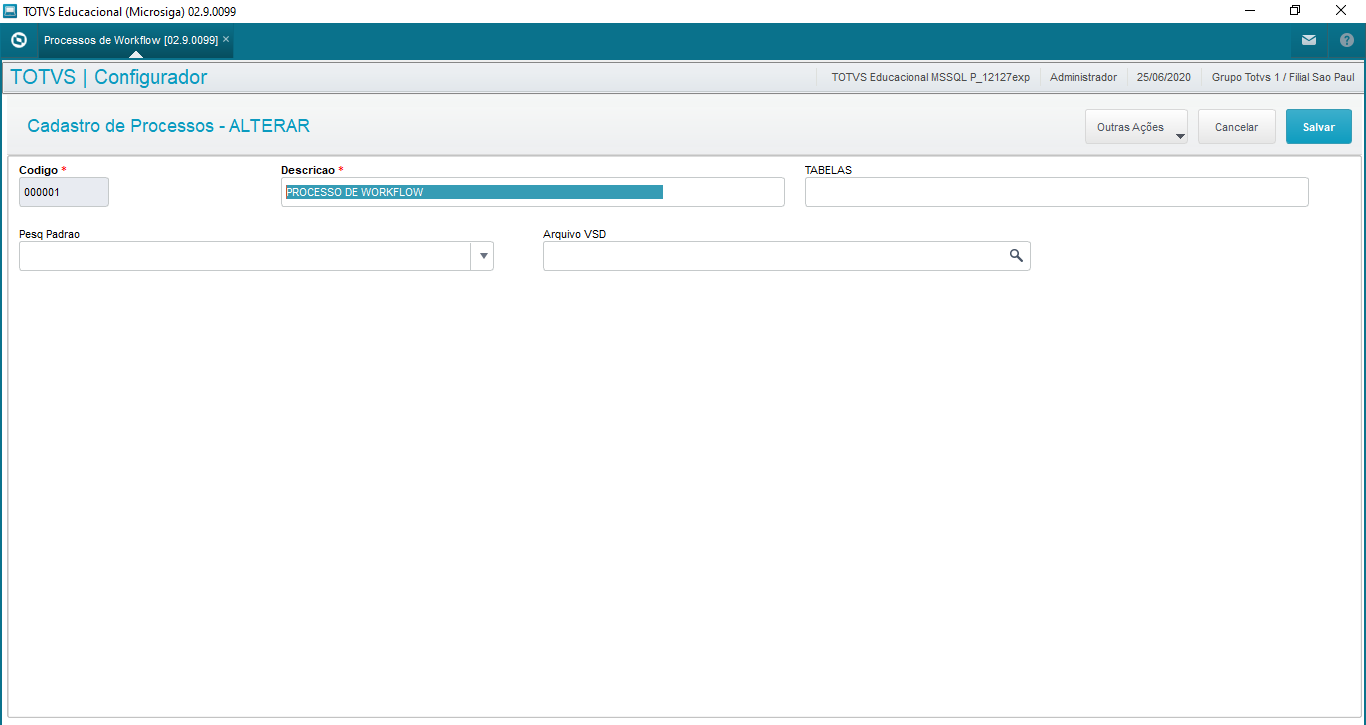
|
In the configurator menu, access: Environment > Workflow > Workflow Status Add a workflow status, linking the process added in the previous step
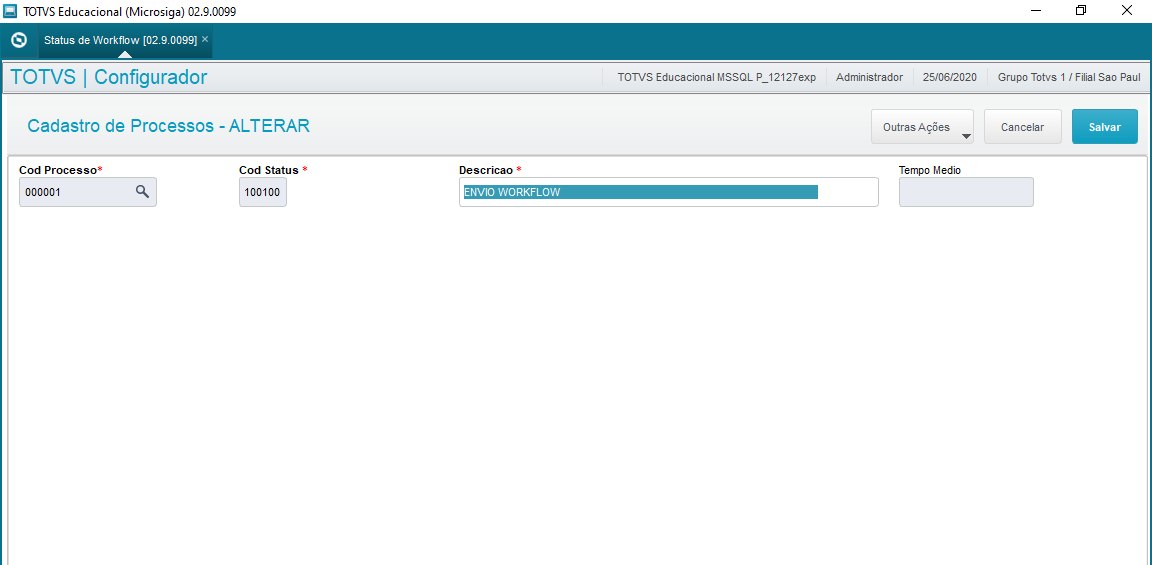
|
In the configurator menu, access: Environment > Workflow > Workflow Parameters
Postal Service
Select the options in accordance with your preferences. Our contingency approval example displays them as follows:
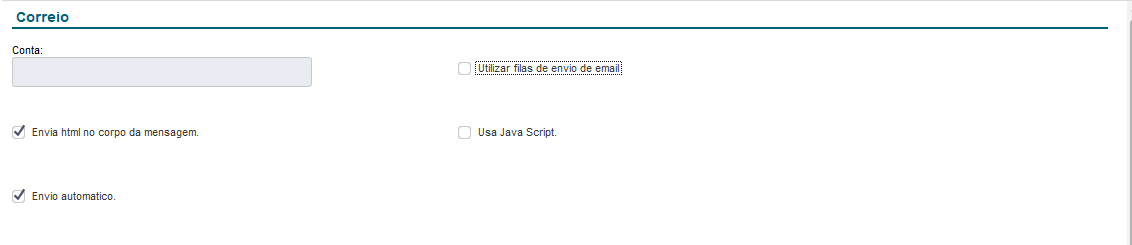
Processes
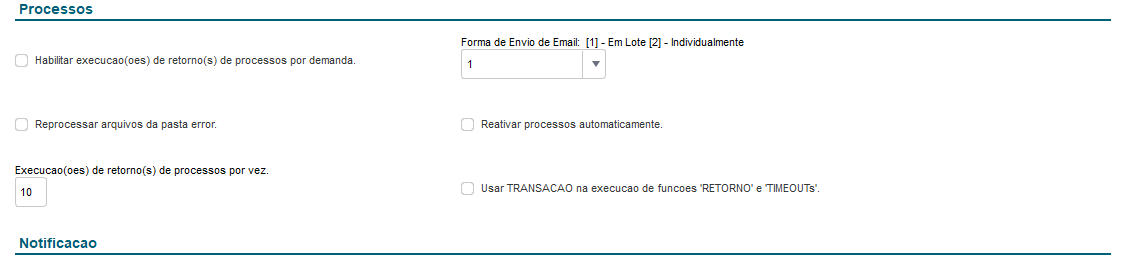
Notification
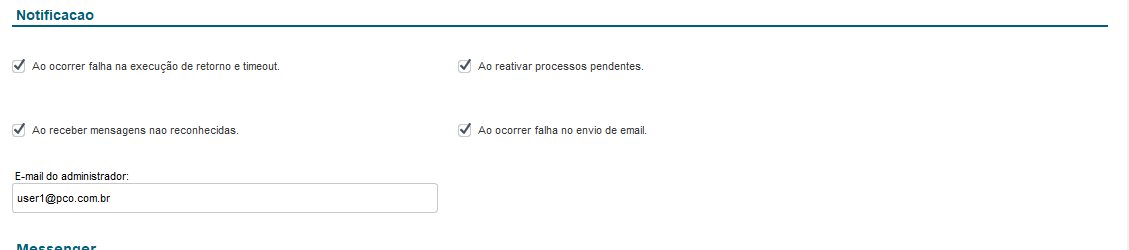
Messenger
| It is important to enter the workflow's web service address in the field Server. |
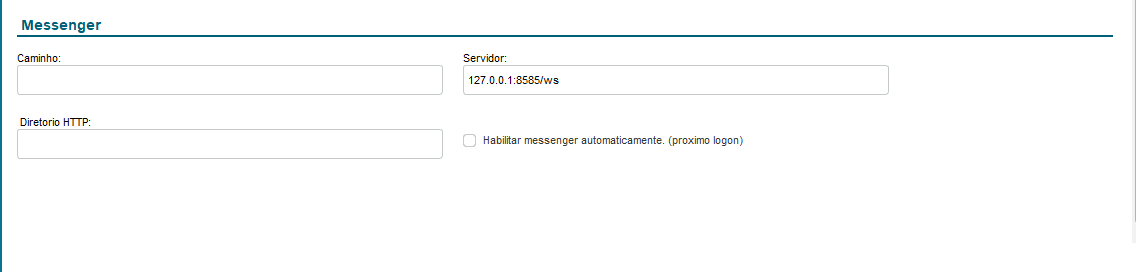
|
In the configurator menu, access:
Environment > E-mail/Proxy > Settings
Enter the e-mail server data
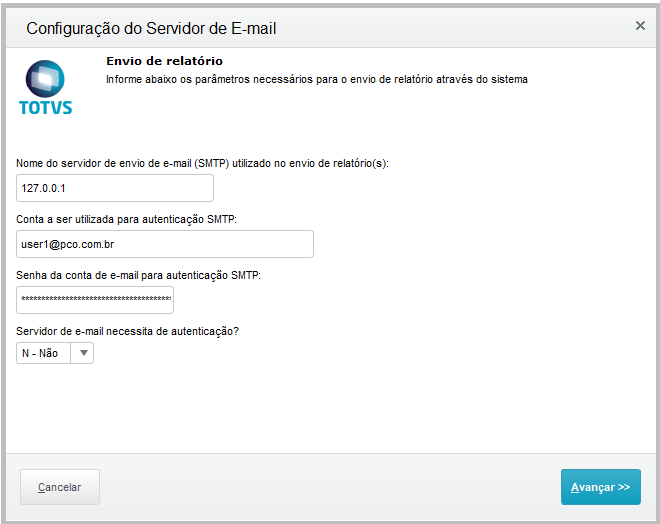
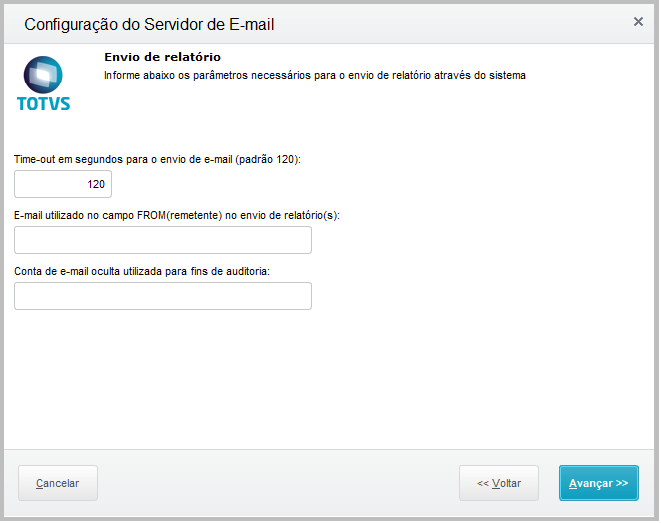
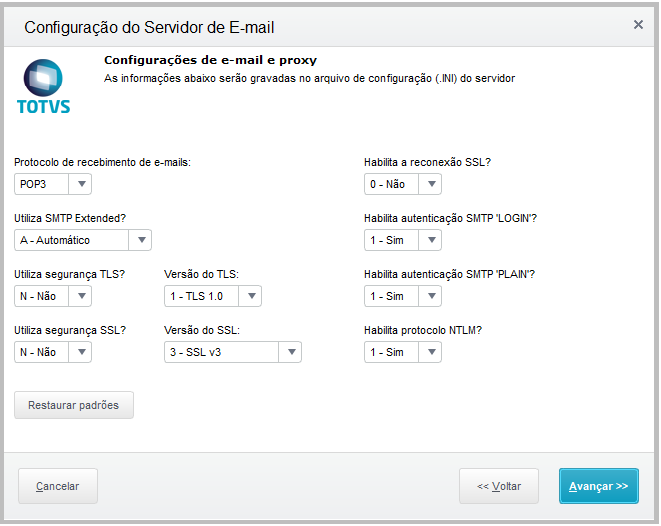
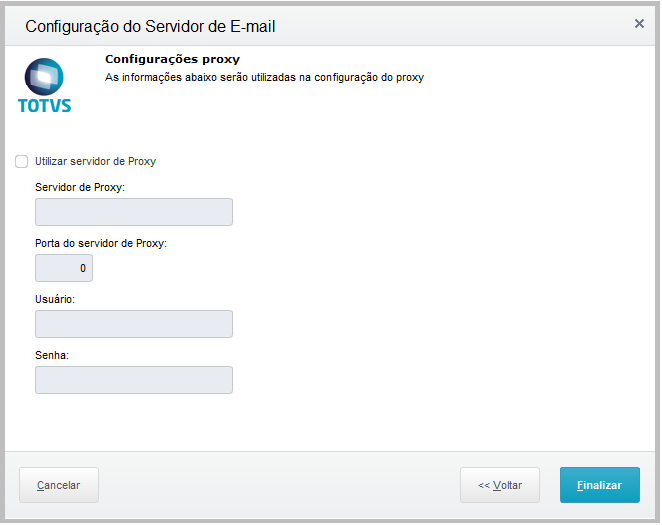
Configuring the web service: Access the SRVWIZARD: 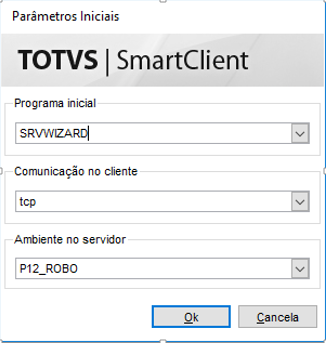
Select the folder Web Modules and click Add Fill out the fields on the screen as shown: 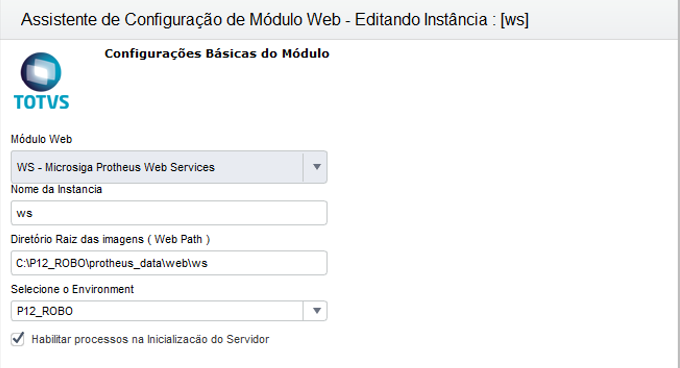
Link the address of your host (web service) with the code of the branch you will use: [HTTP] ENABLE=1 PORT=83 Enter the localhost address + the port found in the HTTP key in the .INI of the server. 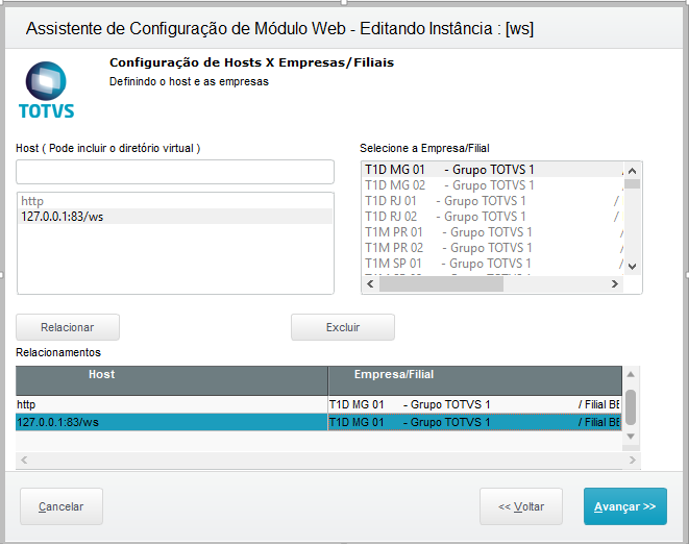
Configure the minimum and the maximum number of users that will access the web service and click Confirm:
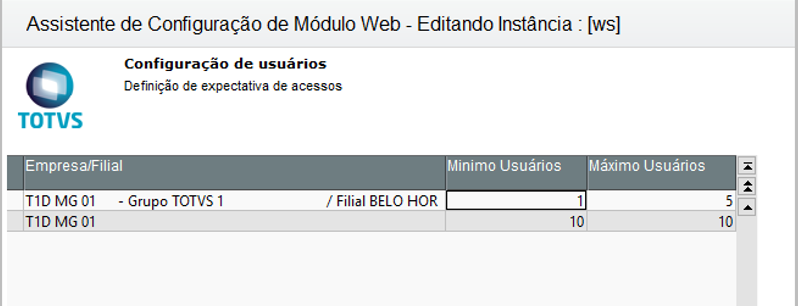
|
- INSTALLING AND CONFIGURING THE E-MAIL SERVER
This tool functions as a local e-mail server with SMTP and POP. We can download this tool for free via developers portal http://www.hmailserver.com Configuring Mozilla Thunderbird: The Thunderbird e-mail tool is free and can be downloaded directly from the Mozilla developers web site: https://www.mozilla.org/pt-BR/thunderbird The documentation attached below contains the settings for this server: CONFIGURING THE E-MAIL SERVER.docx If you need help with the local server and the e-mail tool, the document below shows how to set up the account for sending the workflow account by Gmail.
|
The system parameters below are required for using the workflow in request approvals.
MV_ATFSOLD - Enter whether the process for requesting Postings/Transfers is active 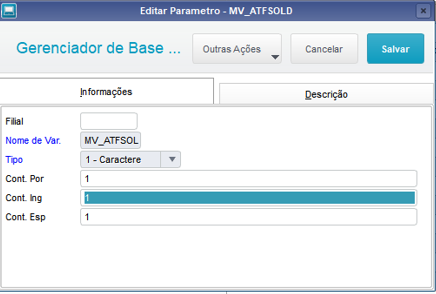
MV_PRELAN - Generate pre-entry in accounting
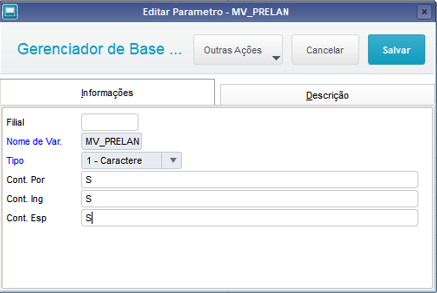
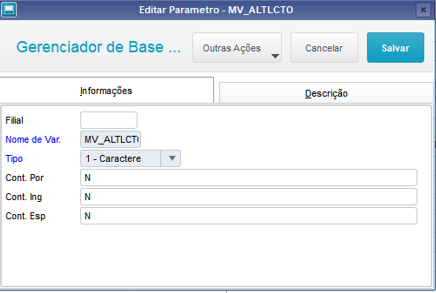
MV_ALTLCTO - Allow changes to the accounting entry of integration
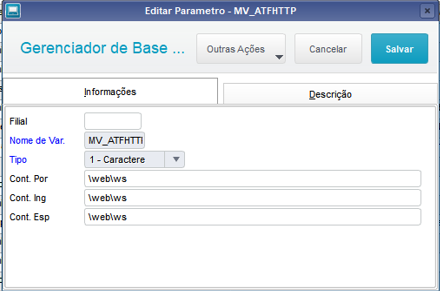
MV_ATFHTTP - HTTP server directory
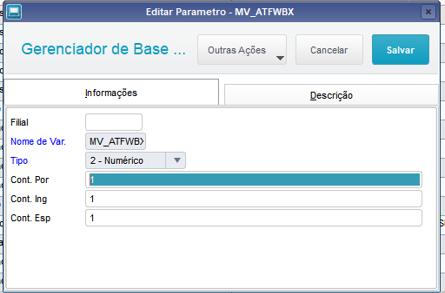
MV_ATFWBX - Activate sending of workflow in posting/transfer request
MV_ATFWFM - Enter whether WF should be generated for requests 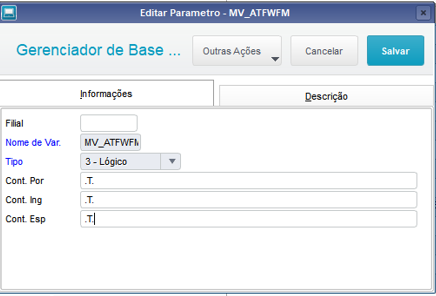
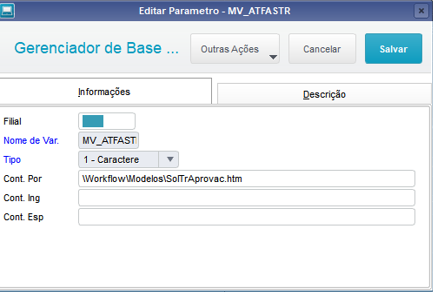
MV_ATFASTR - HTML file of template for request approval
MV_ATFASBX - HTML file of template for posting approval 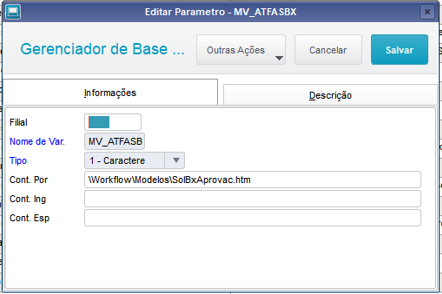
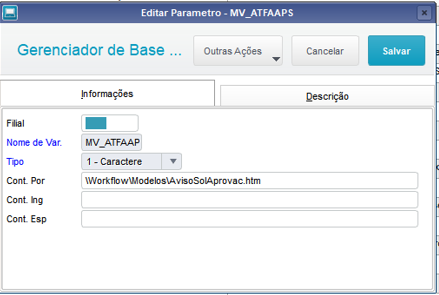
MV_ATFAAPS - HTML file of template for asset transfer request
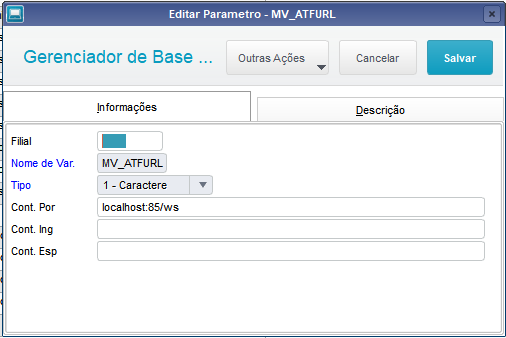
MV_ATFURL - URL of HTTP service
MV_ATFRESP - Enter the code of user responsible for Asset 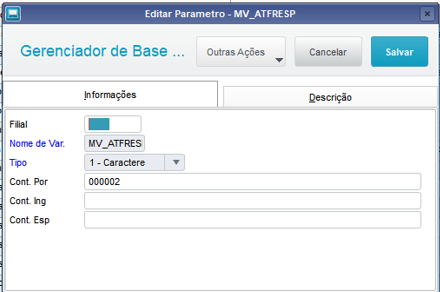
|
In the configurator menu, access:
User > Passwords > Users
Add or edit a user by entering the e-mail of approver in field E-mail
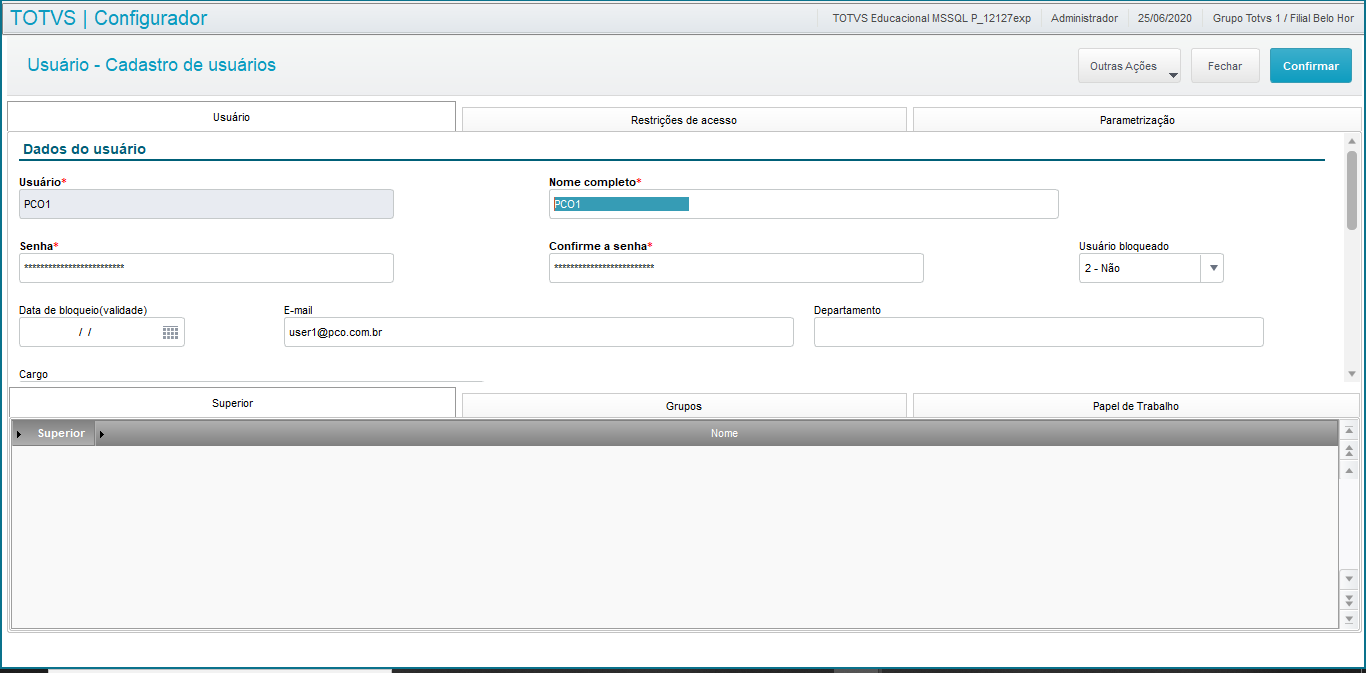
|
|
04. USE OF TRANSFER REQUEST VIA WORKFLOW
In the menu of module Fixed Assets (SIGAATF), access:
Updates > Register > Persons Register
Enter the e-mail in the persons register
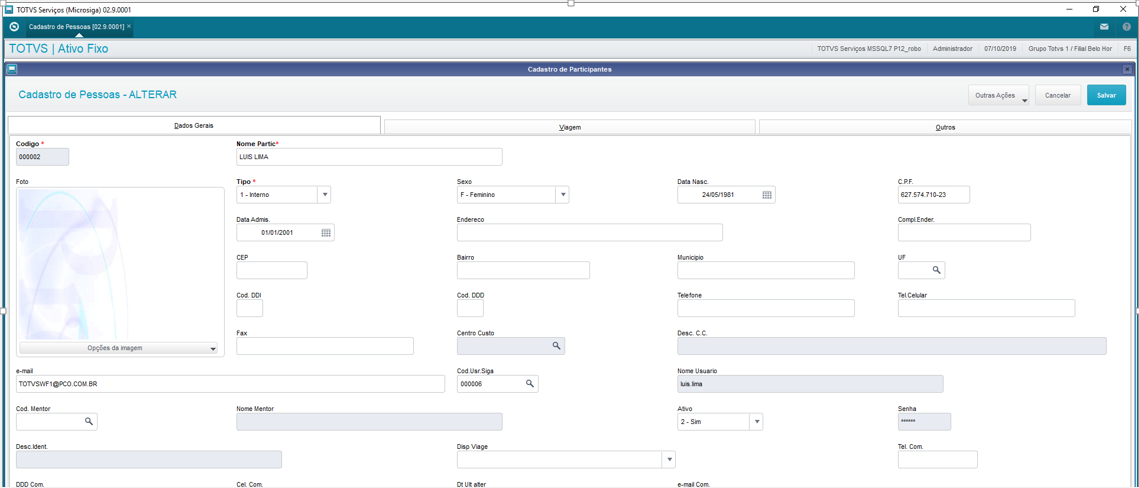
Access the routine of Persons Responsible X Assets:
Updates > Registers > Persons Responsible X Assets
Connect the asset register with the persons register
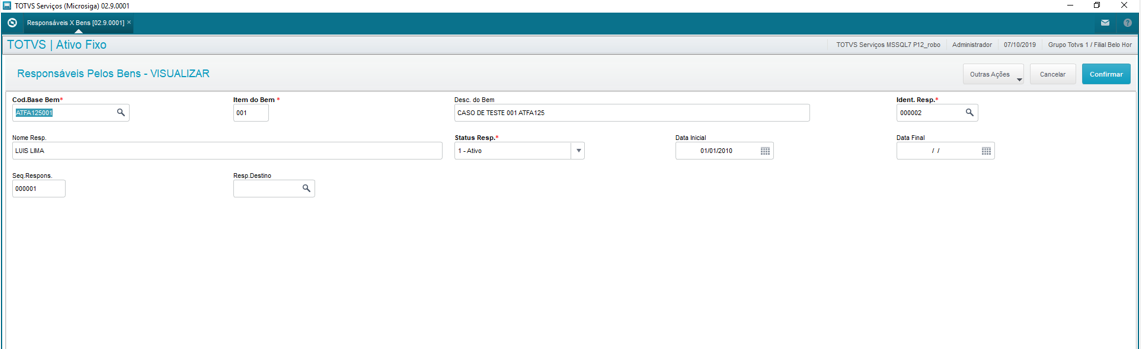
Access the routine for Postings and Transfers:
Updates > Transactions > Request for Posting and Transfer
In the example, we use the request for transfer
Click Other Actions -> Transfer Request
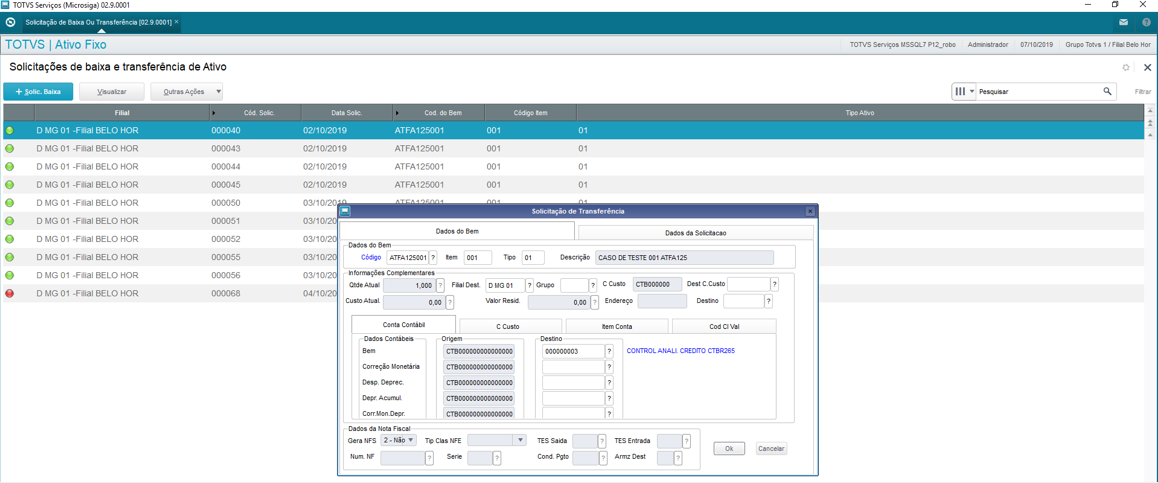
Request made - code 000070
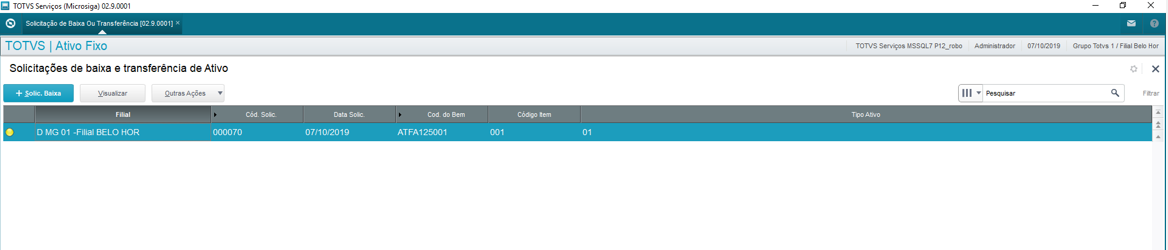
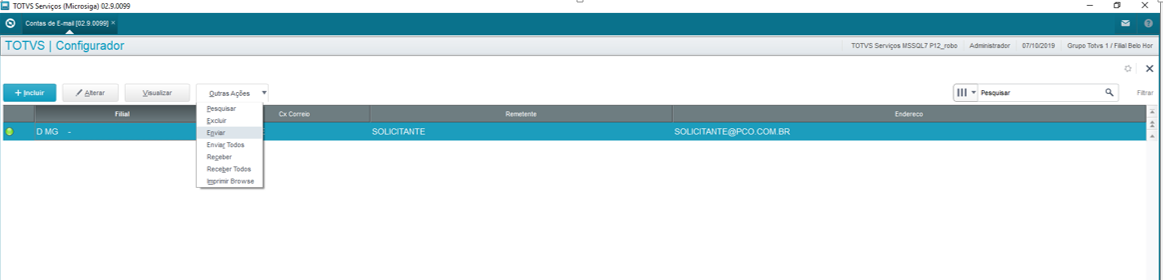
To send e-mails, access SIGACFG:
Environments > Workflow > E-mail Accounts
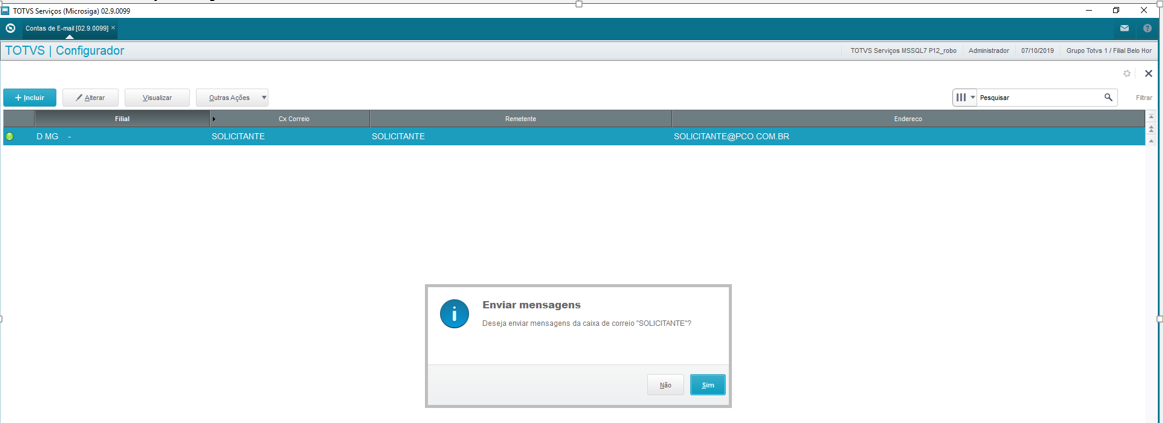
Click Other Actions -> Send:
Confirm the operation
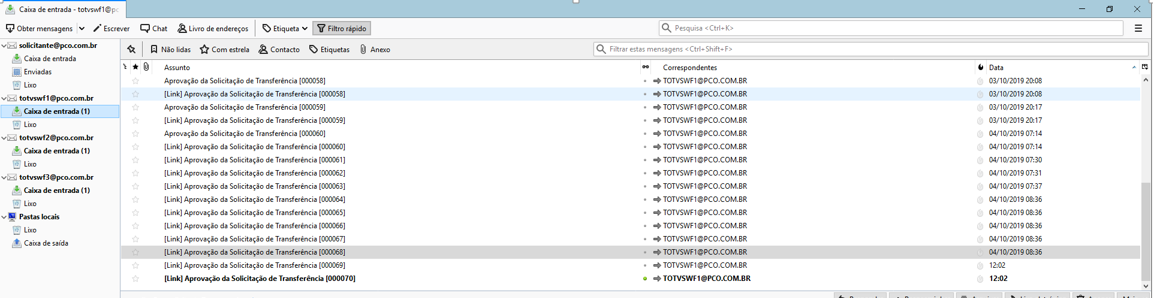
Regarding the request 000070 received correctly e-mail box:
Select the user for request approval
When you access the link, the system redirects you to the approvals page:
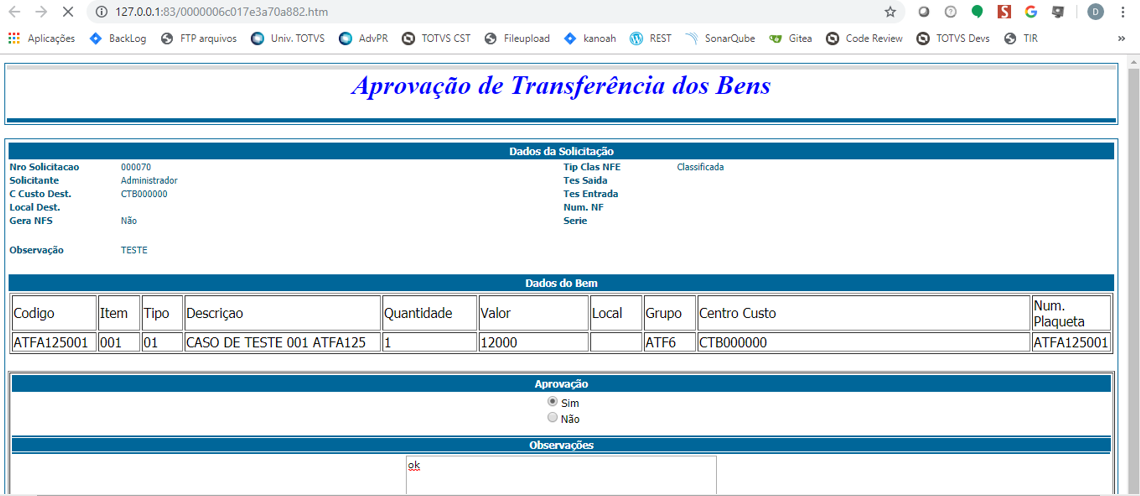
After approving the request

Access the routine for Postings and Transfers:
Updates > Transactions > Request for Posting and Transfer
The request was approved correctly

You can find the .htm files in the TFS, in the default rdmake folder, and copy them to the location entered (in the folder where the workflow was configured) $/Protheus_Padrao/Fontes_Doc/Master/Fontes/Rdmake Padrao/MODELOS/Administrativos

The link below contains evidence of step-by-step configuration: Worflow_Configuration_ATFA125.docx |