
CONTENT
- Overview
- Example of use
- Asset fields for EFD Contributions
- Next steps
- Other Information
01. OVERVIEW
This document details how to include Fixed Assets that were acquired and already have accumulated depreciation or are controlled in other systems/spreadsheets.
The inclusion of assets can be performed by the user through the Purchasing module, using routine MATA103 and then classifying the asset (ATFA240), or manually via routine ATFA012 (Assets).
It is also possible to add assets automatically through the ExecAuto functionality of routine ATFA012 or via the MILE importer. Note that these options are customized, and it is the customer’s responsibility to fill in the necessary fields as required.
02. EXAMPLE OF USE
Protheus does not perform retroactive depreciation of assets, but it is possible to include them with accumulated depreciation so that the system recognizes how much the asset has already depreciated and continues depreciation on a monthly basis.
Therefore, when including an asset that already has depreciation, the acquisition start fields, depreciation start date, and accumulated depreciation must be informed using the actual acquisition data.
Example:
There is an asset currently tracked in a spreadsheet but not yet registered in Protheus. The asset has been in the company since 01/01/2020 and will be registered to begin monthly depreciation starting from 01/01/2024.
In this case, the MV_ULTDEPR parameter for the branch where the asset will be registered must be set to 20231231, and the asset data should be entered as shown below:
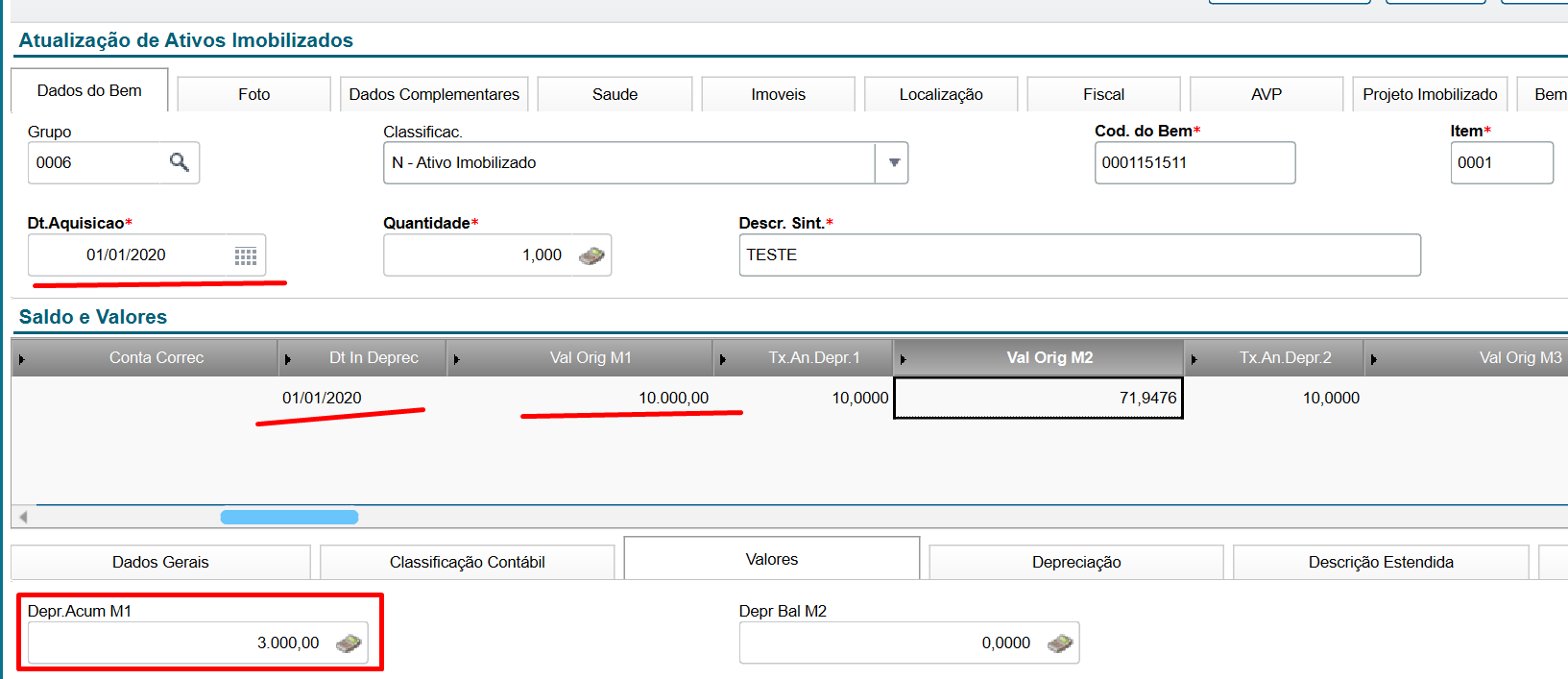
This way, the system will generate the add record (N4_OCORR = 05) and the accumulated depreciation record (N4_OCORR = 06 and N4_TIPOCNT = 4) in the movement table. These same values will also be recorded in SN3, and the system will proceed with monthly depreciation until the accumulated depreciation matches the asset’s original value. Note that this example assumes straight-line depreciation, but the asset will stop depreciating according to its specific depreciation rule.
03. ASSET FIELDS FOR EFD CONTRIBUTIONS
For the fixed asset to appear in record F120 of the EFD Contributions, the following fields in the fixed asset registration must be filled in.
In the Asset Data tab, under the field Calc. PIS (N1_CALCPIS), select 1 – Yes or 3 – Fraction.
Importante
When selecting option 3 – Fraction for F120 generation, the value will not be fractioned. Only the number of installments indicated in the N1_MESCPIS field will be applied.
Example: If 12 months are entered in the N1_MESCPIS field, the system will generate F120 only for the first 12 depreciation months of the asset, always using the full depreciation amount for each month, without any fractioning.

In the Fiscal tab, fill in all required fields and set the Cod.BC Cred (N1_CODBCC) field as 09 or 11, according to the F120 record layout.

04. NEXT STEPS
Once the fixed asset is registered, it is necessary to run the depreciation process in Miscellaneous > Processing > Monthly Calculation, which uses the MV_ULTDEPR parameter to reference the last calculation.
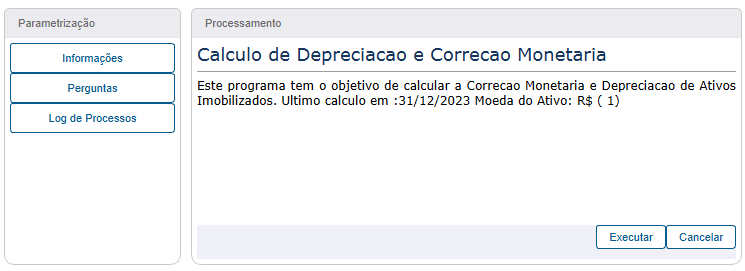
After executing depreciation in the Fixed Assets module, generate the EFD Contributions through the Fiscal Module.
05. OTHER INFORMATION
DT Automatic Routine ATFA012 – Fixed Assets Update
Cross Segment – Backoffice Protheus Line – SIGAATF – ATFA012 Add Asset via TXT MILE
Fixed Asset (ATFA012 – SIGAATF)
Parameter Configuration MV_ULTDEPR – 108844
EFDCON – PIS/COFINS Calculation and EFD Contributions File
Official download of the EFD Contributions Manual
Visão Geral
Import HTML Content
Conteúdo das Ferramentas
Tarefas