...
The form editor includes various features, fields, and properties for the forms that are specifically created for a process. Below, all the fields and procedures necessary for constructing a form following the best development practices are detailed. The form editor is divided into four distinct parts that will be detailed in this documentation.

Initial settings
...
Some initial settings such as title, version, configuration, and preview are located at the top of the form editor. Below, we will detail each of these items.
 Image ModifiedForm title: enter a title for the form being created.
 Image ModifiedVersion: draft or the released version number. Example: V. 01.
 Image ModifiedForm rules: click the icon to view or include new rules for the form.
 Image ModifiedVersion history: used to access the history of versions and modifications of the form. Learn more here.
 Image ModifiedPreview form: click the preview icon.
 Image ModifiedForm settings: defines whether the field description will be standard or a form field.
 Image ModifiedCreate with AI: used to request the creation of forms in an easier way.
 Image ModifiedSave: used to save the form belonging to the process.
| Informações |
|---|
|
In forms created from the new editors, there is no option or button for individual publication. This is because the publication of the form occurs automatically when the process diagram to which it is linked is published. Thus, it is not possible to publish a form in isolation — it only becomes available after the related process is published. |
Add fields to the form
...
The form fields are located on the left side of the editor and can be added in any order and quantity. To rearrange the position of a field, simply click on it and drag it to the desired location. The available fields are:
- Simple field: validate the purpose of use
- Text area: allows the inclusion of text in the form being created.
- Text: allows the inclusion of text.
- Combo: allows the inclusion of a combobox field with predefined options in the form or with options dynamically loaded from a dataset.
- List: allows the inclusion of list-type fields with predefined options in the form or with options dynamically loaded from a dataset.
- Single selection: allows the inclusion of radio button fields, enabling the selection of only one option registered by the user.
- Multiple choice: allows the inclusion of checkbox fields, enabling the selection of multiple options by the user.
- Search: allows the inclusion of a search-type field with information loaded from the selected dataset.
- Rating: allows the inclusion of a rating star field, where the user can select a scale from 0 to 5 stars.
- Table: allows the inclusion of other available fields for constructing the form.
- Panel: allows grouping different fields within the same area, facilitating the organization and readability of information. This feature is used to create sections or delimit sets of fields by context.
- Tabs: allows the inclusion of tabs within the form being created, and it is possible to include other available fields for constructing the form.
- Image: allows the inclusion of an image directly from the user's desktop. The maximum supported upload size is 10MB.
- Divider: adds a horizontal line to visually separate the fields of the form.
| Informações |
|---|
|
All fields have the Code property, which is automatically filled in to facilitate identification. This property is editable and can be changed as needed. However, it is not allowed to assign the same code to two different fields. If this occurs, the duplicate field will be highlighted in red to indicate the necessary adjustment. Additionally, it is not possible to save the form while there are fields with repeated codes. |
Duplicate fields
...
All fields have the duplication action, accessible via the icon  Image Modified. For fields that have configured rules, a message is displayed asking if you want to copy the rules from the original field to the duplicated field. If desired, click Yes.
Field properties
...
All fields available for constructing the form have properties that can be configured at the time of adding the field to the form. Below, we will detail all the properties available for each type of field.
| Field | Properties |
|---|
| Simple field | | Painel |
|---|
| borderColor | #8c8c8c |
|---|
| bgColor | #f2f2f2 |
|---|
| title | General field settings |
|---|
| Code
Unique identification code for the field. This code can be edited to the desired value, but it must be unique, meaning it cannot be repeated. It can be used in customizations via code. Type
Defines whether the field will be of type text, numeric, or date.
Title
Title that will be assigned to the form field.
Field size
Used to define the size of the field in the form. |
| Painel |
|---|
| borderColor | #8c8c8c |
|---|
| bgColor | #f2f2f2 |
|---|
| title | Help and filling |
|---|
| Help text
Instructions for the user to fill out the form. Filling tip
Tip that describes the expected value for the field.
Character limit
The character limit of the field can be adjusted using the arrow icons or by directly entering the value into the property. If no value is defined, the default limit is 4,000 characters.
Mask
Format in which the field value will be displayed. The mask options are: - No mask
- CPF
- CNPJ
- Percentage
- ZIP Code
- Date
- Time
- Date and Time
- Landline Phone
- Mobile Phone
- License Plate
- Currency
- IP
|
| Painel |
|---|
| borderColor | #8c8c8c |
|---|
| bgColor | #f2f2f2 |
|---|
| title | Privacy and data |
|---|
| Use Analytics?
When checked, the data received from this field will be sent to Analytics. | Informações |
|---|
This field may be used to collect sensitive data. Learn more here. |
|
|
| Text area | | Painel |
|---|
| borderColor | #8c8c8c |
|---|
| bgColor | #f2f2f2 |
|---|
| title | General field settings |
|---|
| Code
Unique identification code for the field. This code can be edited to the desired value, but it must be unique, meaning it cannot be repeated. It can be used in customizations via code. Title
Title that will be assigned to the form field. Height
Used to define the height of the field in the form. The default initial size is 6. Field size
Used to define the size of the field in the form. |
| Painel |
|---|
| borderColor | #8c8c8c |
|---|
| bgColor | #f2f2f2 |
|---|
| title | Help and filling |
|---|
| Help text
Instructions for the user to fill out the form. Filling tip
Tip that describes the expected value for the field. Character limit
The character limit of the field can be adjusted using the arrow icons or by directly entering the value into the property. If no value is defined, the default limit is 4,000 characters. |
| Painel |
|---|
| borderColor | #8c8c8c |
|---|
| bgColor | #f2f2f2 |
|---|
| title | Privacy and data |
|---|
| Use Analytics?
When checked, the data received from this field will be sent to Analytics. | Informações |
|---|
This field may be used to collect sensitive data. Learn more here. |
|
|
| Text | | Painel |
|---|
| borderColor | #8c8c8c |
|---|
| bgColor | #f2f2f2 |
|---|
| title | General field settings |
|---|
| Code
Unique identification code for the field. This code can be edited to the desired value, but it must be unique, meaning it cannot be repeated. It can be used in customizations via code. Text
It is possible to include paragraphs using the Enter key. Field size
Used to define the size of the field in the form. |
| Painel |
|---|
| borderColor | #8c8c8c |
|---|
| bgColor | #f2f2f2 |
|---|
| title | Customization |
|---|
| Alignment and style
Defines the alignments that the field will receive, as well as the applicable styles: bold, italic, and underline. Font size
Defines the font size used in the field, allowing for a range from paragraph size 7 to 1. Text color
Defines the color of the text included in the field. Left background color
Color that defines the left side of the field. Right background color
Color that defines the right side of the field. Internal space height
Defines the height of the internal space of the field. The larger the value, the greater the internal space of the field. The maximum supported value is 100. Round borders
Used to round the corners of the field. |
|
| Combo | | Painel |
|---|
| borderColor | #8c8c8c |
|---|
| bgColor | #f2f2f2 |
|---|
| title | General fiel settings |
|---|
| Code
Unique identification code for the field. This code can be edited to the desired value, but it must be unique, meaning it cannot be repeated. It can be used in customizations via code. Title
Title that will be assigned to the form field. Field size
Used to define the size of the field in the form. |
| Painel |
|---|
| borderColor | #8c8c8c |
|---|
| bgColor | #f2f2f2 |
|---|
| title | Help and filling |
|---|
| Help text
Instructions for the user to fill out the form. Field value
Determines whether the options for selecting the field will be defined from a dataset or predefined directly in the form construction. - To use predefined information in the form, select the Manual values option.
- To use predefined information in the form, select the Dynamic values option.
| Painel |
|---|
| borderColor | #8c8c8c |
|---|
| bgColor | #f2f2f2 |
|---|
| When choosing to obtain manual values, it will be necessary to include the values in the Option title and Value fields. When choosing to obtain dynamic values from a dataset, you need to click the Configure dataset button and fill in the fields below:
Dataset
Defines the dataset that will be used to provide the values. Options
Defines a column so that its rows are options for the end-user field. Sorting
Defines a column to sort the available options. Value
Value that will be assigned to the field option. - After filling in all the necessary fields, click Save.
- It is also possible to edit the information using the icon
 Image Modified and delete using the icon Image Modified and delete using the icon  Image Modified. Image Modified.
|
|
| Painel |
|---|
| borderColor | #8c8c8c |
|---|
| bgColor | #f2f2f2 |
|---|
| title | Privacy and data |
|---|
| Use Analytics?
When checked, the data received from this field will be sent to Analytics. | Informações |
|---|
This field may be used to collect sensitive data. Learn more here. |
|
|
Lists | | Painel |
|---|
| borderColor | #8c8c8c |
|---|
| bgColor | #f2f2f2 |
|---|
| title | General field settings |
|---|
| Code
Unique identification code for the field. This code can be edited to the desired value, but it must be unique, meaning it cannot be repeated. It can be used in customizations via code. Title
Title that will be assigned to the form field. Field size
Used to define the size of the field in the form. |
| Painel |
|---|
| borderColor | #8c8c8c |
|---|
| bgColor | #f2f2f2 |
|---|
| title | Help and filling |
|---|
| Help text
Instructions for the user to fill out the form. Field value
Determines whether the options for selecting the field will be defined from a dataset or predefined directly in the form construction. - To use predefined information in the form, select the Defined option.
- To use information from a dataset, choose the Dataset option.
| Painel |
|---|
| borderColor | #8c8c8c |
|---|
| bgColor | #f2f2f2 |
|---|
| When choosing to obtain manual values, it will be necessary to include the values in the Option title and Value fields. When choosing to obtain dynamic values from a dataset, you need to click the Configure dataset button and fill in the fields below:
Dataset
Defines the dataset that will be used to provide the values. Sorting
Defines a column to sort the available options. Options
Defines a column so that its rows are options for the end-user field. Value
Defines a unique identifier for the option and is not displayed to the end user. It can be used in customizations via code. - After filling in all the necessary fields, click Save.
- It is also possible to edit the information using the icon Image Modified and delete using the icon Image Modified.
|
| Painel |
|---|
| borderColor | #8c8c8c |
|---|
| bgColor | #f2f2f2 |
|---|
| title | Privacy and data |
|---|
| Use Analytics?
When checked, the data received from this field will be sent to Analytics. | Informações |
|---|
This field may be used to collect sensitive data. Learn more here. |
|
|
|
Single selection | | Painel |
|---|
| borderColor | #8c8c8c |
|---|
| bgColor | #f2f2f2 |
|---|
| title | General field settings |
|---|
| Code
Unique identification code for the field. This code can be edited to the desired value, but it must be unique, meaning it cannot be repeated. It can be used in customizations via code. Title
Title that will be assigned to the form field. Number of columns
Defines the number of columns that the field will have. Field size
Used to define the size of the field in the form. |
| Painel |
|---|
| borderColor | #8c8c8c |
|---|
| bgColor | #f2f2f2 |
|---|
| title | Help and filling |
|---|
| Help text
Instructions for the user to fill out the form. |
| Painel |
|---|
| borderColor | #8c8c8c |
|---|
| bgColor | #f2f2f2 |
|---|
| title | Options |
|---|
| Option title
Enter the options that will make up the field. It is possible to change the position of the options and delete them. Value
Property that can be used for integrations or processing in the code. It will not be displayed to the end user. | Painel |
|---|
| borderColor | #8c8c8c |
|---|
| bgColor | #f2f2f2 |
|---|
| You can add as many options as necessary. |
|
| Painel |
|---|
| borderColor | #8c8c8c |
|---|
| bgColor | #f2f2f2 |
|---|
| title | Privacy and data |
|---|
| Use Analytics?
When checked, the data received from this field will be sent to Analytics. | Informações |
|---|
This field may be used to collect sensitive data. Learn more here. |
|
|
Multiple choice | | Painel |
|---|
| borderColor | #8c8c8c |
|---|
| bgColor | #f2f2f2 |
|---|
| title | General field settings |
|---|
| Code
Unique identification code for the field. This code can be edited to the desired value, but it must be unique, meaning it cannot be repeated. It can be used in customizations via code. Title
Title that will be assigned to the form field. Number of columns
Defines the number of columns that the field will have. Field size
Used to define the size of the field in the form. |
| Painel |
|---|
| borderColor | #8c8c8c |
|---|
| bgColor | #f2f2f2 |
|---|
| title | Help and filling |
|---|
| Help text
Instructions for the user to fill out the form. |
| Painel |
|---|
| borderColor | #8c8c8c |
|---|
| bgColor | #f2f2f2 |
|---|
| title | Options |
|---|
| Option title
Enter the options that will make up the field. It is possible to change the position of the options and delete them. Value
Property that can be used for integrations or processing in the code. It will not be displayed to the end user. | Painel |
|---|
| borderColor | #8c8c8c |
|---|
| bgColor | #f2f2f2 |
|---|
| You can add as many options as necessary. |
|
| Painel |
|---|
| borderColor | #8c8c8c |
|---|
| bgColor | #f2f2f2 |
|---|
| title | Privacy and data |
|---|
| Use Analytics?
When checked, the data received from this field will be sent to Analytics. | Informações |
|---|
This field may be used to collect sensitive data. Learn more here. |
|
|
Search | | Painel |
|---|
| borderColor | #8c8c8c |
|---|
| bgColor | #f2f2f2 |
|---|
| title | General field settings |
|---|
| Code
Unique identification code for the field. This code can be edited to the desired value, but it must be unique, meaning it cannot be repeated. It can be used in customizations via code. Title
Title that will be assigned to the form field. Field size
Used to define the size of the field in the form. |
| Painel |
|---|
| borderColor | #8c8c8c |
|---|
| bgColor | #f2f2f2 |
|---|
| title | Help and filling |
|---|
| Help text
Instructions for the user to fill out the form. |
| Painel |
|---|
| borderColor | #8c8c8c |
|---|
| bgColor | #f2f2f2 |
|---|
| title | Configure dataset |
|---|
| Below the Help text field, the Configure dataset button is displayed to carry out the search configuration. To do this, it is necessary to fill in the fields below. Dataset
Defines the dataset that will be used to provide the values. Options
Defines a column so that its rows are options for the end-user field. Value
Defines a unique identifier for the option and is not displayed to the end user. It can be used in customizations via code. Sorting
Defines a column to sort the available options. Results limit
Defines the maximum number of records returned per query. Limited to one hundred (100) records. Record selection limit
Defines the maximum number that can be selected by the user when filling out the form. Limited to one hundred (100) record selections. - After filling in all the necessary fields, click Save.
- It is also possible to edit the information using the icon Image Modified and delete using the icon Image Modified.
|
| Painel |
|---|
| borderColor | #8c8c8c |
|---|
| bgColor | #f2f2f2 |
|---|
| title | Privacy and data |
|---|
| Use Analytics?
When checked, the data received from this field will be sent to Analytics. | Informações |
|---|
This field may be used to collect sensitive data. Learn more here. |
|
|
Evaluation | | Painel |
|---|
| borderColor | #8c8c8c |
|---|
| bgColor | #f2f2f2 |
|---|
| title | General field settings |
|---|
| Code
Unique identification code for the field. This code can be edited to the desired value, but it must be unique, meaning it cannot be repeated. It can be used in customizations via code. Title
Title that will be assigned to the form field. Field size
Used to define the size of the field in the form. |
| Painel |
|---|
| borderColor | #8c8c8c |
|---|
| bgColor | #f2f2f2 |
|---|
| title | Help and filling |
|---|
| Help text
Instructions for the user to fill out the form. Icon
Choose from the available icons, which are: - Star
- Selection
- Happy
- Sad
- Heart
- Scale
- Define between zero (0) and ten (10).
Show numbering
Enable this option to display numerical values corresponding to each step of the scale. Markers
Enable to add descriptive texts that contextualize the beginning and end of the scale. Starting marker
Define the starting marker. For example: Poor. Ending marker
Define the ending marker. For example: Good. |
| Painel |
|---|
| borderColor | #8c8c8c |
|---|
| bgColor | #f2f2f2 |
|---|
| title | Privacy and data |
|---|
| Use Analytics?
When checked, the data received from this field will be sent to Analytics. | Informações |
|---|
This field may be used to collect sensitive data. Learn more here. |
|
|
Table | | Painel |
|---|
| borderColor | #8c8c8c |
|---|
| bgColor | #f2f2f2 |
|---|
| title | General field settings |
|---|
| Code
Unique identification code for the field. This code can be edited to the desired value, but it must be unique, meaning it cannot be repeated. It can be used in customizations via code. Title
Title that will be assigned to the form field. Add button name
Button used to add new records to the table, that is, a new row. Hide title?
When enabled, the title of the table will be hidden. |
| Painel |
|---|
| borderColor | #8c8c8c |
|---|
| bgColor | #f2f2f2 |
|---|
| title | Main table |
|---|
| Main table The title of the field will be assigned to the form field. |
| Painel |
|---|
| borderColor | #8c8c8c |
|---|
| bgColor | #f2f2f2 |
|---|
| title | Privacy and data |
|---|
| The Send to Analytics button is not displayed in this field, as the field itself is not sent to Analytics. Only the fields added within the Table field can have this configuration. The Add sensitive data button only defines how the information will be stored in the table. | Informações |
|---|
This field may be used to collect sensitive data. Learn more here. |
|
|
| Panel | | Painel |
|---|
| borderColor | #8c8c8c |
|---|
| bgColor | #f2f2f2 |
|---|
| title | General field settings |
|---|
| Code
Unique identification code for the field. This code can be edited to the desired value, but it must be unique, meaning it cannot be repeated. It can be used in customizations via code. Title
Title that will be assigned to the form field. |
| Painel |
|---|
| borderColor | #8c8c8c |
|---|
| bgColor | #f2f2f2 |
|---|
| title | Customization |
|---|
| Title color
Defines the color that will be used in the title. Left background color
Defines the background color for the left side that will be used in the panel. Right background color
Defines the background color for the right side that will be used in the panel. Icon
Select an icon to be assigned next to the panel title. Allow open and close?
Enable or disable to allow the panel to be expanded and collapsed. Icons for open and close
Define the set of icons that will represent the actions of expanding and collapsing the fields inserted in the panel. |
|
| Tabs | | Painel |
|---|
| borderColor | #8c8c8c |
|---|
| bgColor | #f2f2f2 |
|---|
| title | General field settings |
|---|
| Code
The code is a property that can be used for integrations or processing in the code. It will not be displayed to the end user. Title
By default, the field is opened with three tabs, and it is necessary to include a title for each of the tabs. |
| Painel |
|---|
| borderColor | #8c8c8c |
|---|
| bgColor | #f2f2f2 |
|---|
| title | Tabs |
|---|
| Tab title
Define the title that will be assigned to the tab. Code
Property that can be used for integrations or processing in the code. It will not be displayed to the end user. - It is possible to reorder the tabs as needed by clicking and holding the icon
 Image Modified. Image Modified. - You can delete a tab by clicking the trash icon Image Modified.
|
|
| Image | | Painel |
|---|
| borderColor | #8c8c8c |
|---|
| bgColor | #f2f2f2 |
|---|
| title | General fild settings |
|---|
| Code
Unique identification code for the field. This code can be edited to the desired value, but it must be unique, meaning it cannot be repeated. It can be used in customizations via code. Title
Title that will be assigned to the form field. Field size
Used to define the size of the field in the form. |
| Painel |
|---|
| borderColor | #8c8c8c |
|---|
| bgColor | #f2f2f2 |
|---|
| title | Upload |
|---|
| Select the file using the Select file button, or drag and drop the file into the designated area. Height
Defines the height of the image added to the field. Width
Defines the width of the image added to the field. Maintain aspect ratio
When used, it maintains the height and width proportions of the added image. Alignment
Defines the alignment of the image added to the field, being right-aligned, centered, or left-aligned. Behavior - Fill: The image will be enlarged to fit the entire available space, which may cause distortion.
- Contain: The image will be reduced to fit the available space while maintaining its proportions.
- Cover: The image will occupy the entire available space, being cropped if necessary.
|
|
| Divider | | Painel |
|---|
| borderColor | #8c8c8c |
|---|
| bgColor | #f2f2f2 |
|---|
| title | General field settings |
|---|
| Code
Unique identification code for the field. This code can be edited to the desired value, but it must be unique, meaning it cannot be repeated. It can be used in customizations via code. Title
Title that will be displayed alongside the divider. |
| Painel |
|---|
| borderColor | #8c8c8c |
|---|
| bgColor | #f2f2f2 |
|---|
| title | Help and filling |
|---|
| Help text
Subtext that will be displayed below the divider. |
| Painel |
|---|
| borderColor | #8c8c8c |
|---|
| bgColor | #f2f2f2 |
|---|
| title | Customization |
|---|
| Thickness
Thickness of the divider line, which can be small, medium, or large. Divider color
Used to define the color of the divider. Icon
Icon that will be displayed next to the divider. |
|
Form Rules
...
When creating or editing a process form, it is possible to add rules to be validated at the time of filling. Below we will detail the concept and how to use this feature:
| Painel |
|---|
| borderColor | #f2f2f2 |
|---|
| bgColor | #f2f2f2 |
|---|
| borderStyletitle | What are form rules |
|---|
|
Form rules are mechanisms that allow you to configure specific events within a form, triggered in certain activities and fields. These events occur exclusively in normal activities or in the initial activity of a process. The available actions for these events include: - Disable a field: Prevents the user from interacting with a specific field.
- Validate a value: Checks if the entered value meets predefined criteria.
- Set a value: Automatically assigns a specific value to the field.
- Hide a field: Temporarily removes the field from the user interface.
By configuring these actions, a form event is generated with the established parameters, ensuring automated and personalized behavior when filling out the form. |
01. After including and configuring all desired fields for the form, click on the icon  Image Modified;
02. Click on Add rule to include a new rule and select the information to define the rule.
| Painel |
|---|
| borderColor | #f2f2f2 |
|---|
| bgColor | #f2f2f2 |
|---|
|
When the request reaches the activity
Select the activity in which the rule will be defined. the field
Select the field that will receive the rule. of the form will be - Hidden: When selected, it determines that the field will be hidden when the request is in the activity selected in the rule.
- Displayed: When selected, it determines that the field will be displayed only when the request is in the activity selected in the rule.
- Disabled: When selected, it determines that the field will be displayed as disabled when the request is in the activity selected in the rule.
- Enabled: When selected, it determines that the field will be displayed as enabled when the request is in the activity selected in the rule.
- Required: When selected, it determines that the field will be mandatory when the request is in the activity selected in the rule.
- Optional: When selected, it determines that the field will be optional when the request is in the activity selected in the rule.
- Set value: When selected, it determines that a specific value will be assigned to the field when the request is in the activity selected in the rule. In this case, it is necessary to define the value that will be assigned. The values are divided into three distinct categories: Current user, Request, and Others.
- User code
- Name
- Full name
- Email
- Current date
- Activity code
- Request code
- Requester user
- Requester email
- Fixed value
Validated value: When selected, it determines that a validation will be executed on the field value when the request is in the activity selected in the rule. When selecting this option, it is necessary to define the criteria that will be considered in the field validation. Validated format: When selected, it determines that the format will be validated according to the defined conditions. Executed events: When selected, it determines that an event will occur in the field when the request is in the activity selected in the rule. | Painel |
|---|
| borderColor | #8c8c8c |
|---|
| bgColor | #f2f2f2 |
|---|
| It is possible to filter already created rules using the icon  . . |
|
...
By enabling this option, the data received by this field will be sent to Analytics, allowing for the necessary analyses to be conducted.
Add personal/sensitive data
...
In some fields, it is possible to mark as sensitive data in cases where necessary. The following fields have this characteristic. Below, we will detail how to use this option.
- Simple field;
- Text area;
- Combo;
- Lists;
- Single selection;
- Multiple choice;
- Table.
| Informações |
|---|
| title | But what are sensitive data? |
|---|
|
Sensitive data is a specific type of personal data that, by its nature, requires greater protection. It reveals information about the person and, if exposed or misused, can cause discrimination, embarrassment, or harm to the individual's freedom and privacy. To collect an individual's Social Security Number (SSN), it is necessary for the field responsible for this collection to be properly protected by marking the option Is it sensitive data? in the corresponding field. |
01. Add the desired field in the form editor;
02. In the field properties, locate the Privacy and data group and click on Add personal data;
03. In Data type, select the type of data that will be collected from the options below:
- Name
- Email
- Social Security Number (SSN)
- ID card
- Driver's license
- Voter registration card
- Work permit
- Passport
- Other
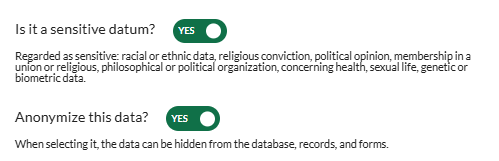
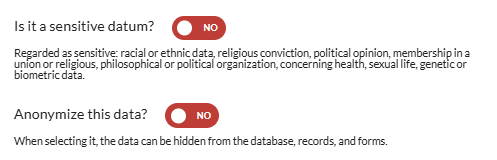
04. Define whether the collected data is sensitive and needs to be anonymized. In the options Is it sensitive data? and Anonymize this data?, select yes if necessary. It will look like the images below:
| Painel |
|---|
| borderColor | #f2f2f2 |
|---|
| bgColor | #f2f2f2 |
|---|
|
| Deck of Cards |
|---|
| | Card |
|---|
| 
|
| Card |
|---|
| 
|
|
|
05. In Classification, select one of the available classifications. Among:
- Contract execution;
- Legal obligation;
- Consent;
- Execution of public policies;
- Study by a research agency;
- Regular exercise of a right;
- For the protection of life;
- For health care;
- Legitimate interest;
- Credit protection.
06. In Justification, provide a justification for the data being considered sensitive.
...