...
Flows are represented by arrows that indicate the direction of movement, which can be either a one-way path – from the source activity to the destination target activity – or a return – from the destination target activity back to the source activity.
...
The automatic flow moves the request automatically to the destination target activity after reaching the deadline of the source activity, and it is not yet fulfilled; that is, the request has not yet moved to the next step.
...
| Informações |
|---|
|
→ Since the automatic flow only moves the request after the deadline of the source activity has been is reached, it is you must also necessary to configure a common flow in the source activity to allow conventional movement, ; that is, to allow the request to be moved move before reaching the deadline for completion of the source activity. → While running an automatic flow, no authenticated user is performing the movement. Therefore, events that use the authenticated user through APIs must consider this fact to avoid inconsistencies in execution. |
| Painel |
|---|
|
| Estado |
|---|
| subtle | true |
|---|
| title | EXAMPLE OF USE |
|---|
|
In a process of Opening a support ticket, the requester has a defined deadline to evaluate the proposed solution and respond positively or negatively, ; that is, to inform notify whether the solution met their needs or not. If they do not respond within this deadline, the ticket will be automatically closedcloses. In this case, it is we recommended to use using an automatic flow between the Evaluate solution step – which is the responsibility of the requester – and the Close ticket step, which is the end of the process. This wayThus, it prevents many pending tickets from remaining open due to lack of response from the requesters.

|
Return flow
...
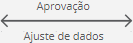
The return flow allows the request to go back to the originating source activity.
When the request is moved moves from the originating source activity to the destination target activity through a flow that allows return, upon completing the destination target activity, it will be possible to you can return the request to the previous activity, ; that is, the originating one.
The person responsible for receiving the request will be is the same person who previously completed the originating source activity, ; that is, who moved it to the destination target activity last.
The return flow is represented by an arrow starting from the destination target activity and pointing to the originating source activity.
Automatic flows You can also be configured configure automatic flows to allow returnreturns. In this case, its representation will also have a clock in the middle of the arrow, as follows: 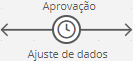 .
.
| Informações |
|---|
|
The You can only use the return flow can only be used in the version of the process in which the request is located during the movement. Therefore, if you convert the request is converted to another version of the process, in its first movement after the conversion, it cannot return to the previous activity, since there will be a movement that represents the conversion and, therefore, it will lose the possibility of immediate return. |
| Painel |
|---|
|
| Estado |
|---|
| subtle | true |
|---|
| title | USE EXAMPLE |
|---|
|
In a vacation request process, when sending the request for the manager's approval, it they may be that they request some adjustment to the start date or the number of days requested. In this case, it is recommended to use we recommend using the return flow to allow the manager to return the request to the employee to adjust the data and send the request for approval again. This way, it avoids the manager having to reject the request and the employee having to open a new one with the requested adjustments.

|
...
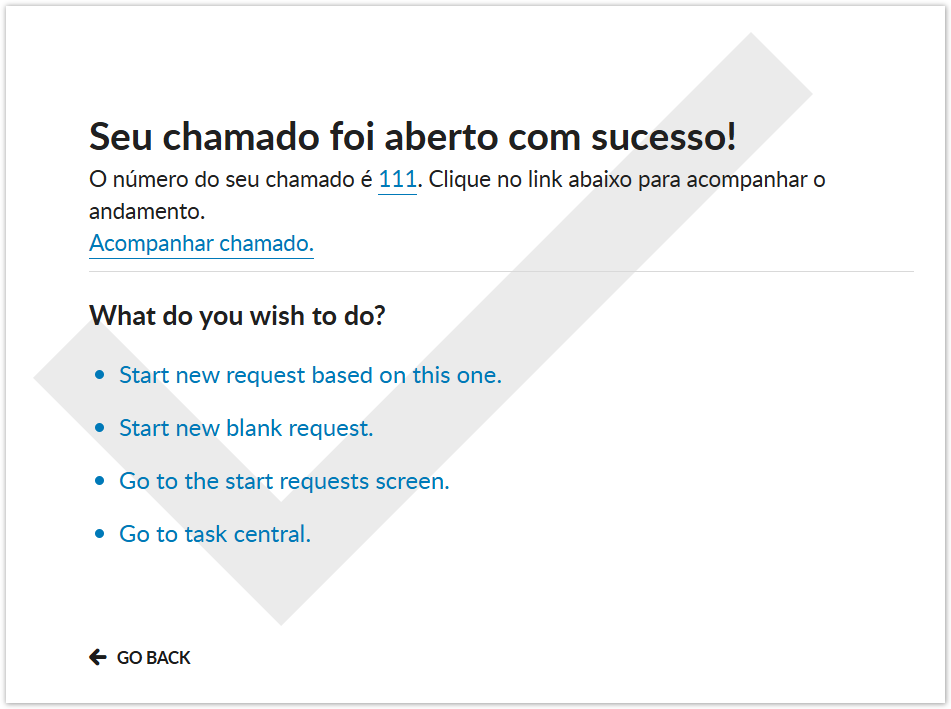
Flows have predefined messages that are displayed at the moment of moving displayed when you move the request from the originating source activity to the destination target activity. However, you can customize these messages can be customized according to in accordance with the process or stage.
| Painel |
|---|
|
| Estado |
|---|
| subtle | true |
|---|
| title | USE EXAMPLE |
|---|
|
In a technical support ticket opening process, the movement message from Start to Second stage can be defined as "Your ticket has been successfully opened!" instead of keeping the default message "Request 999 successfully initiated.".
|
...
| Painel |
|---|
| borderColor | #f2f2f2 |
|---|
| bgColor | #f2f2f2 |
|---|
|
Flow type
Type of flow that will to be used between the two activities or stages of the process. The available options are: - Common flow: when selected, it determines that the flow will be is common, meaning it is necessary that you need to move the request from the source activity to the destination target activity.
Automatic flow: when selected, it determines that the flow will be is automatic, meaning the request will be automatically moved moves from the source activity to the destination target activity when the deadline for completing the source activity expires. | Nota |
|---|
| For the automatic flow to work correctly, it is necessary you need to create a schedule of the type Automatic flow in the Task scheduler. |
Common flow title
Name for identifying the flow. This name is displayed above the flow in the process diagram.
| Painel |
|---|
| | Estado |
|---|
| |
|---|
| subtle | true |
|---|
| title | EXAMPLE OF USE |
|---|
|
In a Payment Request process, you could call the flow between the Request payment stage and the Manager Approval stage could be called Send for approval.
|
Return flow
When activated, it determines that it is allowed to return the request from the destination target activity to the source activity.
Return flow title
Name for identifying the return flow. This name is displayed below the flow in the process diagram.
| Painel |
|---|
| | Estado |
|---|
| subtle | true |
|---|
| title | EXAMPLE OF USE |
|---|
|
In a Vacation Request process, you could call the return flow between the Manager Approval stage and the Request vacation stage could be called Adjust dates.
|
|
03. Click on the Flow Message tab to customize the message displayed when the request goes through this flow.
| Painel |
|---|
| borderColor | #f2f2f2 |
|---|
| bgColor | #f2f2f2 |
|---|
|
The flow message is displayed upon completing the movement of the request from the source activity to the destination target activity. These messages already exist by default; however, they you can be customized customize them if desired. | Dica |
|---|
| You can insert the request number anywhere in the message, whether in the title, description, or link text. To do this: 01. Insert the character @. 02. lick on Click request number. 03. Upon clicking, the request number will be is replaced by [request:id]. → When the message is displayed, instead of @[request:id], the actual request number will be is shown. | Estado |
|---|
| |
|---|
| subtle | true |
|---|
| title | CLICK HERE TO SEE AN EXAMPLE OF A CUSTOMIZED MESSAGE |
|---|
|
| Cloak |
|---|
| | #ebecf0 Your vacation request has been sent for approval! Your request number is 999. Click the link below to track its progress. Track request. |
|
Title
Title of the request movement message. The title can have up to 70 characters. If no title is entered, the default will be displayed. | Estado |
|---|
| |
|---|
| subtle | true |
|---|
| title | CLICK HERE TO SEE THE DEFAULT TITLE |
|---|
|
| Cloak |
|---|
| | #ebecf0 When opening the request:
→ Request 999 successfully initiated. When sending the request from one step to another:
→ Request 999 successfully moved. |
Description
Message of the request movement. The message can have up to 255 characters. If no message is enteredyou do not enter a message, the default will be is displayed.
| Estado |
|---|
| |
|---|
| subtle | true |
|---|
| title | CLICK HERE TO SEE THE DEFAULT DESCRIPTION |
|---|
|
| Cloak |
|---|
| | #ebecf0 → You can access the details, attachments, and add-ons of this request. |
Request link text
Text that will be displayed in the link that allows access to the request. The text can have up to 70 characters. If no text is enteredyou do not enter any text, the default will be is displayed. | Estado |
|---|
| |
|---|
| subtle | true |
|---|
| title | CLICK HERE TO SEE THE DEFAULT LINK |
|---|
|
|
04. Click on Save draft – located on the right side of the top bar – to save the settings made in the Flow component.
05. In the displayed message, click on Ok, I understand.
| Informações |
|---|
|
This documentation is valid from the Voyager update (2.0) update onwards. If you are using a previous update, it may contain information different from what you see on your platform. |
| HTML |
|---|
<!-- Hotjar Tracking Code for http://tdn.totvs.com/display/fb -->
<script>
    (function(h,o,t,j,a,r){
        h.hj=h.hj||function(){(h.hj.q=h.hj.q||[]).push(arguments)};
        h._hjSettings={hjid:1280165,hjsv:6};
        a=o.getElementsByTagName('head')[0];
        r=o.createElement('script');r.async=1;
        r.src=t+h._hjSettings.hjid+j+h._hjSettings.hjsv;
        a.appendChild(r);
    })(window,document,'https://static.hotjar.com/c/hotjar-','.js?sv=');
</script> |