|
This documentation refers to the new process editor of the platform. If you are using the current process editor, access Configure activities and flows. |
|

Flows are the mechanisms that define to which activity the request should go. They determine the path that the request will take as the stages or activities are completed.
Flows are represented by arrows that indicate the direction of movement, which can be either a one-way path – from the source activity to the target activity – or a return – from the target activity back to the source activity.
The types of flows available for use are detailed below.
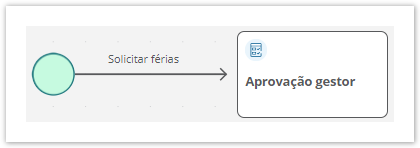
The common flow is the standard flow for moving the request between activities. It is the flow used most often, allowing the request to move from one activity to another without the possibility of returning to the previous activity.
The common flow is represented by an arrow that indicates the direction in which the request will move.
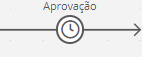
The automatic flow moves the request automatically to the target activity after reaching the deadline of the source activity, and it is not yet fulfilled; that is, the request has not yet moved to the next step.
A clock in the middle of the arrow pointing the direction to which the request will move represents the automatic flow.
For the automatic flow to work correctly, it is required that:
→ Since the automatic flow only moves the request after the deadline of the source activity is reached, you must also configure a common flow in the source activity to allow conventional movement; that is, to allow the request to move before reaching the deadline for completion of the source activity. → While running an automatic flow, no authenticated user is performing the movement. Therefore, events that use the authenticated user through APIs must consider this fact to avoid inconsistencies in execution. |
|
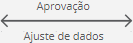
The return flow allows the request to go back to the source activity.
When the request moves from the source activity to the target activity through a flow that allows return, upon completing the target activity, you can return the request to the previous activity; that is, the originating one.
The person responsible for receiving the request is the same person who previously completed the source activity; that is, who moved it to the target activity last.
The return flow is represented by an arrow starting from the target activity and pointing to the source activity.
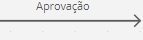
You can also configure automatic flows to allow returns. In this case, its representation will also have a clock in the middle of the arrow, as follows: 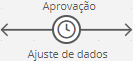 .
.
You can only use the return flow in the version of the process in which the request is located during the movement. Therefore, if you convert the request to another version of the process, in its first movement after the conversion, it cannot return to the previous activity, since there will be a movement that represents the conversion and, therefore, it will lose the possibility of immediate return. |
|
Flows have predefined messages displayed when you move the request from the source activity to the target activity. However, you can customize these messages in accordance with the process or stage.
|
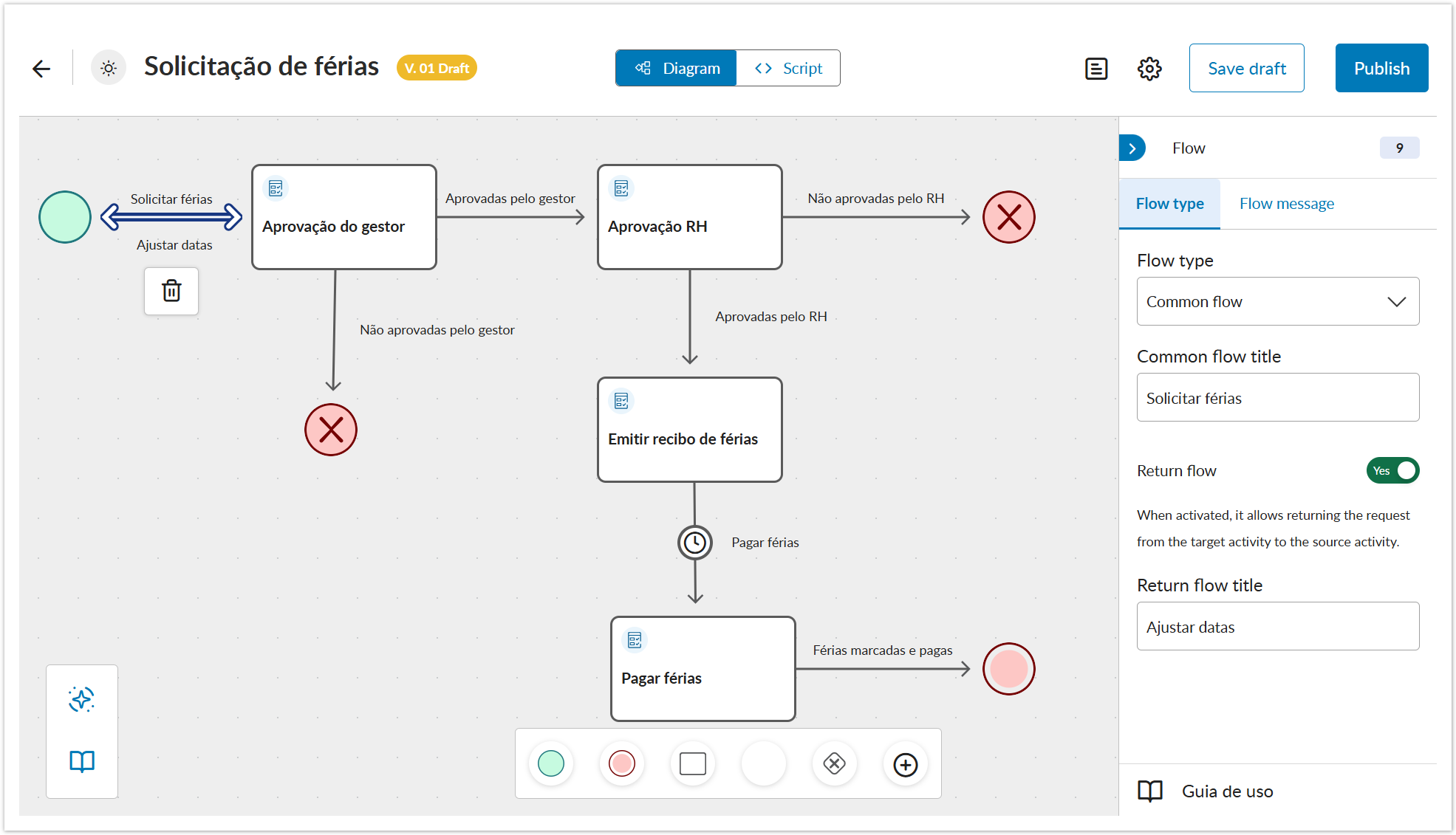
01. In the process diagram, click on the Flow component 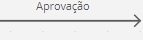 you want to configure.
The available settings are displayed on the right side. |
02. In the Flow type tab, define the general information of the flow.
Flow type
Common flow title
Return flow Return flow title
|
03. Click on the Flow Message tab to customize the message displayed when the request goes through this flow.
The flow message is displayed upon completing the movement of the request from the source activity to the target activity. These messages already exist by default; however, you can customize them if desired.
Title
Description
Request link text
|
04. Click Save draft – located on the right side of the top bar – to save the settings made in the Flow component.
05. In the displayed message, click Ok, I understand.
This documentation is valid from the Voyager (2.0) update onwards. If you are using a previous update, it may contain information different from what you see on your platform. |
<!-- Hotjar Tracking Code for http://tdn.totvs.com/display/fb -->
<script>
    (function(h,o,t,j,a,r){
        h.hj=h.hj||function(){(h.hj.q=h.hj.q||[]).push(arguments)};
        h._hjSettings={hjid:1280165,hjsv:6};
        a=o.getElementsByTagName('head')[0];
        r=o.createElement('script');r.async=1;
        r.src=t+h._hjSettings.hjid+j+h._hjSettings.hjsv;
        a.appendChild(r);
    })(window,document,'https://static.hotjar.com/c/hotjar-','.js?sv=');
</script> |