Consult the correct documentation:
This documentation refers to the new process editor of the platform. If you are using the current process editor, access Configure activities and flows.
LANGUAGE


Speaking of the Join component... 

The Join component indicates the end of parallelism in the process flow, that is, the end of parallel stages (activities or flows), returning to the main and single flow.
You must necessarily use this component at the end of activities and parallel flows initiated by a Parallel component.
When there are still pending parallel stages, the request remains positioned at the Join component of the process until all of them are completed. When all parallel stages (activities or flows) are completed, the request is automatically sent to the next stage.
If the Join component is related to a stage without a defined assignment mechanism, the request is sent to the first person on the list of people with an active register on the platform in alphabetical order, even if that person has no participation or involvement in the process at issue.
EXAMPLE
The platform has the following registered and active people in the Users resource of the Control Panel1:
- Angelina Reek
- Alonso Cunha
- Francisco Vieira
- Poliana Santana
- Adelina da Costa
In this case, the request is automatically sent to Adelina da Costa, even though she was the last person to be registered on the platform, given that if you arrange the list of people in alphabetical order, her name will be the first on the list.
1 → The names listed in this example are fictitious and merely illustrative.

EXAMPLE
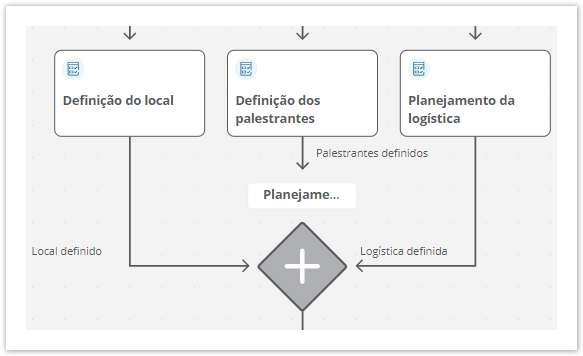
In an Event organization process such as a conference, where the stages Define location, Define speakers, and Plan logistics – such as catering, audio and video equipment, and other resources needed – ran simultaneously, you must use the Join component to indicate the end of the stages executed in parallel. This causes the process to return to the main flow and proceed to the next stage.
Configuring the Join component
01. In the process diagram, click the Join component  you want to configure.
02. Define a title or name for the component that represents the end of the parallel steps in the process flow.
You can also change the name directly on the component. Just click on its current name and then on Edit  – located on the right side.
EXAMPLE
In a software development process, where the Back-end and Front-end steps ran simultaneously, you could name the component Coding completed, indicating the end of the code development steps that were executed in parallel.
03. Click Save draft – located on the right side of the top bar – to save the settings made on the Join component.
04. In the message displayed, click Ok, I understand.
Attention!
This documentation is valid from the Voyager (2.0) update onwards. If you are using a previous update, it may contain information different from what you see on your platform.
Visão Geral
Import HTML Content
Conteúdo das Ferramentas
Tarefas