|
This documentation refers to the new process editor of the platform. |
|

Scripts can be associated with process events to customize what should happen when a specific event occurs. They are called throughout the execution of the process, at predetermined moments by the events, such as the creation of a request or the arrival of a request at a certain stage of the process.
By using scripts in processes, you can manipulate values of the related form, communicate with external services, send emails to external people, handle request attachments and publish in the Documents resource, query datasets, add validations to the transaction of the request, integrate with other requests or other points of the platform, generate logs, etc.
Get more details and more technical information about developing scripts for events at: |
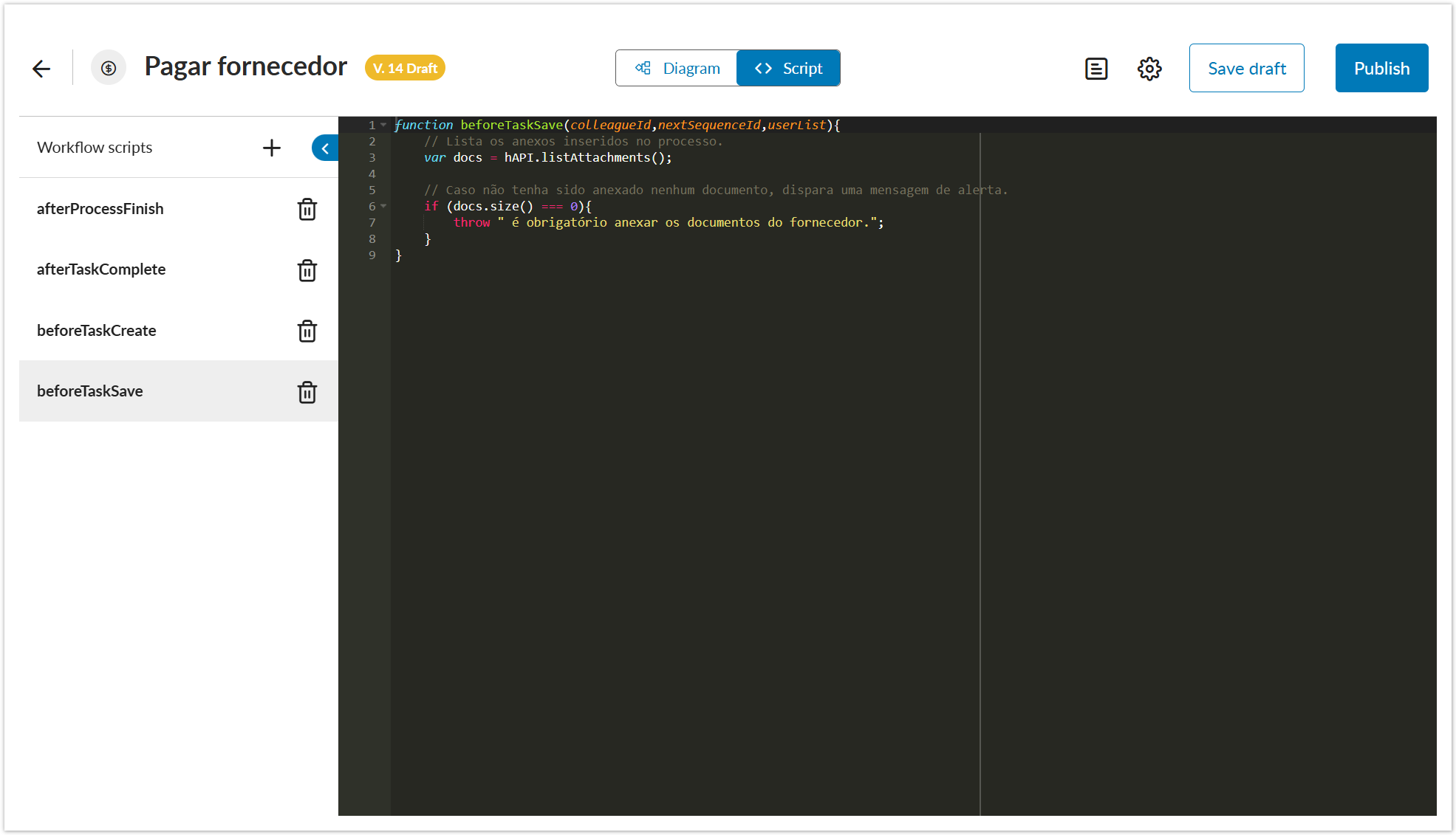
In this case, you can add a script for the afterProcessFinish event. Thus, when you finalize the request, the person from the supplier company will be aware that their payment has been made, as they will also receive the notification email.
|
01. With the process in edit mode, click the Script tab – located in the middle of the top bar.
02. On the left side, see all the process events that have scripts.
03. Click each event to view its script.
To hide the list of events, click Close |
01. With the process in edit mode, click the Script tab – located in the middle of the top bar.
02. On the left side, click Add script – located at the top.
03. Select the process event for which you want to add a script.
04. Click Add.
05. In the coding area, enter the script code that must run when the selected event occurs in the process.
06. Click Save draft – located on the right side of the top bar – to save the created script.
07. In the displayed message, click Ok, I understand.
01. With the process in edit mode, click the Script tab – located in the middle of the top bar.
02. On the left side, locate and click the event for which you want to edit the script.
03. In the coding area, edit the script code that must run when the selected event occurs in the process.
04. Click Save draft – located on the right side of the top bar – to save the changes made to the script.
05. In the displayed message, click Ok, I understand.
01. With the process in edit mode, click the Script tab – located in the middle of the top bar.
02. On the left side, locate the event from which you want to delete the script.
03. Click Delete .
.
04. Click Save draft – located on the right side of the top bar – to save the script deletion process.
05. In the displayed message, click Ok, I understand.
This documentation is valid from the Voyager (2.0) update onwards. If you are using a previous update, it may contain information different from what you see on your platform. |
<!-- Hotjar Tracking Code for http://tdn.totvs.com/display/fb -->
<script>
    (function(h,o,t,j,a,r){
        h.hj=h.hj||function(){(h.hj.q=h.hj.q||[]).push(arguments)};
        h._hjSettings={hjid:1280165,hjsv:6};
        a=o.getElementsByTagName('head')[0];
        r=o.createElement('script');r.async=1;
        r.src=t+h._hjSettings.hjid+j+h._hjSettings.hjsv;
        a.appendChild(r);
    })(window,document,'https://static.hotjar.com/c/hotjar-','.js?sv=');
</script> |


 . To view the list again, simply click Open
 .
.