|
This documentation refers to the new process editor of the platform. If you are using the current process editor, access Configure activities and flows. |
|

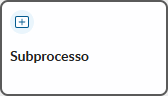
The Subprocess component represents a point in the process where another complete process, which is the subprocess, starts. In other words, this component represents a set of grouped activities – that form a process – within a main or larger process, allowing encapsulation of this set of activities within a single component to facilitate the reading and maintenance of the main process diagram.
With the Subprocess component, you can break down large and complex processes into smaller parts – subprocesses – improving comprehension of the steps, as it prevents the diagrams from becoming confusing, simplifying the modeling and management of the process as a whole.
You can also reuse a workflow in multiple processes or at various points within the same process, which ensures consistency of the steps, minimizes errors, saves modeling time, and reduces the effort of configuring components.
|
When a request from the main process reaches the subprocess step, it is paused, and a new request for the subprocess is created. When the subprocess request is completed, the main process request can be resumed to continue in the main flow until its completion.
If the main process flow allows for a return, when the request reaches the subprocess step, a new request opens in the subprocess, and the main process request is blocked until the subprocess request is completed. As soon as the subprocess request is completed, the main process request is sent back to the step prior to the subprocess, so it can continue in the main flow until its completion.
When using the Subprocess component, you can also share information between the forms of the main process and the subprocess. More details are described in the topic Sending data between the process and the subprocess.

|
The Subprocess component allows you to share information between the main process and the subprocess, reducing the need to manually re-enter data. For this, both processes – the main one and the subprocess – must have a linked form, thus enabling the flow of information between the processes in a simple and transparent manner.
The definition of the sending and receiving of information between the processes is based on the configuration of the fields in both forms, allowing you to specify which values to share and the direction of each:
 subprocess: values are sent from the main process to the subprocess;
 subprocess: values are sent from the subprocess to the main process.
|
Each field can receive the value of only one field; that is, you cannot configure the same field to receive values from more than one field.
|
01. In the process diagram, click the Subprocess component 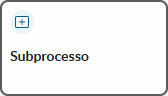 .
.
02. On the right side, where the component settings are displayed, click  Usage Guide – located at the bottom.
03. View the presentation of the highlighted feature.
04. Click Next to proceed to the presentation of the next feature.
When there are previous features, you can click Back to review them. |
05. Upon finishing the guided tour, click Finish.
If you wish, you can click Back to review the previous features before finishing. |
01. In the process diagram, click the Subprocess component you want to configure.
The available settings are displayed on the right side. |
02. In the General tab, define the general information for the component that represents another process within the main process.
Title
Activity Instructions
Process Transfer Attachments Joint Cancellation Move Activity |
03. Click Configure Fields to define the data sharing between the forms of the main process and the subprocess.
This option is only enabled when the main process already has a linked form, and a process that has at least one published version is selected in the Process field. The field configuration allows you to define which values to share between the forms of the two processes and the direction of each. You can send data from the main process form to the subprocess form and vice versa. Find more details at Data Sending between the Process and the Subprocess. |
04. Click Add  .
.
05. In the Process Fields column, select the field from the main process form to send or receive the value from the subprocess form – according to what is defined in the Direction column.
06. In the Direction column, define the direction of the value sharing for that field; that is, whether the field value should be sent to the subprocess or received from the subprocess.
To change the direction, simply click the arrow until the desired direction is displayed. The direction options are:
|
07. In the Subprocess Fields column, select the field of the subprocess form that will send or receive – according to what is defined in the Direction column – the value from the field of the main process form that is selected in the Main Process Fields column.
08. Click Save  – located on the right side.
To cancel adding the value transfer between the fields, simply click Cancel The Status column displays the status of the value sharing relationship between the fields of the main process form and the subprocess. The indicators are:
You can edit the relationship between the fields by clicking Edit |
09. Once you have completed the configuration of all desired sharing relationships between the fields, click Save.
10. Click the Assignment tab to see who will be responsible for the request to be created in the subprocess.
The displayed assignment is the one configured in the first step of the subprocess; that is, the request to be opened in the subprocess will be sent to the responsible party in accordance with the type of assignment defined in the subprocess. |
11. Click Save draft – located on the right side of the top bar – to save the settings made in the Subprocess component.
12. In the displayed message, click Ok, I understand.
01. In the process diagram, click the Subprocess component for which you want to configure data sharing between the main process and subprocess forms.
02. In the General tab, click Configure fields.
This option is only enabled when the main process already has a linked form, and a process with at least one published version is selected in the Process field. The field configuration allows you to define which values to share between the forms of the two processes and the direction of each. You can send data from the main process form to the subprocess form and vice versa. Find more details at Sending data between the process and the subprocess. |
03. Click Add .
04. In the Process fields column, select the field from the main process form to send or receive the value from the subprocess form – in accordance with what is defined in the Direction column.
05. In the Direction column, define the direction of the value sharing for that field; that is, whether the field value should be sent to the subprocess or received from the subprocess.
To change the direction, simply click the arrow until the desired direction is displayed. The direction options are:
|
06. In the Subprocess Fields column, select the form field of the subprocess that will send or receive – according to what was defined in the Direction column – the value of the form field of the main process that was selected in the Main Process Fields column.
07. Click on Save – located on the right side.
To cancel adding the relationship between the fields, simply click Cancel The Status column displays the status of the value sharing relationship between the form fields of the main process and the subprocess. The indicators are:
You can edit the relationship between the fields by clicking Edit |
08. Once you have completed the configuration of all desired sharing relationships between the fields, click Save.
09. Click Save draft – located on the right side of the top bar – to save the changes made to the Subprocess component.
10. In the displayed message, click Ok, I understand.
01. In the process diagram, click the Subprocess component for which you want to edit the data sharing between the main process and subprocess forms.
02. In the General tab, click Configure fields.
03. Locate the field relationship you wish to edit.
04. Click Edit  – located on the right side.
05. Change the desired items.
06. Click Save – located on the right side.
07. Once you have completed all desired changes, click Save – located in the bottom right corner.
08. Click Save draft – located on the right side of the top bar – to save the changes made to the Subprocess component.
09. In the displayed message, click Ok, I understand.
01. In the process diagram, click the Subprocess component from which you want to remove the data sharing between the main process forms and the subprocess.
02. In the General tab, click on Configure fields.
03. Locate the list of fields you want to remove.
04. Click Remove – located on the right side.
05. In the confirmation message displayed, click Confirm to confirm the removal of the sharing relationship between the fields.
06. Once you have completed all desired removals, click Save – located in the lower right corner.
07. Click Save draft – located on the right side of the top bar – to save the changes made to the Subprocess component.
08. In the displayed message, click Ok, I understand.
Check here some frequently asked questions about the Subprocess component.
<script>
    (function() {
        function toggleAreas(isExpand, $parent) {
            var $items = $parent.find('.panel');

            $.each($items, function(idx, el) {
                var $arrow = $(el).find('span.cloakToggle').find('span');
                var $content = $(el).find('span.cloak');
                if (isExpand) {
                    $arrow.removeClass('cloakDefaultOpen').addClass('cloakDefaultClose');
                    $content.show();
                } else {
                    $arrow.addClass('cloakDefaultOpen').removeClass('cloakDefaultClose');
                    $content.hide();
                }
            });
        }

        $(document).on('click', '#toggleAll-3', function(ev) {
            ev.preventDefault();
            var isExpand = $(this).data('expand');
            var $parent = $(this).nextAll('.sectionColumnWrapper').first();
            toggleAreas(isExpand, $parent);
            $(this).data('expand', !isExpand);
        });
    })();
</script>
<a id="toggleAll-3" href="#" data-expand="true">Open/close all questions</a> |
|
This documentation is valid from the Voyager (2.0) update onwards. If you are using a previous update, it may contain information different from what you see on your platform. |
<!-- Hotjar Tracking Code for http://tdn.totvs.com/display/fb -->
<script>
    (function(h,o,t,j,a,r){
        h.hj=h.hj||function(){(h.hj.q=h.hj.q||[]).push(arguments)};
        h._hjSettings={hjid:1280165,hjsv:6};
        a=o.getElementsByTagName('head')[0];
        r=o.createElement('script');r.async=1;
        r.src=t+h._hjSettings.hjid+j+h._hjSettings.hjsv;
        a.appendChild(r);
    })(window,document,'https://static.hotjar.com/c/hotjar-','.js?sv=');
</script> |


 – located on the right side – instead of Save
  → indicates that the sharing between the fields is inconsistent, such as a field being edited or no longer existing in one of the forms.