|
|
The user management page allows the company administrator to view the names, emails, status, quantity, and registration page of each user, as well as assign applications and associate users with groups. All changes to users are recorded in the audit report (documentation in Portuguese language).
It is also from the Manage Users page that the procedure to manually include new users in the context is initiated.
The possible status for accounts in TOTVS Identity are:
The available roles for accounts in TOTVS Identity are:
01. Access the Users menu.
A list will be displayed with all users registered in the company context in TOTVS Identity, both those imported from an Active Directory and those created manually. Next to each user's name, you can check the account type (Regular user or Administrator) and the status in the company (Activated, Invited, Deactivated, or Blocked). |
01. Access the Users menu.
02. In the Search user field, choose whether the search will be by email, by first name or last name, or by username.
03. Enter the text to be searched.
01. Access the Users menu.
02. Click the Filter  button.
03. In the Filter users area, modify the filters as needed and click the Apply filter button.
The available options are:
|
04. To remove the applied filters and view the complete list again, click Clear filters.
01. Access the Users menu.
02. Modify the filters as needed.
03. Click the Export  button.
04. In the confirmation message, click the Export option.
The records displayed on the page at the moment the Export button was clicked will be exported to a CSV file. A link valid for 48 hours is sent to the email address of the administrator who requested the report for downloading the exported file. |
05. Access the email and click the link to download the report.
The browser should automatically present the option to save a file in CSV format. If this does not occur, in the open tab, click the Download option. The CSV file contains the email, identifier, full name, role (regular user or administrator), and the current status at the time of generating the report. |
These steps refer to the manual inclusion of users in a company using TOTVS Identity. To learn about importing users from Active Directory, please refer to the Active Directory documentation.
01. Access the Users menu.
02. Click the Add User button.
03. Enter the requested information in the Account Data tab.
The requested information is: First Name In the Activation Options section, the method of account activation is selected. The available options are:
The Custom Fields section is displayed only if there are fields created in the Identity Customization feature. |
04. Click the Groups tab and check the groups that should be associated with the user.
By default, the user is automatically associated with the Everyone group, which includes all users in the company. It is possible to use the search to filter if there are many registered groups. By associating the user with the groups, all linked applications will be automatically associated with the user. |
05. Click the Applications tab and check the applications that should be associated with the user.
The user is automatically associated with the applications linked to the Everyone group and any other groups they are added to. It is possible to use the search to filter the desired applications. |
06. Click Add User to complete the user inclusion.
The user data page gathers registration information and allows the administrator to take a series of actions related to the user's account, such as resending the invitation via email, resetting the MFA configuration, changing the user type, associating groups, assigning applications, provisioning in Active Directory, deactivating the account, among others.
01. Access the Users menu.
02. Locate the desired user in the list.
03. Click on the user's name or the View  icon to open the respective page with the data.
Name
Email or Username
Status Department Temporary Password Groups Applications Active Directory Provisioning MFA Authentication |
01. Access the Users menu.
02. Locate the desired user in the list.
03. Click the Edit  icon and change the desired information.
The information that can be changed includes: Username, User Type, Department, and custom fields (if any). The email or username cannot be changed by the administrator. |
04. Click Save to confirm the changes.
01. Access the Users menu.
02. Locate the desired user in the list.
03. Click the Export icon.
04. Enter the user's email as confirmation.
05. Click Export to confirm.
The data for the respective user related to the current company will be downloaded in a JSON file. In this file, it is possible to review the entire history of views and changes that have occurred in the personal data related to this user. |
01. Access the Users menu.
02. Locate the desired user in the presented list.
03. Click More options  located in the user's row and select the Associate groups option.
A list is presented with all the groups registered in the context of the company in TOTVS Identity, both those imported from Active Directory and those created manually. |
04. Check the area corresponding to the group that should be included and click Associate groups to confirm.
01. Access the Users menu.
02. Locate the desired user in the presented list.
03. Click More options located in the user's row and select the Manage groups option.
A list is presented with all the groups to which the user has been associated. |
04. Locate the groups from which you want to remove the user and click Remove group  .
.
01. Access the Users menu.
02. Locate the desired user in the presented list.
03. Click More options located in the user's row and select the Associate applications option.
A list is presented with all the applications registered in the context of the company in TOTVS Identity. |
04. Locate the desired applications in the list or use the Search applications field to find them.
05. Check the area corresponding to the application you want to assign and then click Associate applications.
01. Access the Users menu.
02. Locate the desired user in the presented list.
03. Click More options located in the user's row and select the Manage applications option.
The applications assigned directly to the user's account or associated with the user's groups will be listed. Only the applications associated with the user can be removed through this screen. |
04. Locate the applications you want to remove, click More options , and then click Remove application.
01. Access the Users menu.
02. Locate the desired user in the list.
03. Click on the user's name or on the View icon to open the respective page with the user's data.
The Active Directory Provisioning panel displays the provisioning status of the user in Active Directory.
|
01. Access the Users menu.
02. Locate the desired user in the list.
03. Click on the user's name or on the View icon to open the respective page with the user's data.
04. In the Active Directory Provisioning panel, click the button and then More details.
The Account domain, Root DN, ObjectGUID, and ImmutableID of the user synchronized with Active Directory will be listed for consultation. |
01. Access the Users menu.
02. Locate the desired user in the list.
03. Click on the user's name or on the View icon to open the respective page with the user's data.
04. In the Active Directory Provisioning panel, click the button and then Provision Active Directory.
05. Fill in the account data fields to provision the user for Active Directory.
The necessary data for provisioning are: Active Directory |
06. Click Save.
A request will be sent to Active Directory via SmartSync to create the user in the chosen domain. After provisioning, the user will be able to authenticate with the Active Directory password in this Identity context, provided that the company's administration has enabled this feature. |
01. Access the Users menu.
02. Locate the desired user in the list.
03. Click on the user's name or on the View icon to open the respective page with the user's data.
The MFA Authentication panel presents the status of this security feature for the user in question.
|
This option allows the multifactor authentication configuration to be done again in case of device change or removal of the account previously registered in the My Safe id application, for example.
01. Access the Users menu.
02. Locate the desired user in the list.
03. Click on the user's name or on the View icon to open the respective page with the user's data.
04. In the MFA Authentication panel, click the button and then Disable.
05. Enter a justification and the password to confirm the action.
The justification is mandatory and will be recorded in history; it can later be consulted in the audit report. |
06. Click the Disable button.
If the user is part of a group with mandatory MFA, it is necessary to configure multifactor authentication again for access to Identity to be granted. |
Essa opção só é apresentada caso o usuário esteja com a situação Convidado.
01. Acione o menu Usuários.
02. Localize o usuário desejado na lista.
03. Clique sobre o nome do usuário ou sobre o ícone Visualizar  para abrir a respectiva página com os dados do usuário.
04. Em Ações, acione Mais opções  e então Reenviar convite.
Uma nova mensagem de convite é enviada ao e-mail do usuário com um link para ativação da conta nesse contexto do TOTVS Identity. |
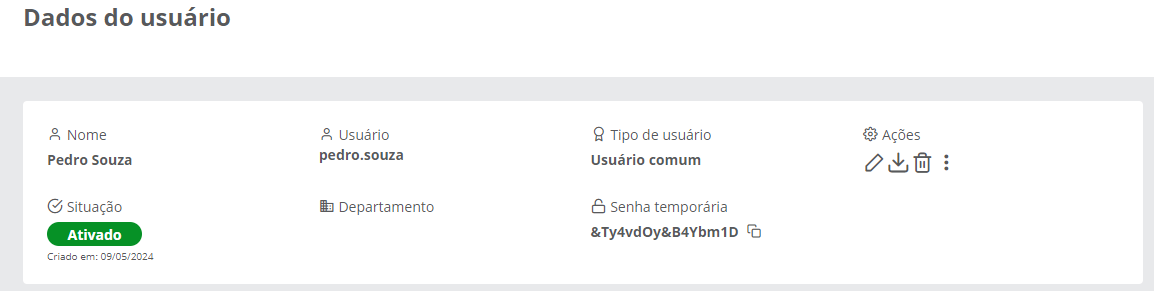
Essa senha é gerada para usuários criados a partir da opção de ativação por senha temporária, ou para reset de senha nos casos em que o usuário não tem e-mail cadastrado e, consequentemente, não consegue efetuar o reset de senha pela tela de login.
01. Acione o menu Usuários.
02. Localize o usuário desejado na lista.
03. Clique sobre o nome do usuário ou sobre o ícone Visualizar para abrir a respectiva página com os dados do usuário.
04. Localize o campo Senha temporária e acione Copiar senha temporária  .
.
Após acionar essa opção, a senha temporária é copiada para a área de transferência do usuário autenticado, e deve ser repassada ao usuário que necessita do acesso ao Identity. No primeiro login, o usuário é obrigado a alterar essa senha. |
Essa função só é permitida para usuário sem e-mail. Quando é gerada uma senha temporária para o usuário, ele automaticamente não consegue mais acessar com a senha anterior.
01. Acione o menu Usuários.
02. Localize o usuário desejado na lista.
03. Clique sobre o nome do usuário ou sobre o ícone Visualizar para abrir a respectiva página com os dados do usuário.
04. Em Ações, acione Mais opções e então Resetar senha.
Após acionar essa opção, será apresentada ao administrador uma senha temporária. Essa senha deve ser informada ao usuário, para que ele possa efetuar o login normalmente. No primeiro login, o usuário é obrigado a alterar essa senha. |
Esse recurso possibilita que o usuário seja desativado por um período predefinido e após esse período, seja automaticamente reativado no TOTVS Identity.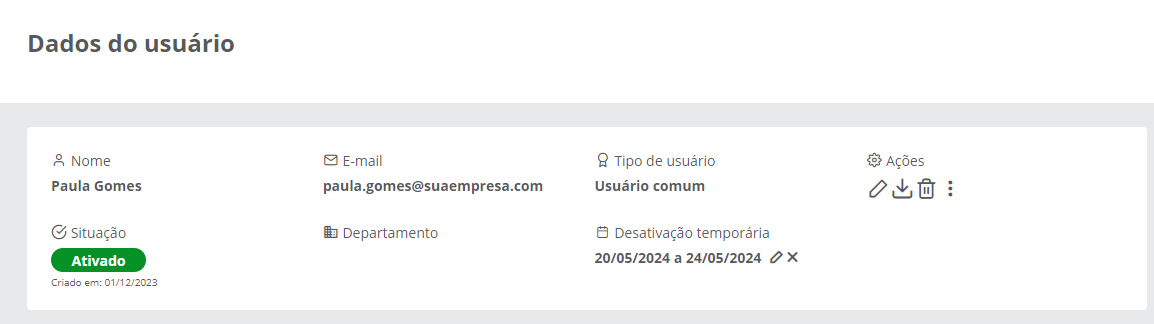
01. Acione o menu Usuários.
02. Localize o usuário desejado na lista.
03. Clique sobre o nome do usuário ou sobre o ícone Visualizar para abrir a respectiva página com os dados do usuário.
04. Em Ações, acione Mais opções e então Desativação temporária.
05. Preencha as informações necessárias.
Data Inicial Data Final Descrição |
06. Acione Desativar.
Após salvar, o período de desativação temporária será apresentado na tela de dados do usuário. A desativação temporária não sincroniza a situação do usuário desativado no TOTVS Identity com o Active Directory. |
01. Acione o menu Usuários.
02. Localize o usuário desejado na lista.
03. Clique sobre o nome do usuário ou sobre o ícone Visualizar para abrir a respectiva página com os dados do usuário.
04. Localize o campo Desativação temporária e acione Editar desativação .
.
05. Ajuste as informações necessárias.
06. Acione Desativar.
O período de desativação temporária será apresentado na tela de dados do usuário. |
01. Acione o menu Usuários.
02. Localize o usuário desejado na lista.
03. Clique sobre o nome do usuário ou sobre o ícone Visualizar para abrir a respectiva página com os dados do usuário.
04. Localize o campo Desativação temporária e acione Remover desativação  .
.
O usuário não será desativado no período definido previamente. |
01. Acione o menu Usuários.
02. Localize o usuário desejado na lista.
03. Clique sobre o nome do usuário ou sobre o ícone Visualizar para abrir a respectiva página com os dados do usuário.
04. Em Ações, acione Mais opções e então Desativar usuário.
04. Confirme a desativação acionando Desativar.
Após confirmar, o usuário não terá mais acesso ao contexto em que foi desativado, a menos que seja reativado por um administrador. Nos contextos em que a opção Sincronizar mudanças no estado do usuário do Identity para o Active Directory esteja ativada, o usuário também será desativado no Active Directory. |
Essa opção só é apresentada caso o usuário esteja com a situação Desativado.
01. Acione o menu Usuários.
02. Localize o usuário desejado na lista.
03. Clique sobre o nome do usuário ou sobre o ícone Visualizar para abrir a respectiva página com os dados do usuário.
04. Em Ações, acione Mais opções e então Ativar usuário.
04. Confirme a ativação acionando Ativar.
O usuário volta a ter acesso completo à conta no contexto. |
01. Acione o menu Usuários.
02. Localize o usuário desejado na lista.
03. Clique sobre o nome do usuário ou sobre o ícone Visualizar para abrir a respectiva página com os dados do usuário.
04. Em Ações, acione Excluir usuário  .
.
04. Para confirmar a exclusão, acione Excluir.
Após confirmar, a conta do usuário será totalmente removida da empresa e não poderá ser restaurada. O usuário não terá mais acesso ao contexto do TOTVS Identity do qual foi removido. Caso o usuário excluído tenha sido importado a partir do Active Directory, sua conta será automaticamente incluída na lista de Rejeitados.
|
Essa opção só é apresentada caso o usuário esteja com a situação Bloqueado, ou seja, tenha sido bloqueado por excesso de tentativas de login.
01. Acione o menu Usuários.
02. Localize o usuário desejado na lista.
03. Clique sobre o nome do usuário ou sobre o ícone Visualizar para abrir a respectiva página com os dados do usuário.
04. Em Ações, acione Mais opções e então Desbloquear.
05. Na janela de confirmação, acione Desbloquear.
Com isso, o usuário estará poderá voltar a tela de login para autenticar-se ou acionar a opção Esqueceu sua senha?. |
Caso o usuário tenha um e-mail de reset de senha configurado, ele próprio consegue realizar o desbloqueio pela opção de recuperação de senha pessoal. |
<!-- Hotjar Tracking Code for http://tdn.totvs.com/display/fb -->
<script>
    (function(h,o,t,j,a,r){
        h.hj=h.hj||function(){(h.hj.q=h.hj.q||[]).push(arguments)};
        h._hjSettings={hjid:1280165,hjsv:6};
        a=o.getElementsByTagName('head')[0];
        r=o.createElement('script');r.async=1;
        r.src=t+h._hjSettings.hjid+j+h._hjSettings.hjsv;
        a.appendChild(r);
    })(window,document,'https://static.hotjar.com/c/hotjar-','.js?sv=');
</script> |


 : Displays the AD in which the user is provisioned and the More details option to consult the Active Directory data (Account domain, Root DN, ObjectGUID, and ImmutableID).
 : If there are no